
Alfen onboarding guide - ACE Service Installer
Last updated:
You need an Alfen account in the ACE Service Installer, and the charger needs the latest firmware from Alfen’s website. Add the charger to your own Individual or Organisation Account. Installers: switch into your customer’s account first.
Upload the Tap configuration file
Section titled “Upload the Tap configuration file”The file installs Tap’s root certificate, so the charger can connect to Tap securely, and sets Tap as the charger’s backoffice.
-
Download the file for your charger model from Downloads at the end of this guide:
- NG9 models (earlier generation): Alfen NG9 Config.fwi
- AHP models (newer generation): Alfen AHP Config.tcf
-
Log in to the ACE Service Installer with your username and password.
-
Enter the charger’s default password. It’s on the note that came with the charger.
-
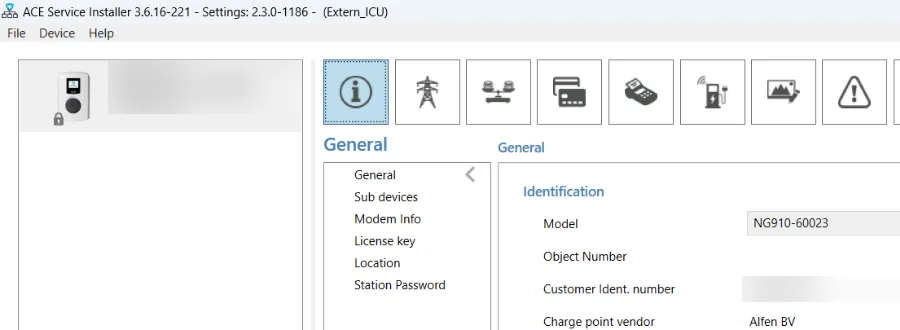
On the General tab (the i icon), select Upload Firmware.
-
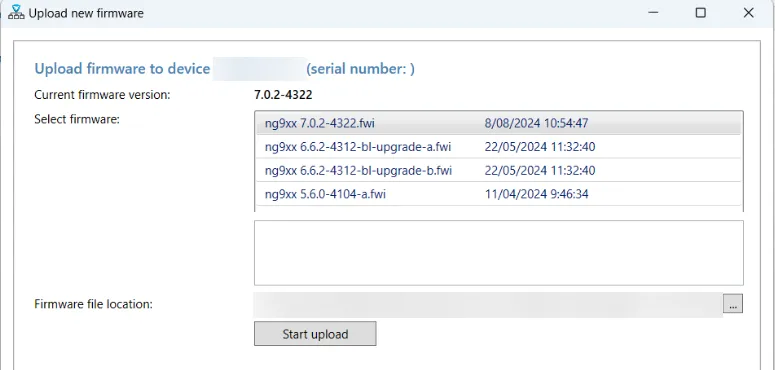
Next to Firmware file location, click … and select the file you downloaded.
-
Click Start upload.
-
Reboot the charger with the power button at the bottom left.
Add the charger in Tap
Section titled “Add the charger in Tap”-
With Manage selected at the top, open your location on the Home tab, tap Chargers, then Connect new chargers. For a new location, tap + below your locations on the Home tab.
-
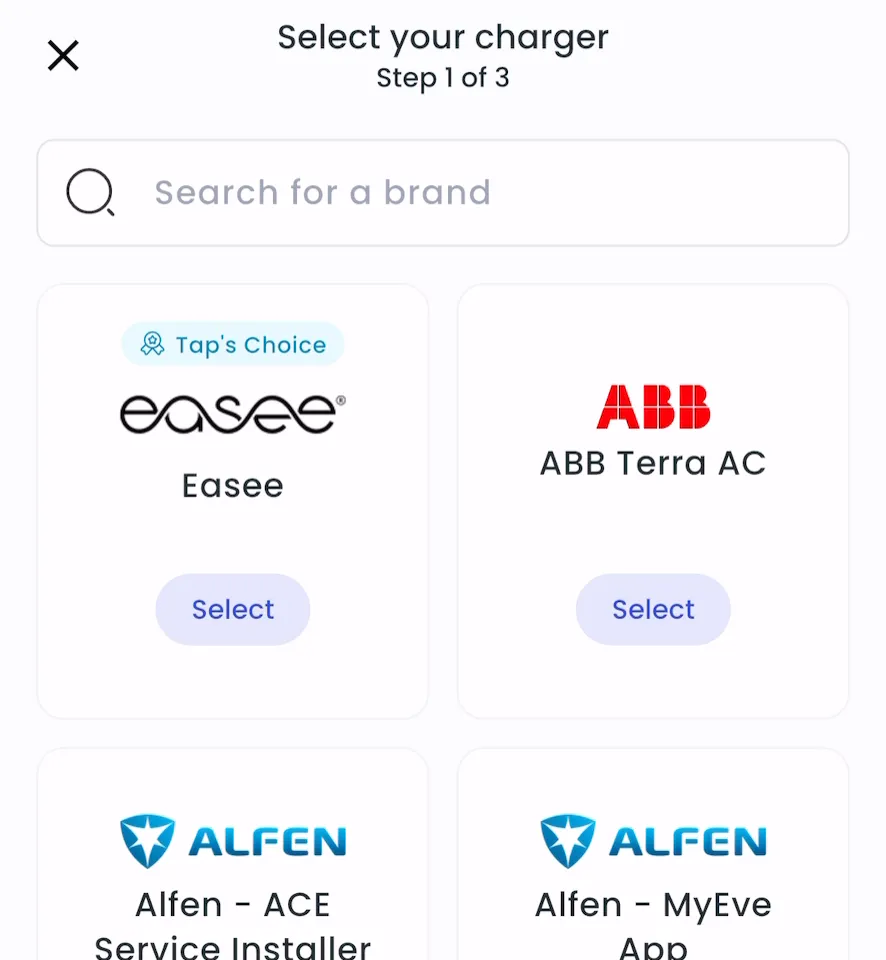
Search for Alfen - ACE Service Installer and tap Select.
-
Enter the charge point ID.
-
Locations > Connect new chargers, or click Connect new chargers on a location page.
-
Under Choose your charger brand, search for Alfen - ACE Service Installer and click it.
-
Under Charger ID, enter the charge point ID and click + Add.
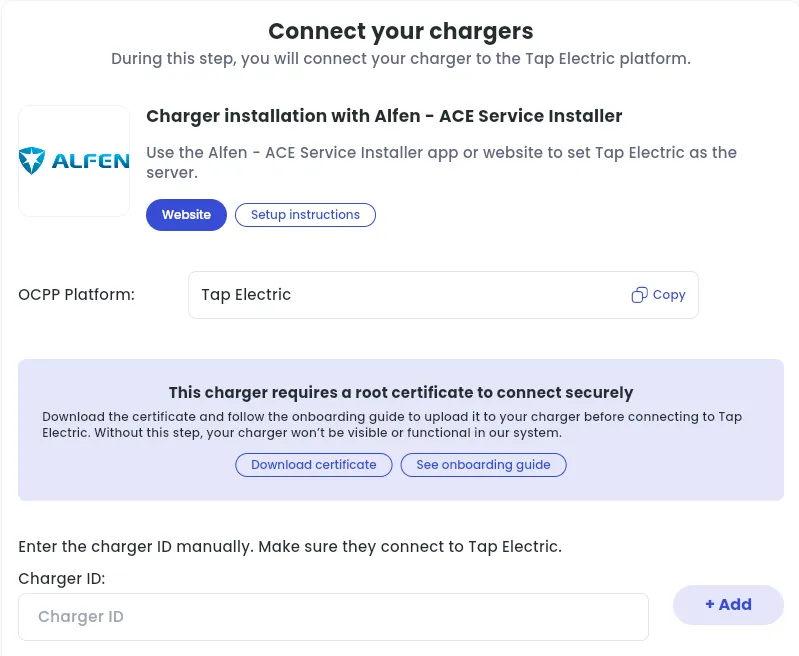
After a minute, the charger shows up and you can set its location.
Set the location
Section titled “Set the location”- Under Where is the charger?, choose New location and enter the address, or pick an Existing location.
- On You’re all set, choose what to do next, or tap Go to my location.
- Click Continue, then complete the Set location and Location settings steps.
Reconnecting after the February 2026 outage
Section titled “Reconnecting after the February 2026 outage”If your charger lost its connection to Tap on 25 or 26 February 2026, it needs Tap’s updated root certificate.
- Follow steps 1–7 under Upload the Tap configuration file.
- Wait 10–15 minutes. The charger then comes back online in Tap.
Using the MyEve app instead? See Alfen onboarding guide - MyEve App.
Downloads
Section titled “Downloads”- Alfen NG9 Config.fwi — for earlier generation NG9 models
- Alfen AHP Config.tcf — for newer generation AHP models