
Humax Onboarding Guide
Last updated:
You need the Humax Installer app on your phone, the PIN code that came with the charger, and the details of the network the charger will use. Add the charger to your own Individual or Organisation Account. Installers: switch into your customer’s account first.
Copy your backoffice path
Section titled “Copy your backoffice path”-
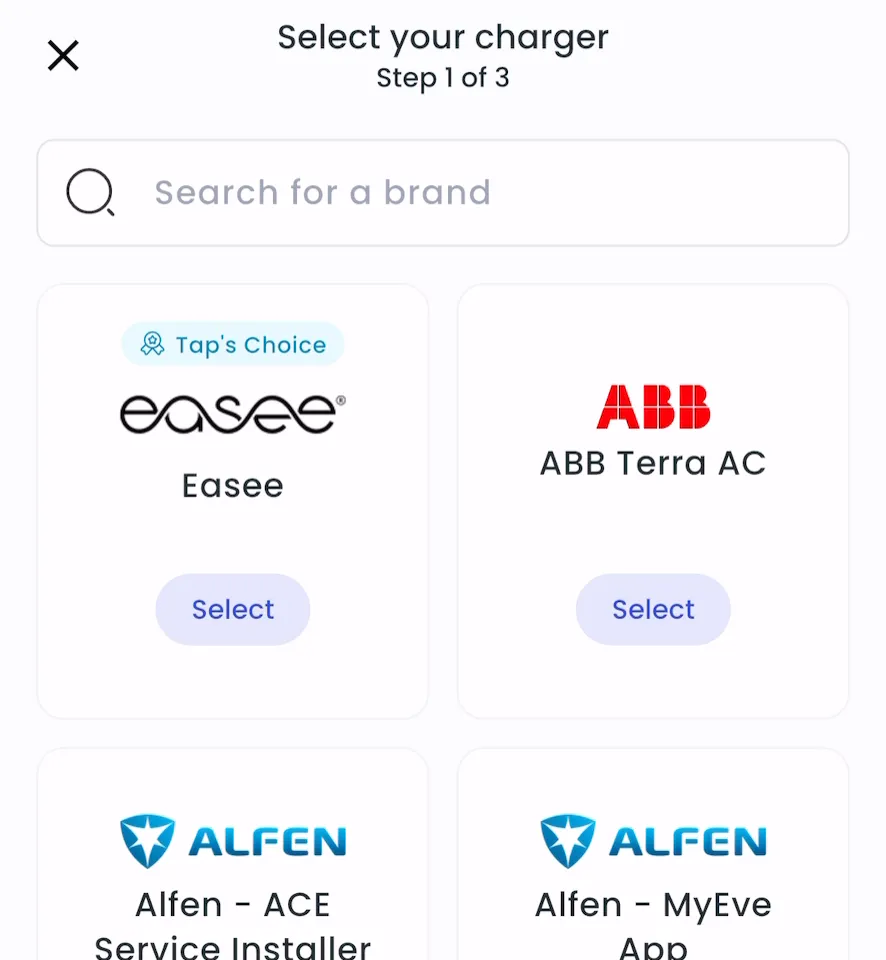
With Manage selected at the top, open your location on the Home tab, tap Chargers, then Connect new chargers. For a new location, tap + below your locations on the Home tab.
-
Search for Humax and tap Select.
-
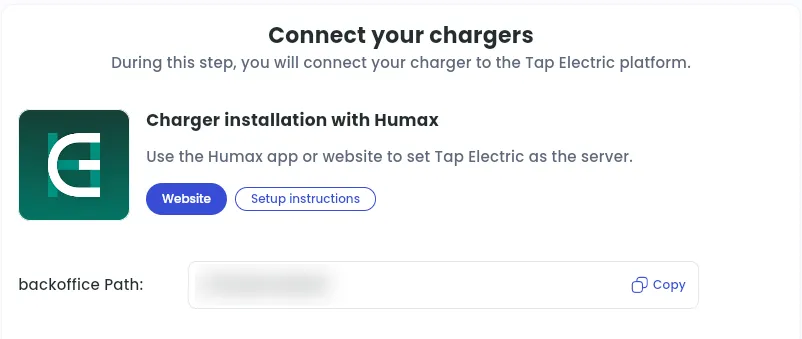
Copy the backoffice Path.
-
Locations > Connect new chargers, or click Connect new chargers on a location page.
-
Under Choose your charger brand, search for Humax and click it.
-
Next to backoffice Path, click Copy.
Connect the charger in the Humax Installer app
Section titled “Connect the charger in the Humax Installer app”-
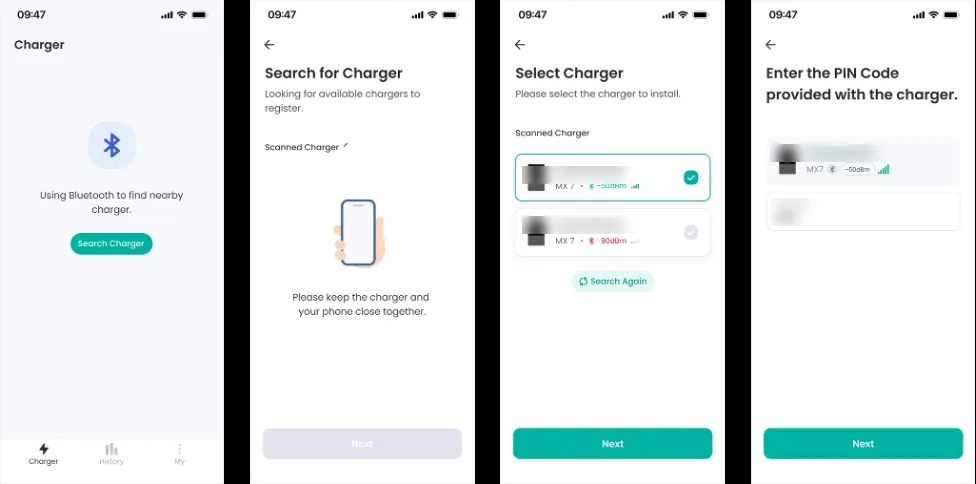
Open the Humax Installer app and sign in.
-
On the Charger tab, tap Search Charger to find nearby chargers over Bluetooth.
-
Select your charger and enter its PIN code.
-
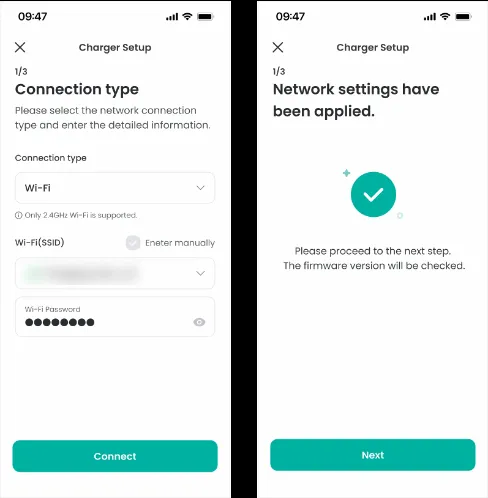
Enter the charger’s network details and apply them. If the app offers a firmware update next, it’s optional.
-
On Connect Operator Service, select Tap from the list.
-
Paste the backoffice path from Tap into Backoffice Path.
-
Tap Connect.
After a minute, the charger appears in Tap.
Set the location
Section titled “Set the location”- Under Where is the charger?, choose New location and enter the address, or pick an Existing location.
- On You’re all set, choose what to do next, or tap Go to my location.
- Under Your chargers, check that the charger is listed, then click Continue.
- Complete the Set location and Location settings steps.