
What is Tap’s Charge Control and how can it help optimise my charging set up?
Last updated:
Charge Control sets how much power your chargers can deliver at any time, based on your preferences, the cost of energy or grid limits. A Charge Control program applies to all chargers at a location, so you set it on the location (in Tap Web: the Locations menu), not on a single charger.
Choose the program that fits your site:
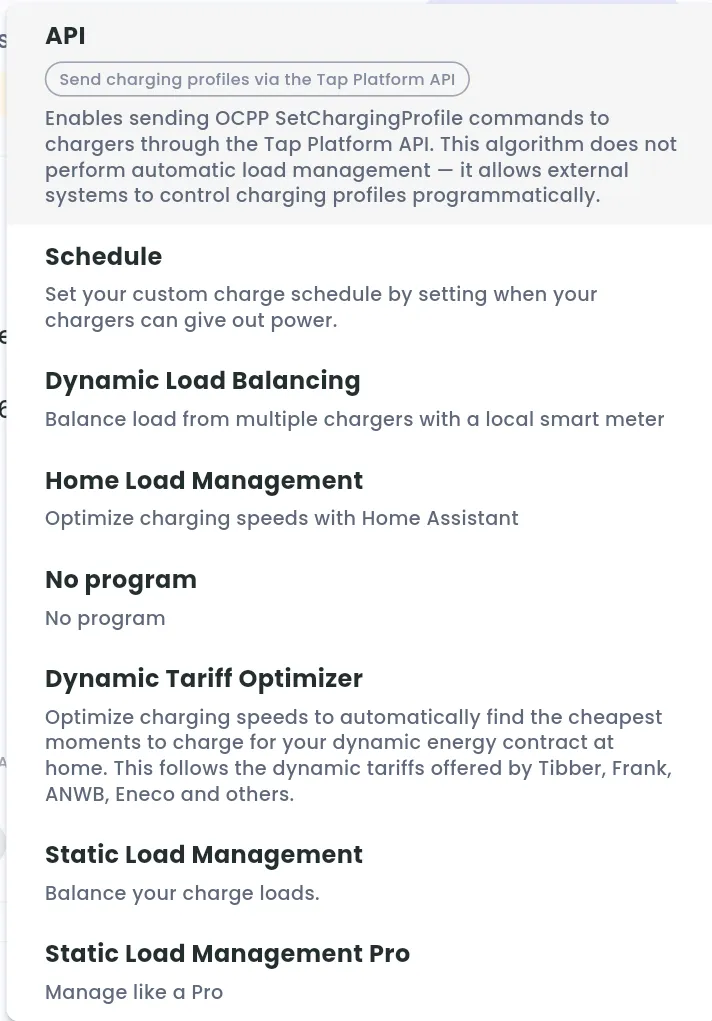
- Static Load Management: shares a fixed capacity limit across the chargers at a location, based on each charger’s demand.
- Schedule: sets a maximum current per charger on a schedule.
- Dynamic Tariff Optimizer (Netherlands and Belgium): charges at the cheapest times on a dynamic energy tariff.
- Dynamic Load Balancing: uses an external meter to balance charging against your grid connection in real time. See What is Dynamic Load Balancing, and how can I set it up with Tap?.
- API: send charging profiles to your chargers from your own system.
You can add a Random start delay on top of any program.
Choose a program
Section titled “Choose a program”-
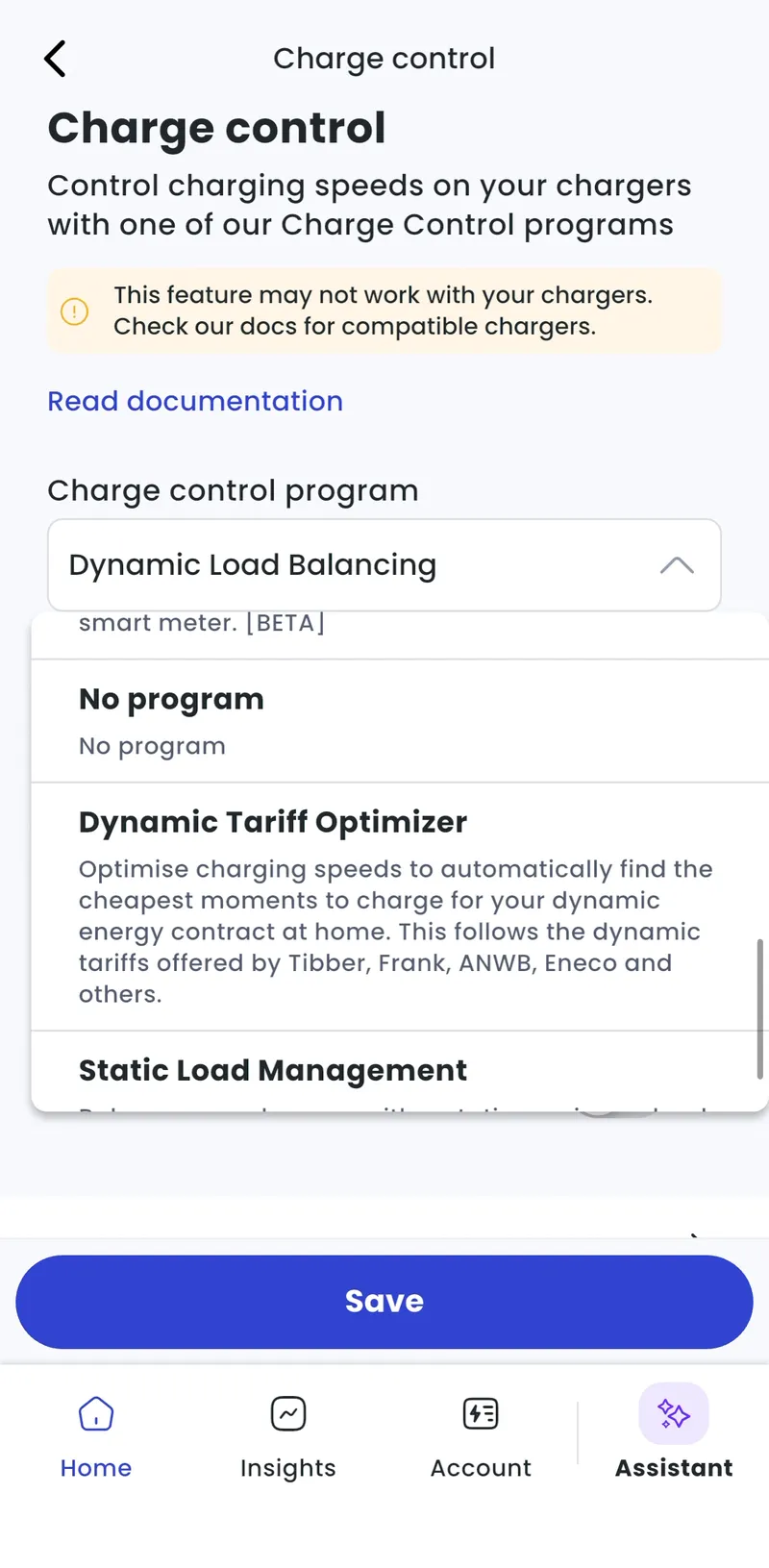
With Manage selected at the top, go to Home > [your location] > Charge control.
-
Under Charge control program, choose a program.
-
Enter the program’s settings (see below) and tap Save.
-
Locations > [your location] > Charge control
-
Click Change program and choose a program.
-
Enter the program’s settings (see below) and save.
Static Load Management
Section titled “Static Load Management”Set a capacity limit: the maximum current (amps) available at the panel. Tap shares it across the chargers that are in use. If three cars plug in at once, they share the capacity; if one car plugs in, it gets all of it.
Schedule
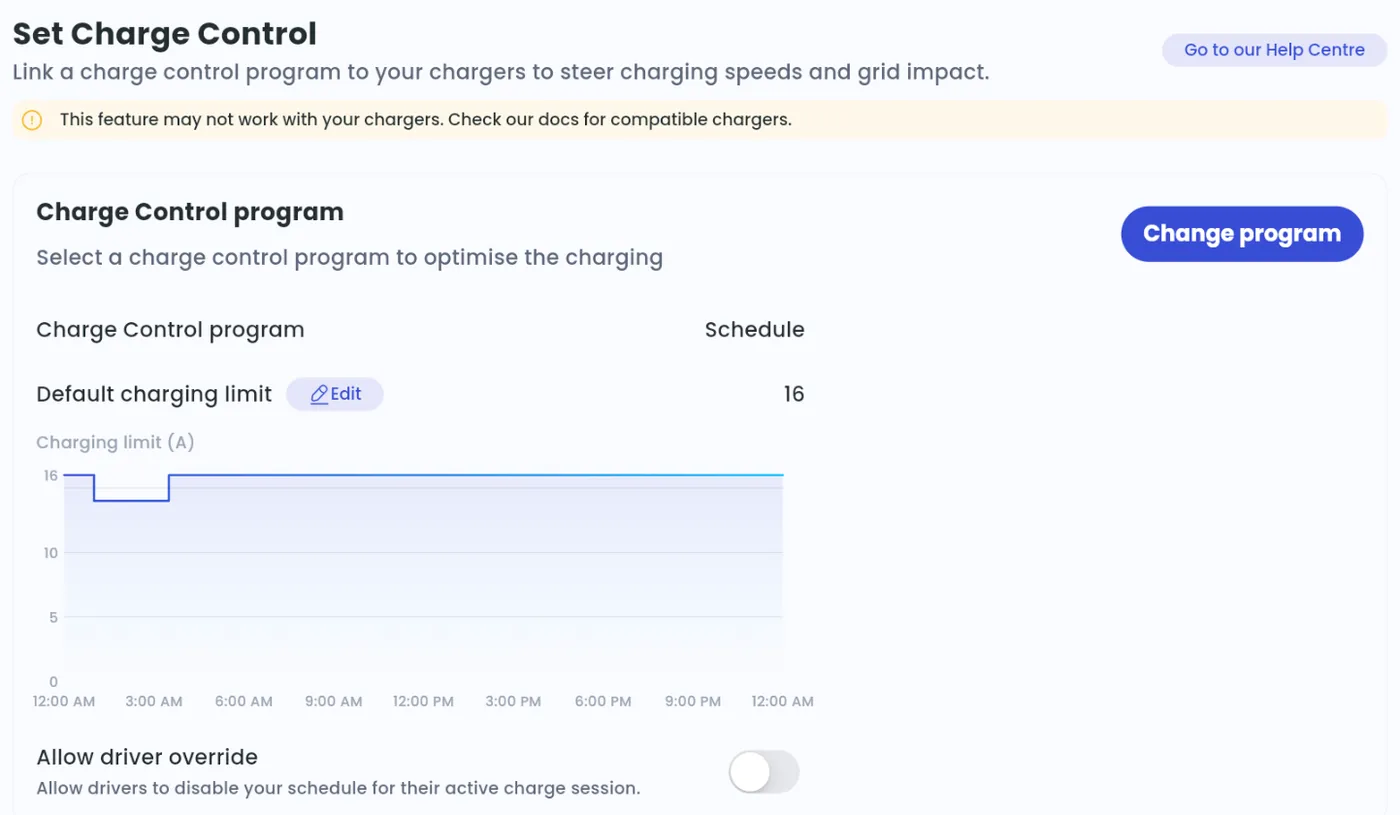
Section titled “Schedule”- Set a default charging limit. It applies whenever no interval is set.
- Add intervals and set a maximum rate for each.
- Save.
Allow driver override: once you’ve saved a schedule, you can let drivers switch it off for their session and charge immediately, e.g. at your peak tariff instead of waiting for off-peak.
Dynamic Tariff Optimizer
Section titled “Dynamic Tariff Optimizer”If you have a dynamic energy tariff, this program charges at the cheapest times. It follows the spot market price, which dynamic energy contracts also follow. Available in the Netherlands and Belgium.
It works best when the driver’s car is connected to Tap, so we know the battery level, but it also works without. See How do I connect my car to the Tap app? and Understanding how Tap’s Charge Control programs work for drivers.
Random start delay
Section titled “Random start delay”A random start delay staggers session starts to support the grid, e.g. when a schedule would switch many vehicles on at the same moment. It’s mandatory for locations in the United Kingdom.
- Switch on Random start delay.
- Enter the maximum delay in seconds.
- Save.
Charge Control via API
Section titled “Charge Control via API”Use the Tap Electric API to send charging profiles to your chargers, e.g. when they’re part of a wider energy management system.
- Set the program to API and save.
- Create an API key: Admin > Account > API > create new API app.
- Send charging profiles with the Send an OCPP message > SetChargingProfile endpoint. See the API documentation.