
Hager XEM 510/520 onboarding guide
Last updated:
You need access to the load manager’s Hager web interface. Add the chargers to your own Individual or Organisation Account. Installers: switch into your customer’s account first.
Copy your Tap Custom ID
Section titled “Copy your Tap Custom ID”-
With Manage selected at the top, open your location on the Home tab, tap Chargers, then Connect new chargers. For a new location, tap + below your locations on the Home tab.
-
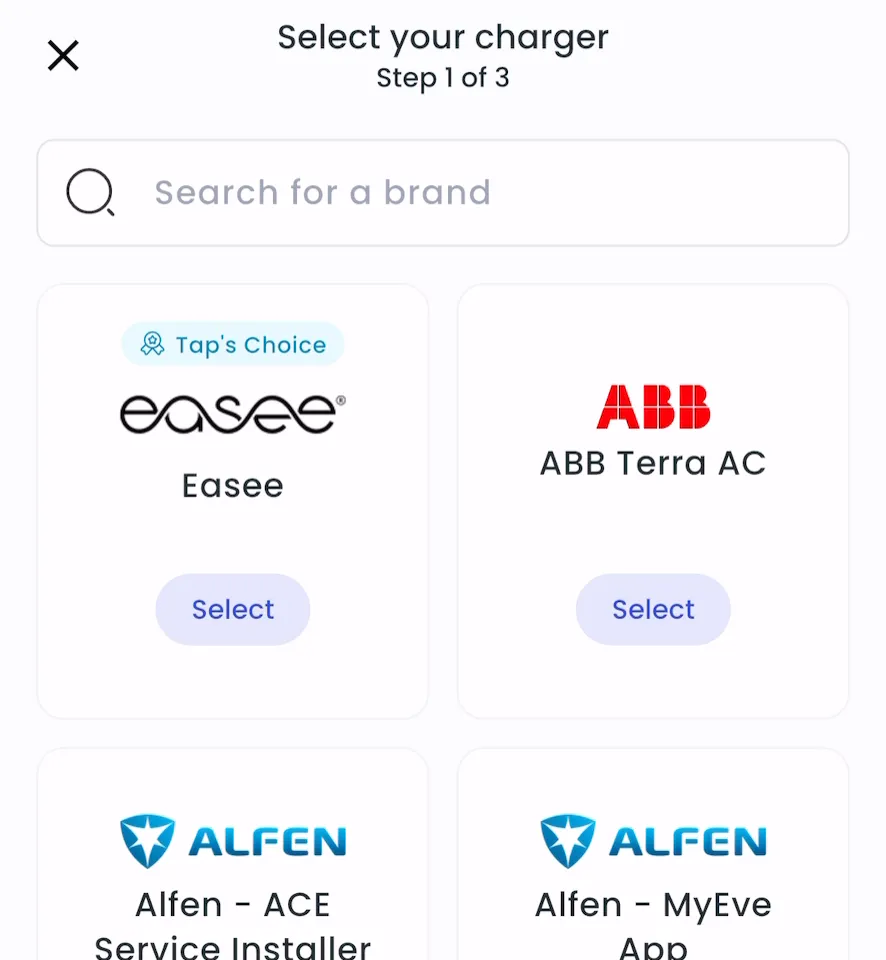
Search for Hager Xem 510/520 and tap Select.
-
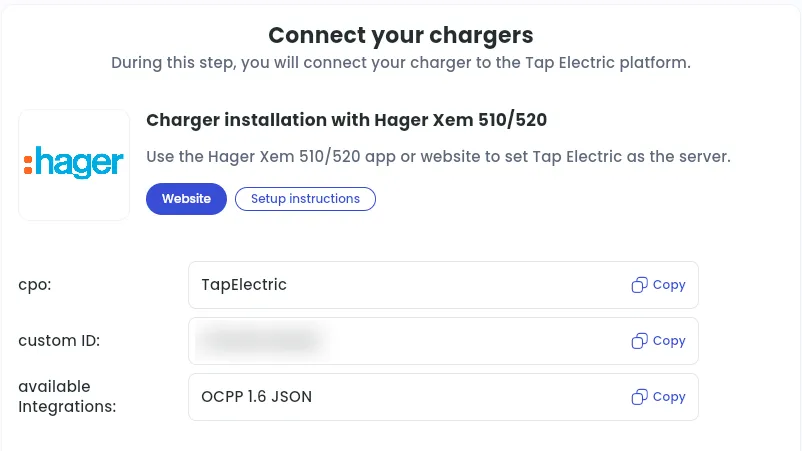
Copy the custom ID.
-
Locations > Connect new chargers, or click Connect new chargers on a location page.
-
Under Choose your charger brand, search for Hager Xem 510/520 and click it.
-
Next to custom ID, click Copy.
Connect the chargers to Tap in the Hager web interface
Section titled “Connect the chargers to Tap in the Hager web interface”-
Open the Hager web interface and sign in with your Hager credentials.
-
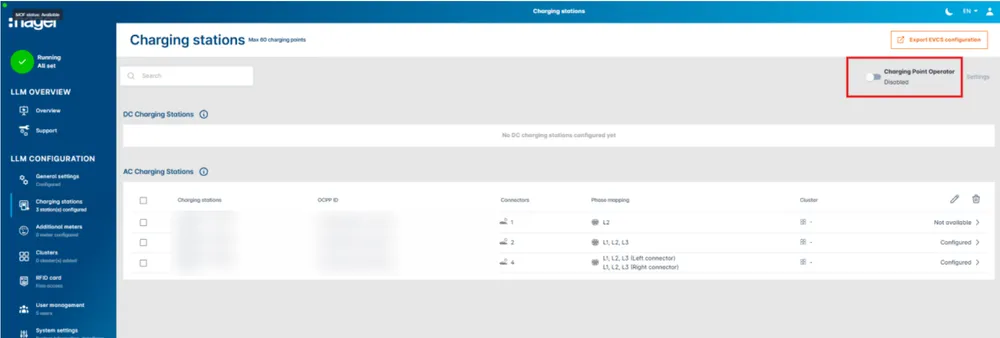
Go to Charging Stations and turn on the Charging Point Operator toggle (top right).
-
Open the operator Settings.
-
Under Choice of operator, select TapElectric, paste the custom ID from Tap into Custom ID, and click Next.
-
Select the chargers you want to connect to Tap and click Next.
-
For each charger, enter the OCPP ID it should have in Tap, then click Connect to CPO.
-
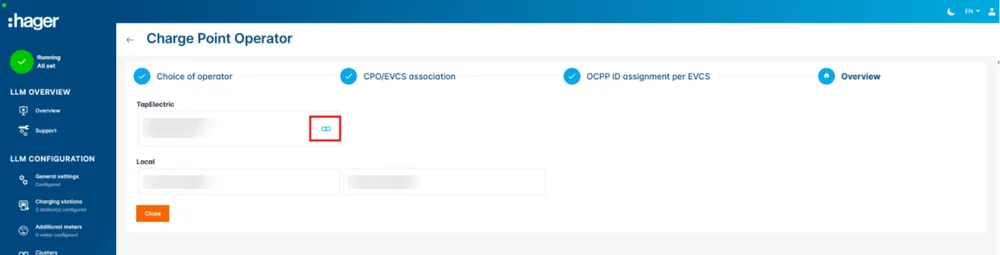
Wait for the blue icon that confirms the connection.
Add the chargers in Tap
Section titled “Add the chargers in Tap”- With Manage selected at the top, open your location on the Home tab, tap Chargers, then Connect new chargers. For a new location, tap + below your locations on the Home tab.
- Search for Hager Xem 510/520 and tap Select. The chargers appear in the list.
- Locations > Connect new chargers, then search for Hager Xem 510/520 and click it again.
- Under Your chargers, select the chargers, then click Continue.
Set the location
Section titled “Set the location”- Under Where is the charger?, choose New location and enter the address, or pick an Existing location.
- On You’re all set, choose what to do next, or tap Go to my location.
- Complete the Set location and Location settings steps.