
Ratio io5 / io6 / Smart / Solar - onboarding guide
Last updated:
Have a Ratio io7? See Ratio io7 onboarding guide. You need the Ratio EV Charging app. Add the charger to your own Individual or Organisation Account. Installers: switch into your customer’s account first.
Select Tap Electric in the Ratio app
Section titled “Select Tap Electric in the Ratio app”- Download the Ratio EV Charging app and create an account.
- Add the charger if it isn’t in the app yet: go to My chargers, tap add charger and enter the 6-digit Bluetooth code.
- Make sure the charger is connected to Bluetooth and the internet.
- Go to Settings (gear icon) > Advanced settings > OCPP settings.
- Select Open Charge Point Provider and choose Tap Electric.
- The CPID now shows. Copy it or write it down. This is the charger ID you enter in Tap.
Ratio app features, such as dynamic load balancing, solar charging and charging schedules, keep working after the charger is connected to Tap.
Add the charger in Tap
Section titled “Add the charger in Tap”-
With Manage selected at the top, open your location on the Home tab, tap Chargers, then Connect new chargers. For a new location, tap + below your locations on the Home tab.
-
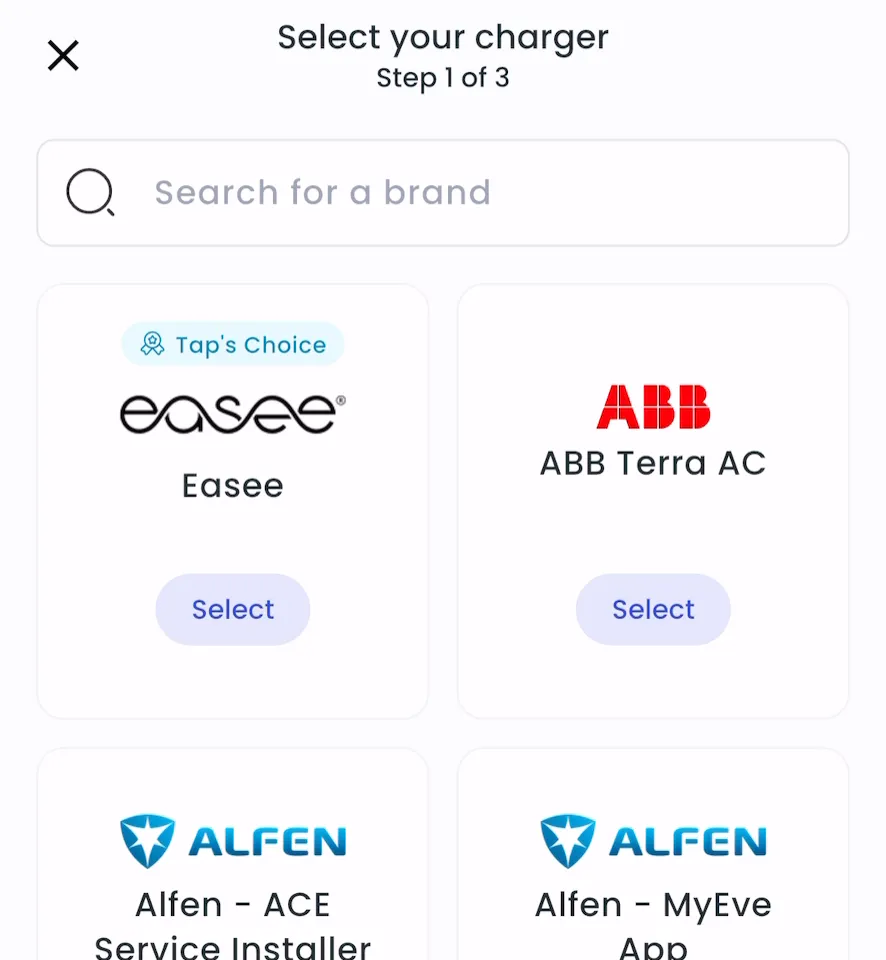
Search for Ratio io5 and tap Select.
-
Enter the CPID and tap Add.
-
Locations > Connect new chargers, or click Connect new chargers on a location page.
-
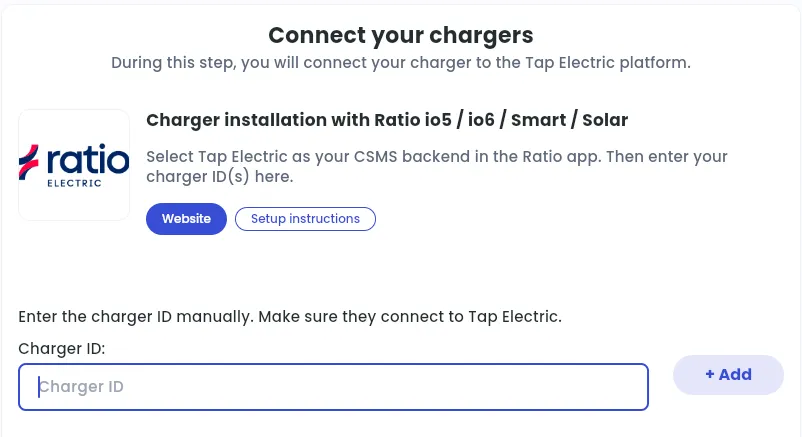
Under Choose your charger brand, search for Ratio io5 / io6 / Smart / Solar and click it.
-
Under Charger ID, enter the CPID and click + Add.
After a minute, the charger shows up and you can set its location.
Set the location
Section titled “Set the location”- Under Where is the charger?, choose New location and enter the address, or pick an Existing location.
- On You’re all set, choose what to do next, or tap Go to my location.
- Click Continue, then complete the Set location and Location settings steps.