
What is Tap Messaging and how do I use it?
Last updated:
Only available in the Tap app
Help other drivers who use the same chargers: join a charging group for a location, or leave a comment about it. It’s useful where the same drivers charge often, such as at work or at home.
Join or start a charging group
Section titled “Join or start a charging group”-
Open the charger’s full page and tap the Insights tab.
-
Scroll down to Charging group and tap Join the conversation.
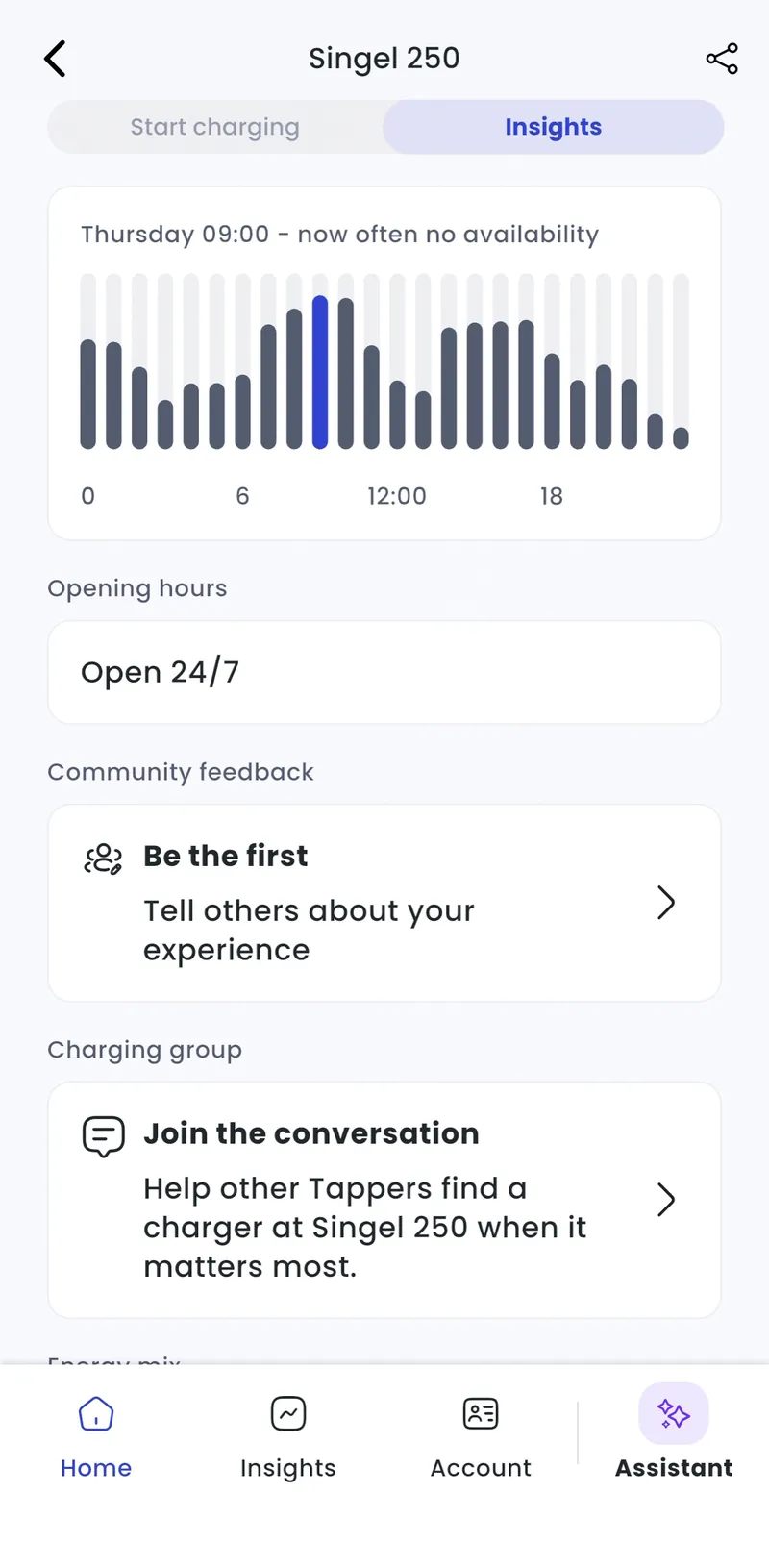
-
If there’s no group yet, tap create group. Other members see your name.
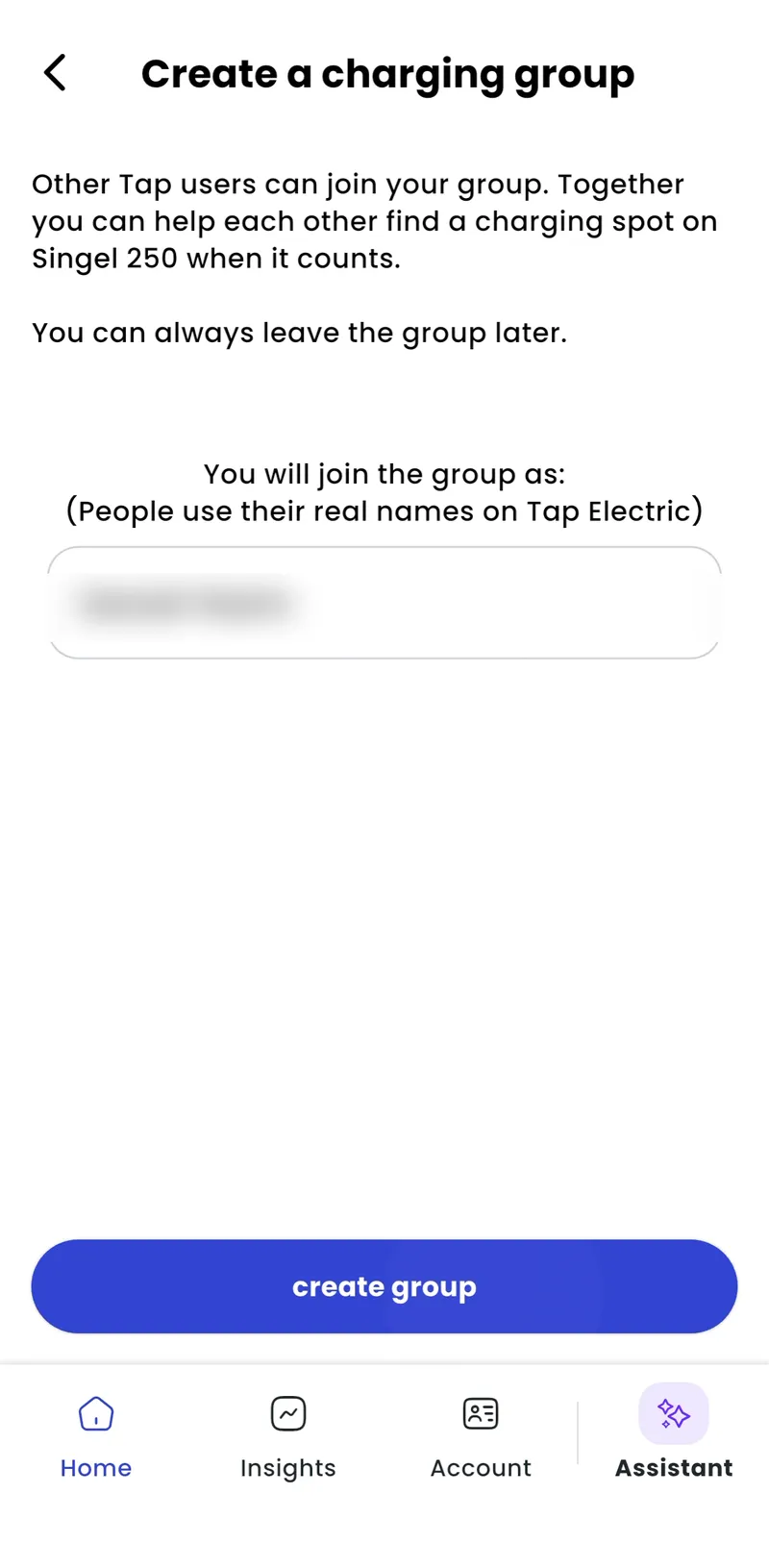
To invite people, such as neighbours or colleagues, copy the group link and send it to them. You can find the link under … in the top right of the group chat.
Leave a group
Section titled “Leave a group”In the group chat, tap … in the top right, then Leave this group.
Leave a comment about a location
Section titled “Leave a comment about a location”- Open the charger’s full page and tap the Insights tab.
- Under Community feedback, tap the feedback card.
- Tap Add comment.
The Insights tab also shows when the location is usually busy, its opening hours and, where known, its energy mix.