
SCU Sicon onboarding guide
Last updated:
You make these changes on the charger’s own screen. In the UK, SCU is represented by BlueEV, who can help with questions about these chargers. Add the charger to your own Individual or Organisation Account. Installers: switch into your customer’s account first.
Copy your Tap URL
Section titled “Copy your Tap URL”-
With Manage selected at the top, open your location on the Home tab, tap Chargers, then Connect new chargers. For a new location, tap + below your locations on the Home tab.
-
Search for SCU and tap Select.
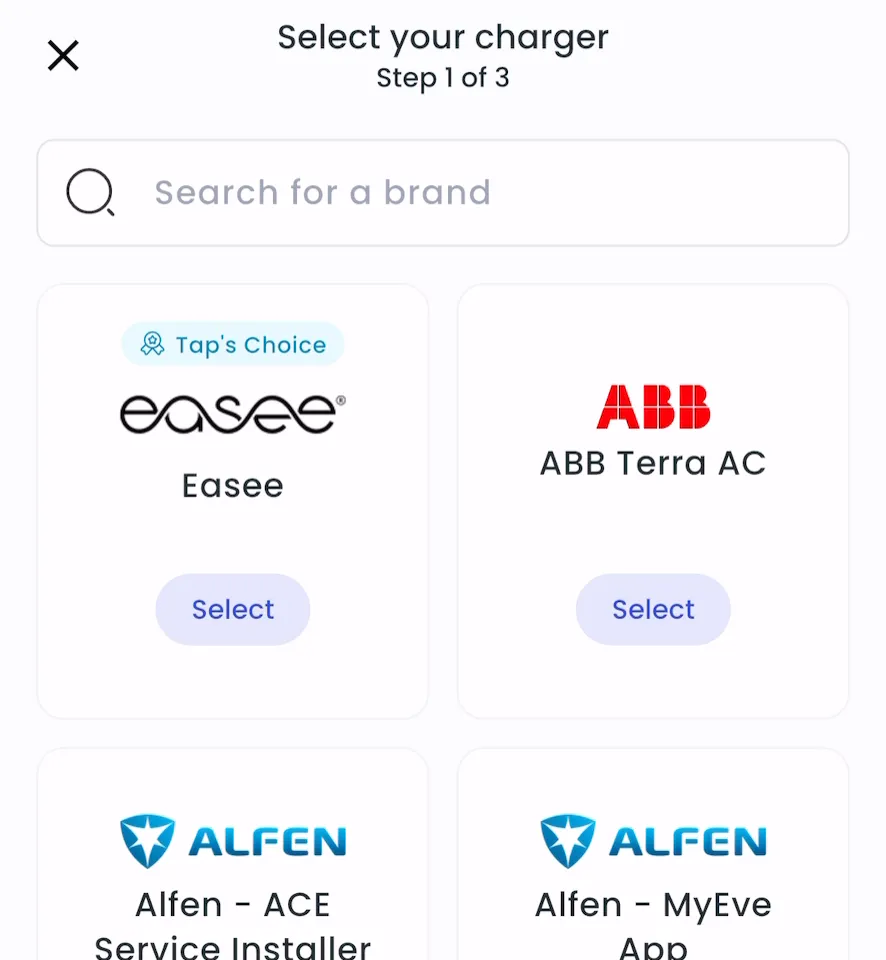
-
Copy the URL.
-
Locations > Connect new chargers, or click Connect new chargers on a location page.
-
Under Choose your charger brand, search for SCU and click it.
-
Copy the back Office Domain.
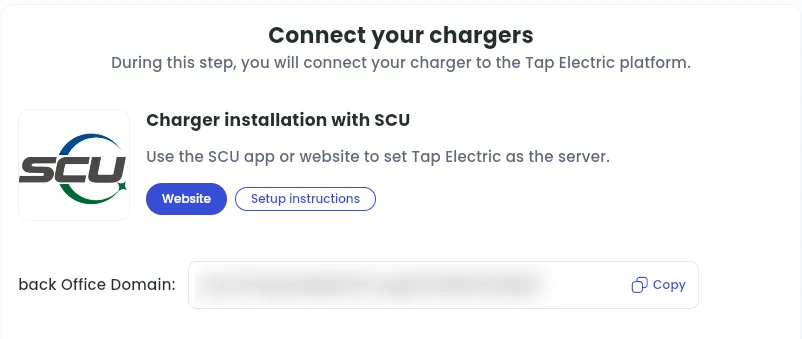
Set Tap as the back office on the charger
Section titled “Set Tap as the back office on the charger”-
On the charger’s screen, enter maintenance mode and tap CSU.
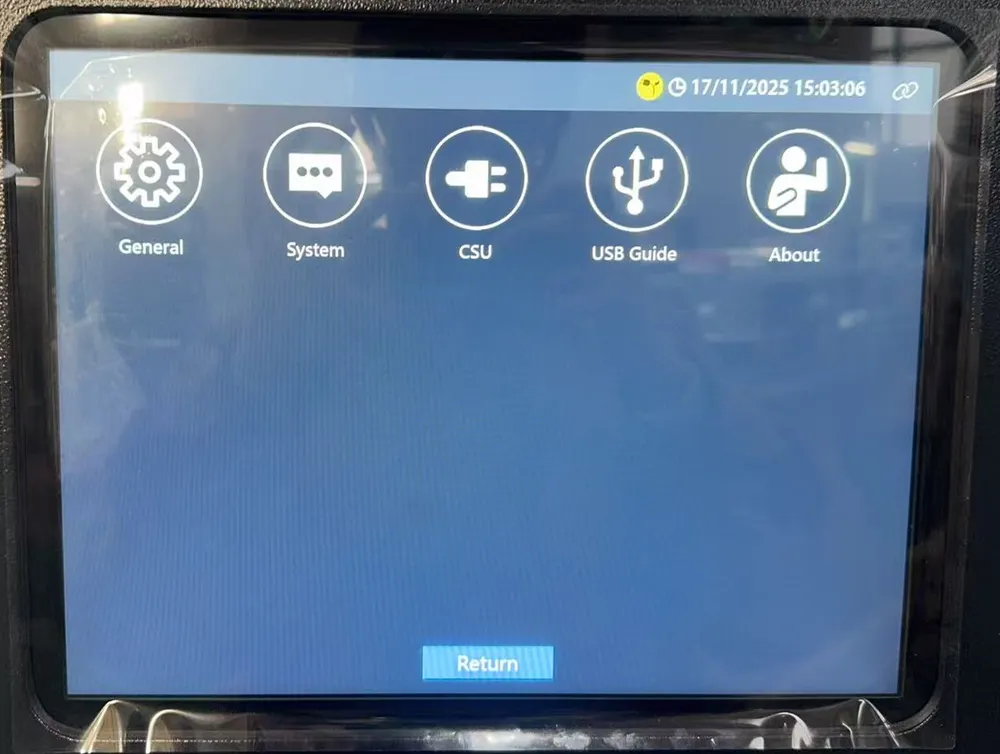
-
Go to Charger Settings > Back Office. In Domain, paste the URL you copied from Tap and tap submit.
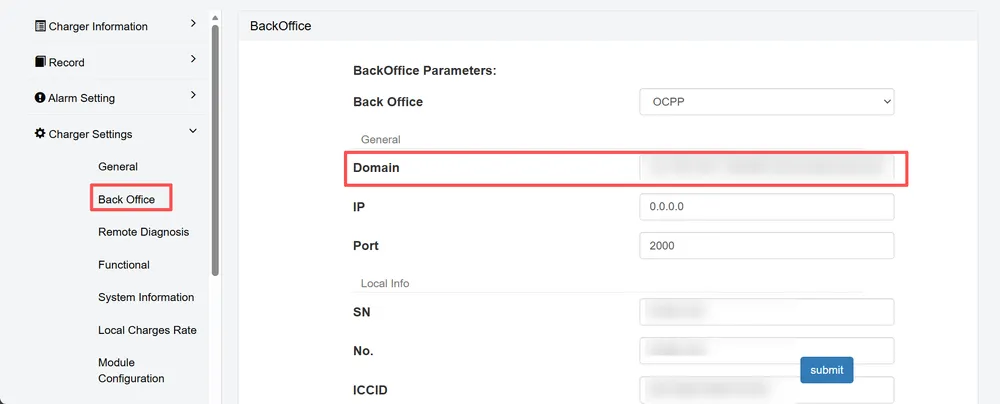
-
Go to Functional, turn on Manual Charging and tap submit.
After a minute, the charger appears in Tap.
Set the location
Section titled “Set the location”- Under Where is the charger?, choose New location and enter the address, or pick an Existing location.
- On You’re all set, choose what to do next, or tap Go to my location.
- Under Your chargers, check that the charger is listed, then click Continue.
- Complete the Set location and Location settings steps.