
Etrel onboarding guide
Last updated:
You need to be at the charger with a laptop and an ethernet cable, and you need the Etrel login from the sticker inside the side maintenance doors (no sticker? contact your charger supplier). Add the charger to your own Individual or Organisation Account. Installers: switch into your customer’s account first.
Copy your Tap URL
Section titled “Copy your Tap URL”-
With Manage selected at the top, open your location on the Home tab, tap Chargers, then Connect new chargers. For a new location, tap + below your locations on the Home tab.
-
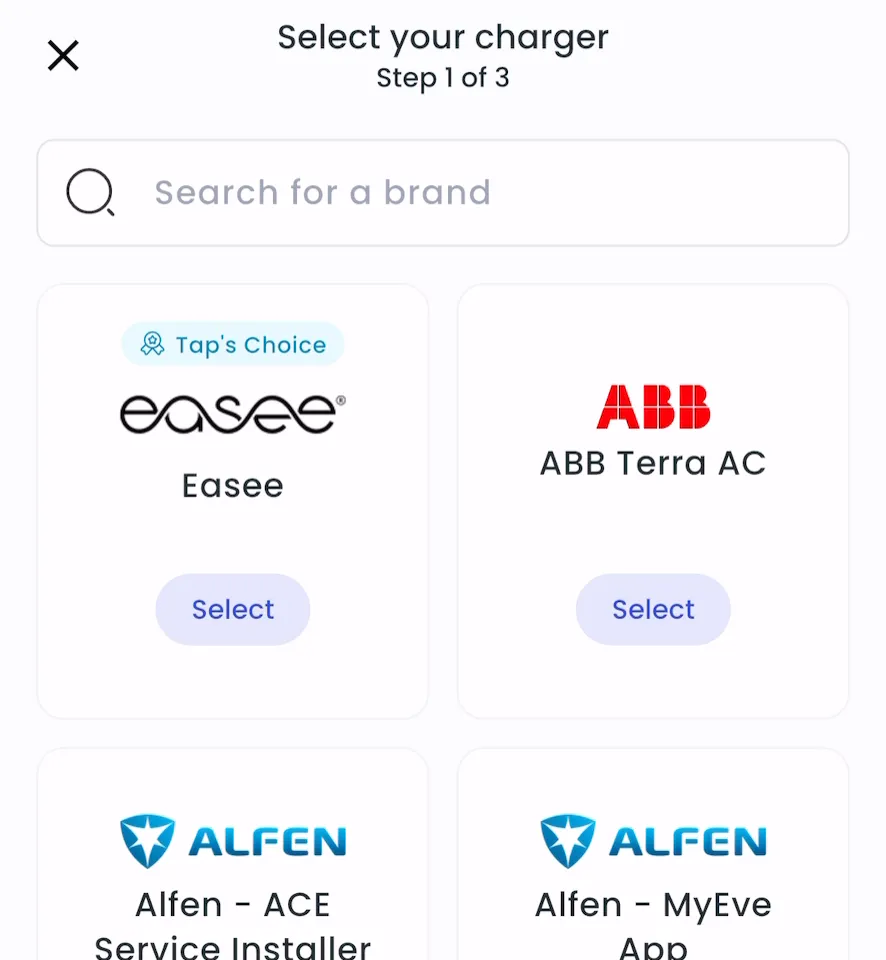
Search for Etrel and tap Select.
-
Copy the URL.
-
Locations > Connect new chargers, or click Connect new chargers on a location page.
-
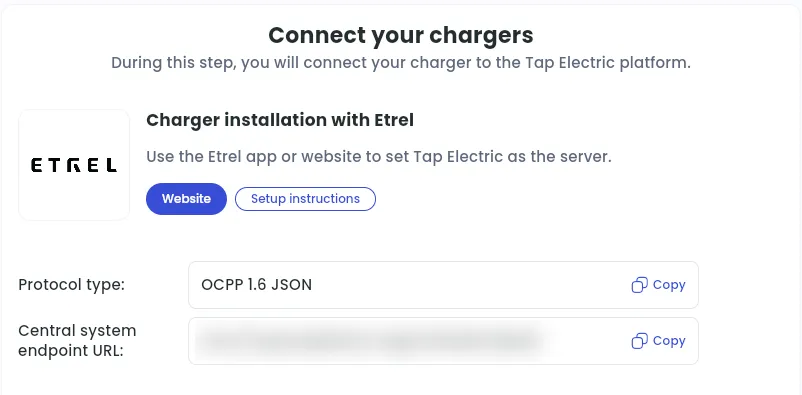
Under Choose your charger brand, search for Etrel and click it.
-
Next to Central system endpoint URL, click Copy.
Set Tap as the central system on the charger
Section titled “Set Tap as the central system on the charger”-
Connect your laptop to the charger with an ethernet cable.
-
In a browser, go to [serial number].local (for example, 23050153.local). If that doesn’t open, use the IP address on the sticker inside the maintenance doors.
-
Sign in with the Etrel login from the sticker.
-
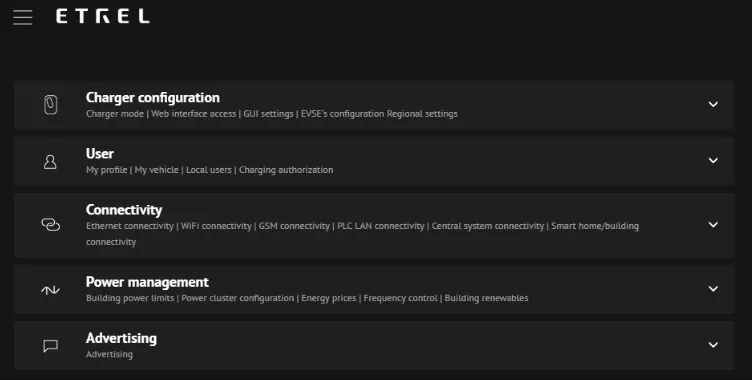
Open the configuration menu (top left) and go to Connectivity. On the first sign-in, the configuration opens automatically.
-
Set up the internet connection your charger uses: Ethernet, GSM (SIM card) or Wi-Fi. Using a Tap SIM card? In GSM connectivity, set APN Name to Tapelectric.
-
Go to Connectivity > Central system connectivity and tick Communication with central system enabled.
-
In Charge point identity, enter an ID for the charger. Tap creates the charger automatically when it connects.
-
Set Protocol type to OCPP 1.6 JSON.
-
In Central system endpoint URL, paste the URL from Tap.
-
Click Save, then Test connection.
-
Go to User > Charging authorization and choose Only central system users or Both central system users and white list users. With Only charger white list users, Tap can’t authorise charging.
After a minute, the charger appears in Tap.
Set the location
Section titled “Set the location”- Under Where is the charger?, choose New location and enter the address, or pick an Existing location.
- On You’re all set, choose what to do next, or tap Go to my location.
- Under Your chargers, check that the charger is listed, then click Continue.
- Complete the Set location and Location settings steps.