
How do I edit my location details?
Last updated:
Keep your location’s address and coordinates accurate, so drivers can always find your chargers on the Tap map.
Edit your location details
Section titled “Edit your location details”-
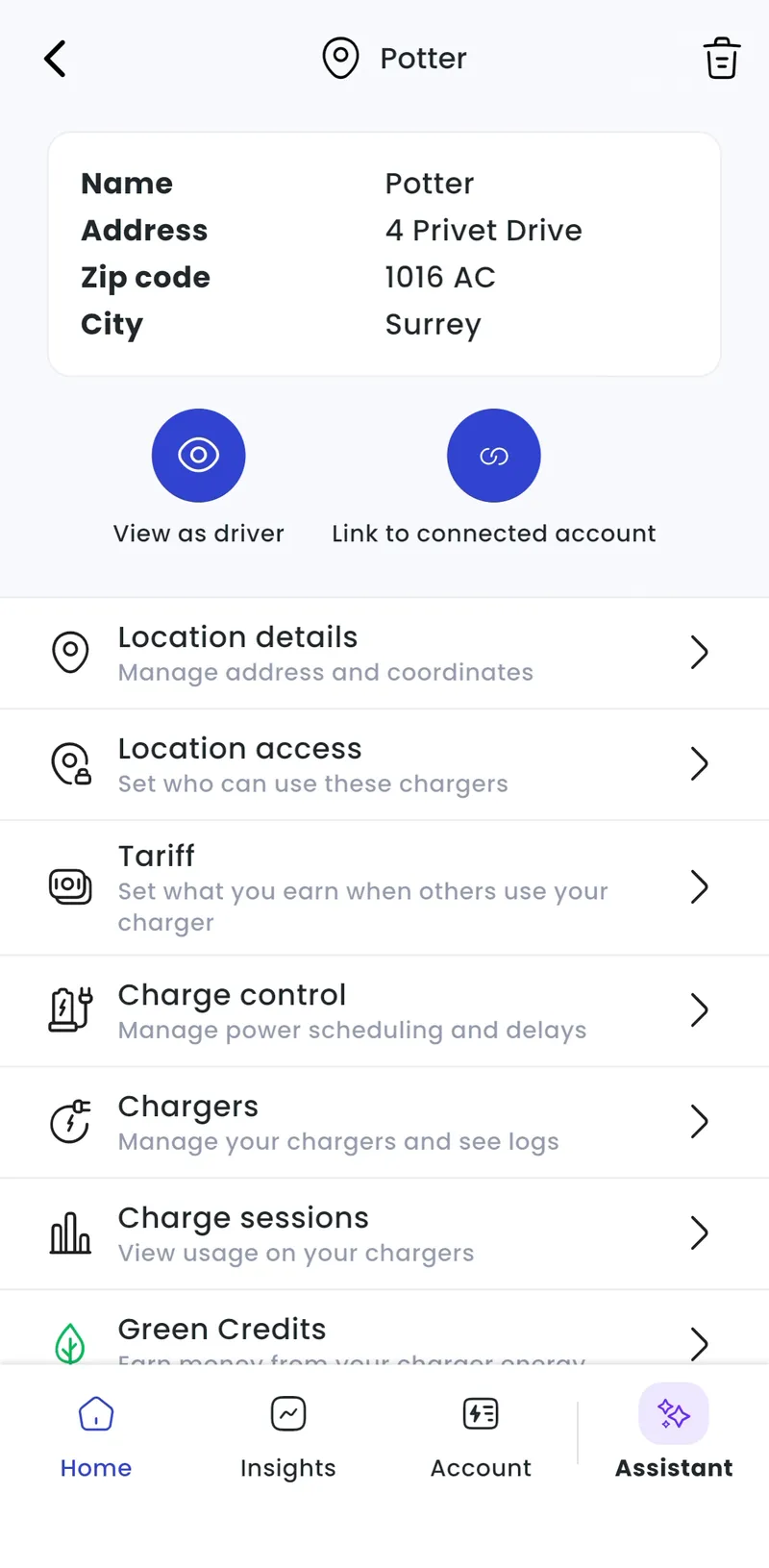
With Manage selected at the top, go to Home > [your location].
-
Tap Location details.
-
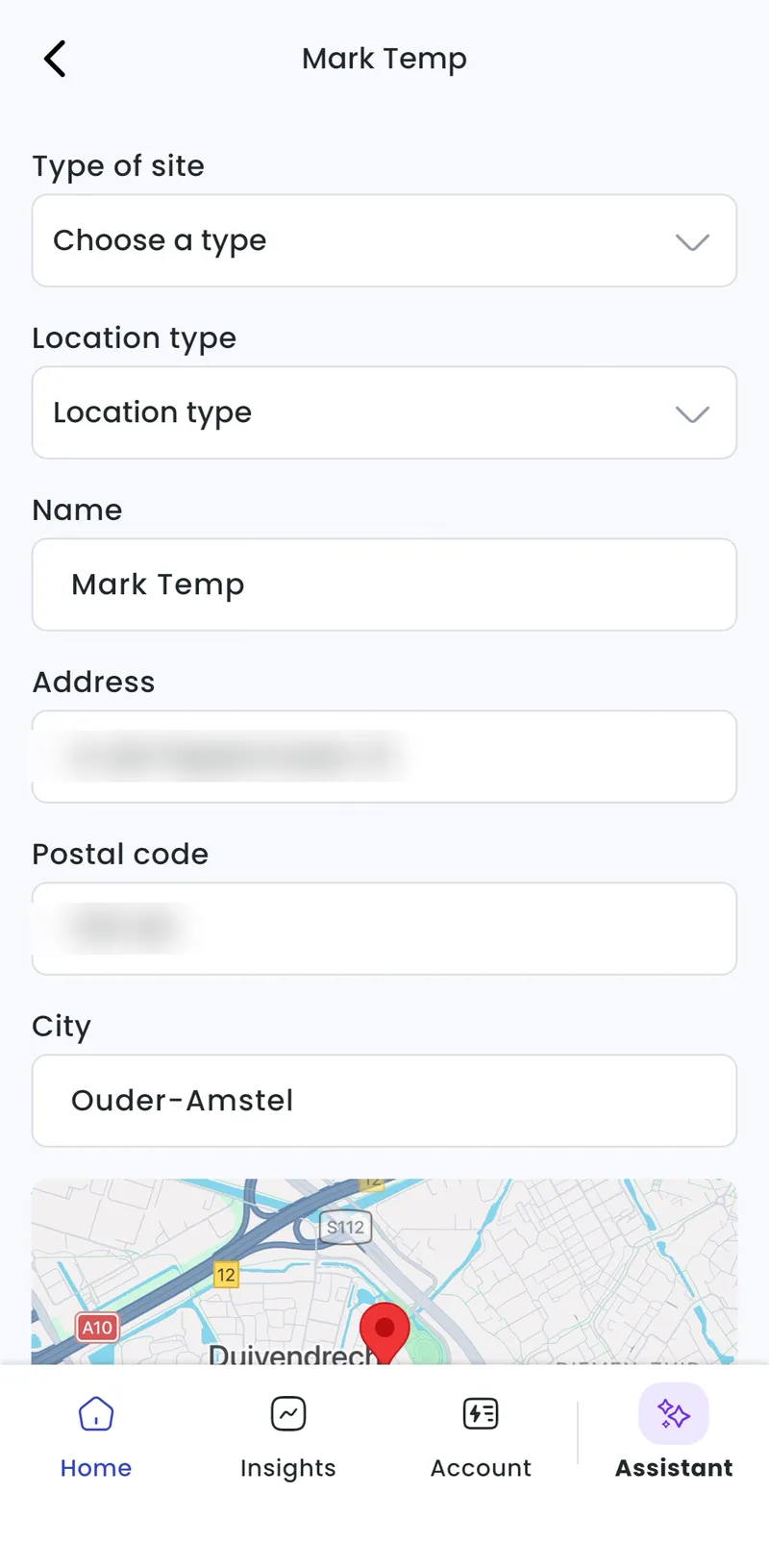
Edit the Type of site, Location type, Name and address, or drag the pin and check the Latitude and Longitude.
-
Save your changes.
-
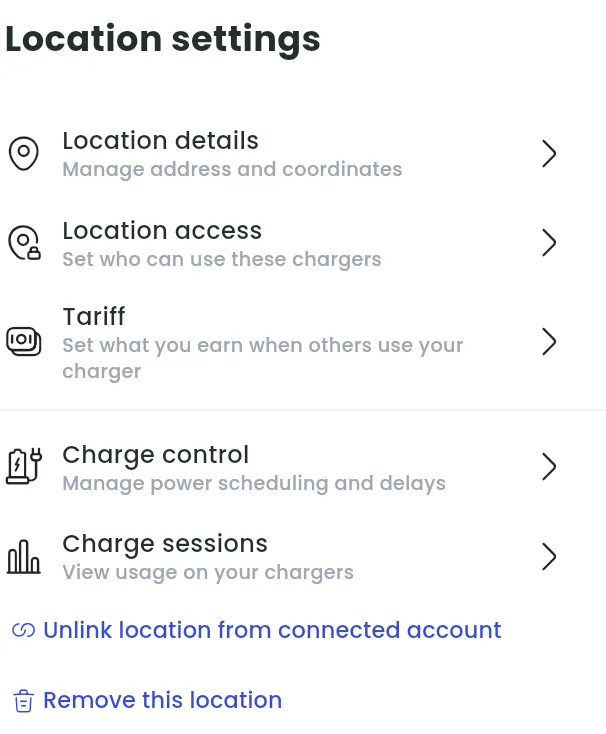
Locations > [your location] > Other location settings
-
Click Location details.
-
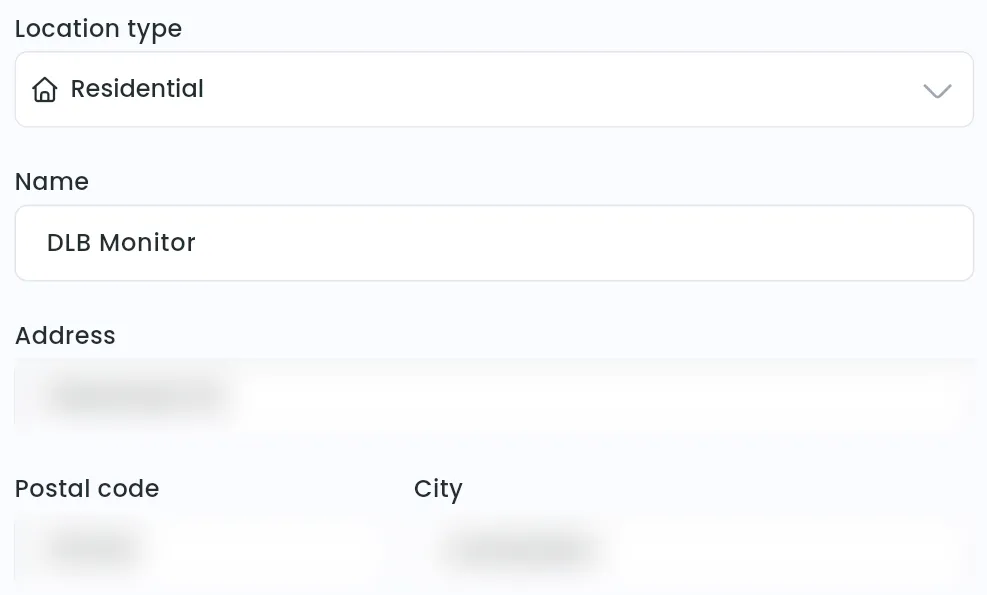
Edit the Location type, Name and address, or the Latitude and Longitude.
-
Click Confirm.
Delete a location
Section titled “Delete a location”- Home > [your location]
- Tap the bin icon in the top right and confirm.
- Locations > [your location] > Other location settings
- Click Remove this location and confirm.
Link a location to a Connected Account
Section titled “Link a location to a Connected Account”Connected Accounts are for main/connected setups, such as an organisation with employees who control their own home charger. See What is a connected account and when do I need one?.
- Home > [your location]
- Tap Link to connected account and select the account.
- Locations > [your location] > Other location settings
- Click Link location to connected account and select the account.
To move the location back to the main account, open the same settings and select Unlink location from connected account.
Share your location
Section titled “Share your location”Share a link to your location, for example on your website or in a message to drivers. The link opens the location in the Tap app, or takes the driver to the App Store or Google Play if they don’t have the app yet.
- Home > [your location]
- Tap the share icon.
- Copy the link, or share it straight to another app.
This isn’t available in Tap Web. Use the app.