
How do I activate or deactivate my Tap Tag?
Last updated:
Only available in the Tap app
A Tap Tag is an RFID charge card or key fob. Hold it against a charger’s reader to start or stop a session.
Activate your new Tap Tag
Section titled “Activate your new Tap Tag”Your Tap Tag arrives by post with a letter. It isn’t active yet.
- Scan the QR code on the letter.
- Lost the letter, or the QR code doesn’t work? Open the app and, with Charge selected at the top, go to Account > Tap tag charge cards > Activate my Tap Tag.
- Enter the ID on the front of your Tap Tag, including the dash (“-”), and confirm.
You’re all set!
Confirm in the app
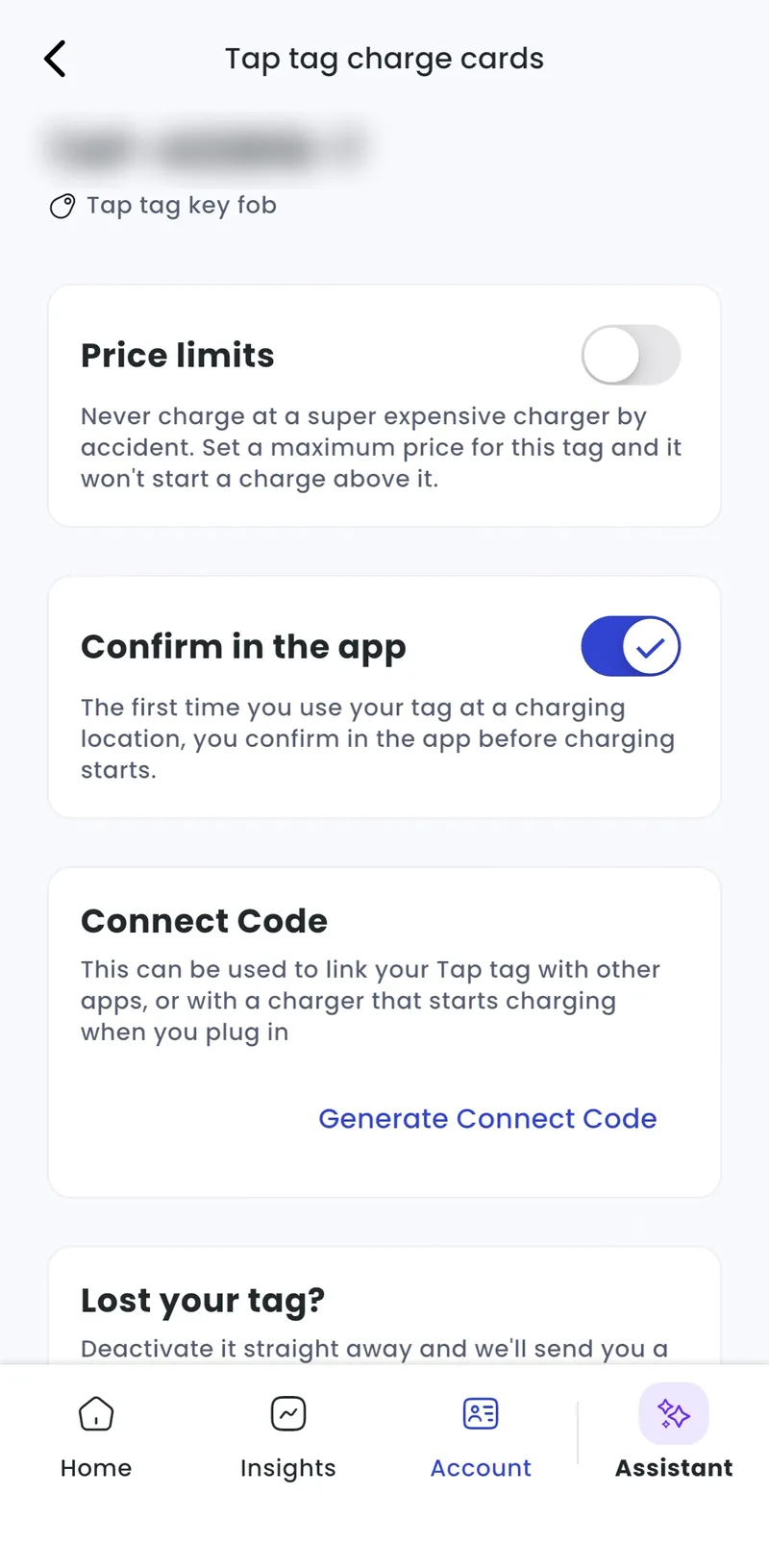
Section titled “Confirm in the app”With Confirm in the app on, the first time you use your Tap Tag at a charging location, you confirm in the app before charging starts.
-
Account > Tap tag charge cards
-
Select your Tap Tag.
-
Turn on Confirm in the app.
Set price limits
Section titled “Set price limits”Price limits stop your Tap Tag starting a session at a charger that costs more than you want to pay.
- Account > Tap tag charge cards > [your Tap Tag]
- Tap Price limits and set your maximum price per kWh or price per hour.
- Save.
If a charger’s price is above your limit, your Tap Tag won’t start a session there.
Use your Tap Tag in other apps
Section titled “Use your Tap Tag in other apps”A Connect Code links your Tap Tag to other apps, or to a charger that starts charging when you plug in (see How do I start charging automatically when a car is plugged in?), instead of sharing your card number.
- Account > Tap tag charge cards > [your Tap Tag]
- Under Connect Code, tap Generate Connect Code.
- Enter the code in the other app.
To replace the code, tap Refresh code. To stop all other apps using it, tap Delete code and confirm.
Under Tap tag scans you can see where and when your Tap Tag was recently used, and whether it worked.
What if my Tap Tag isn’t working?
Section titled “What if my Tap Tag isn’t working?”Try it on more than one charger first. If it works on other chargers, the problem is probably the first charger’s reader. If it doesn’t work anywhere, contact support from the app.
Deactivate and replace your Tap Tag
Section titled “Deactivate and replace your Tap Tag”If your Tap Tag is lost, stolen or broken, deactivate it straight away and order a new one.
- Account > Tap tag charge cards > [your Tap Tag]
- Under Lost your tag?, tap Deactivate and request a new Tap tag.
- Check the address we send your new Tap Tag to, and tick I still live here. To change it: Account > Subscriptions, then Edit next to Address.
- Tap Deactivate [your Tap Tag].
Your old Tap Tag stops working straight away, and we ship the new one.