
How do I link and unlink a QR sticker to my charger?
Last updated:
A Tap QR sticker on your charger takes drivers straight to that charger in the Tap app.
- New to Tap: drivers are sent to their app store to download the app, then straight to your charger.
- Already using Tap: drivers go straight to your charger and can start a session.
EU regulation (AFIR) requires a QR sticker on chargers that are open to the public.
Link a QR sticker to a charger
Section titled “Link a QR sticker to a charger”-
With Manage selected at the top, go to Home > [your location] > Chargers > [your charger].
-
Tap QR.
-
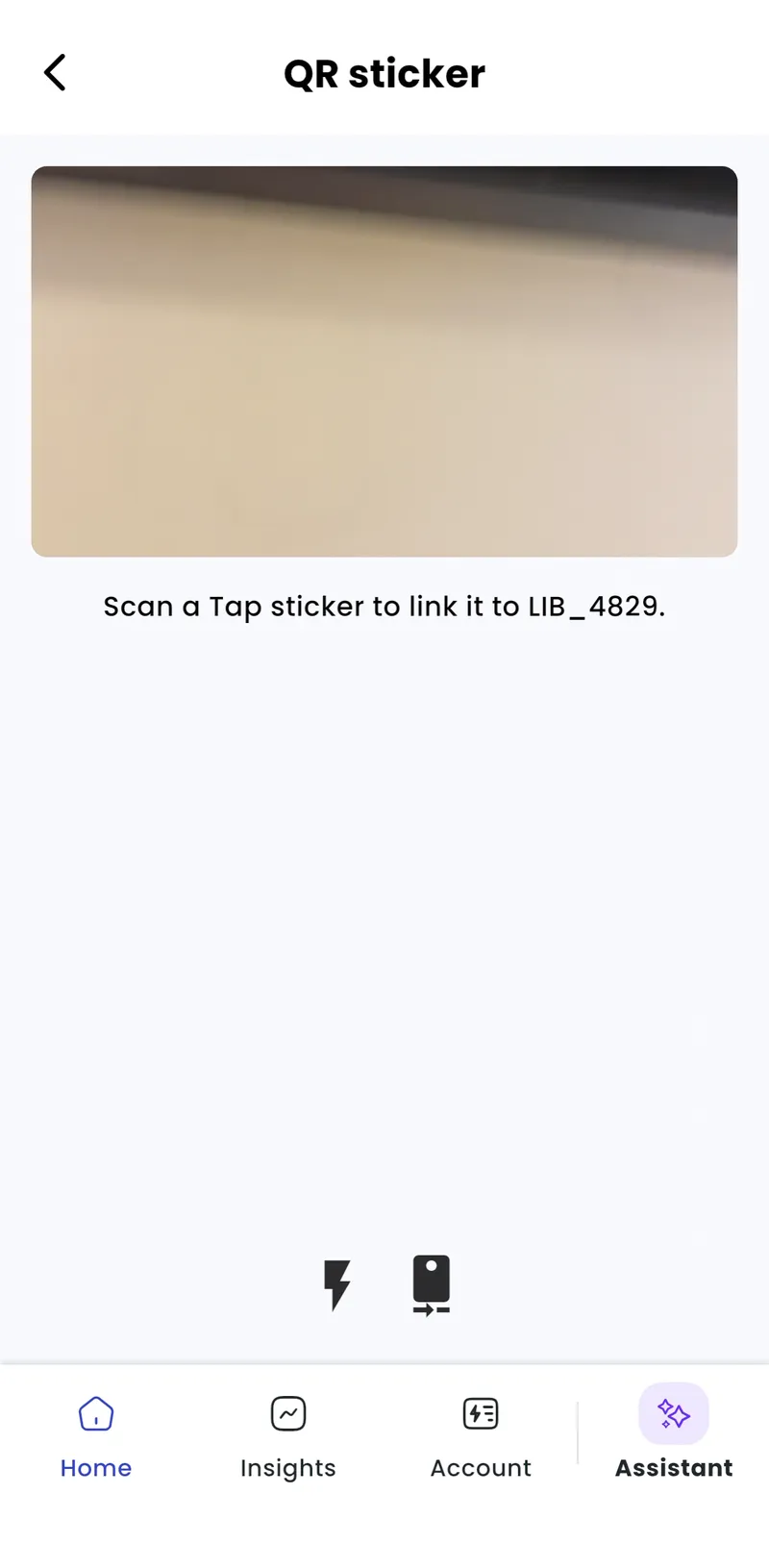
Scan the sticker with your phone’s camera.
-
Tap Link this QR sticker to [charger].
Linking needs a phone camera. Use the Tap app.
Unlink a QR sticker
Section titled “Unlink a QR sticker”-
Home > [your location] > Chargers > [your charger]
-
Tap QR.
-
Tap Unlink this sticker.
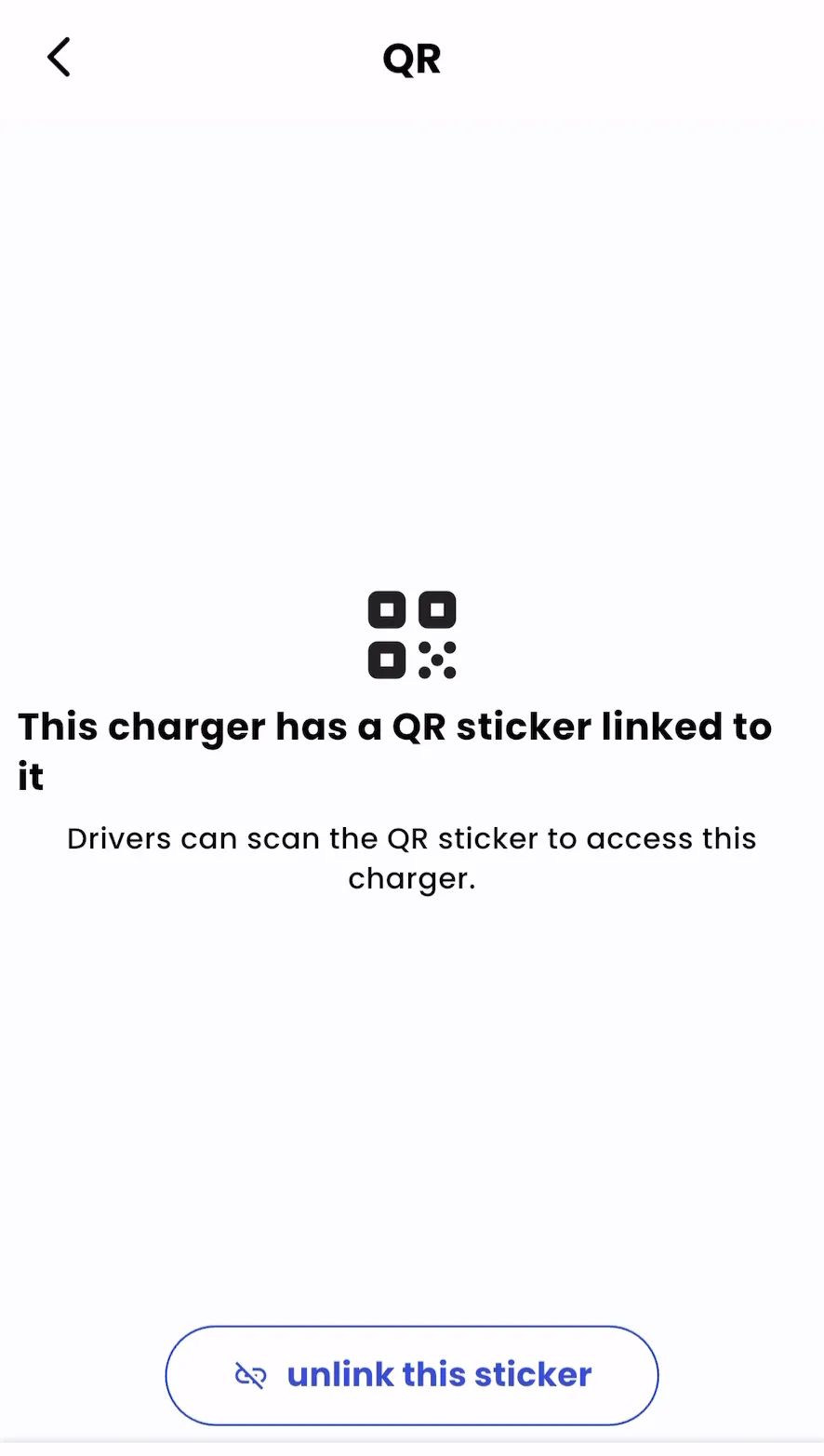
This isn’t available on Tap Web. Use the Tap app.