
Driver Quick Start Guide
Last updated:
Only available in the Tap app
Find, compare and use chargers across our network with the Tap app, with clear prices up front.
Download the app from the Apple App Store or the Google Play Store.
Create your account
Section titled “Create your account”-
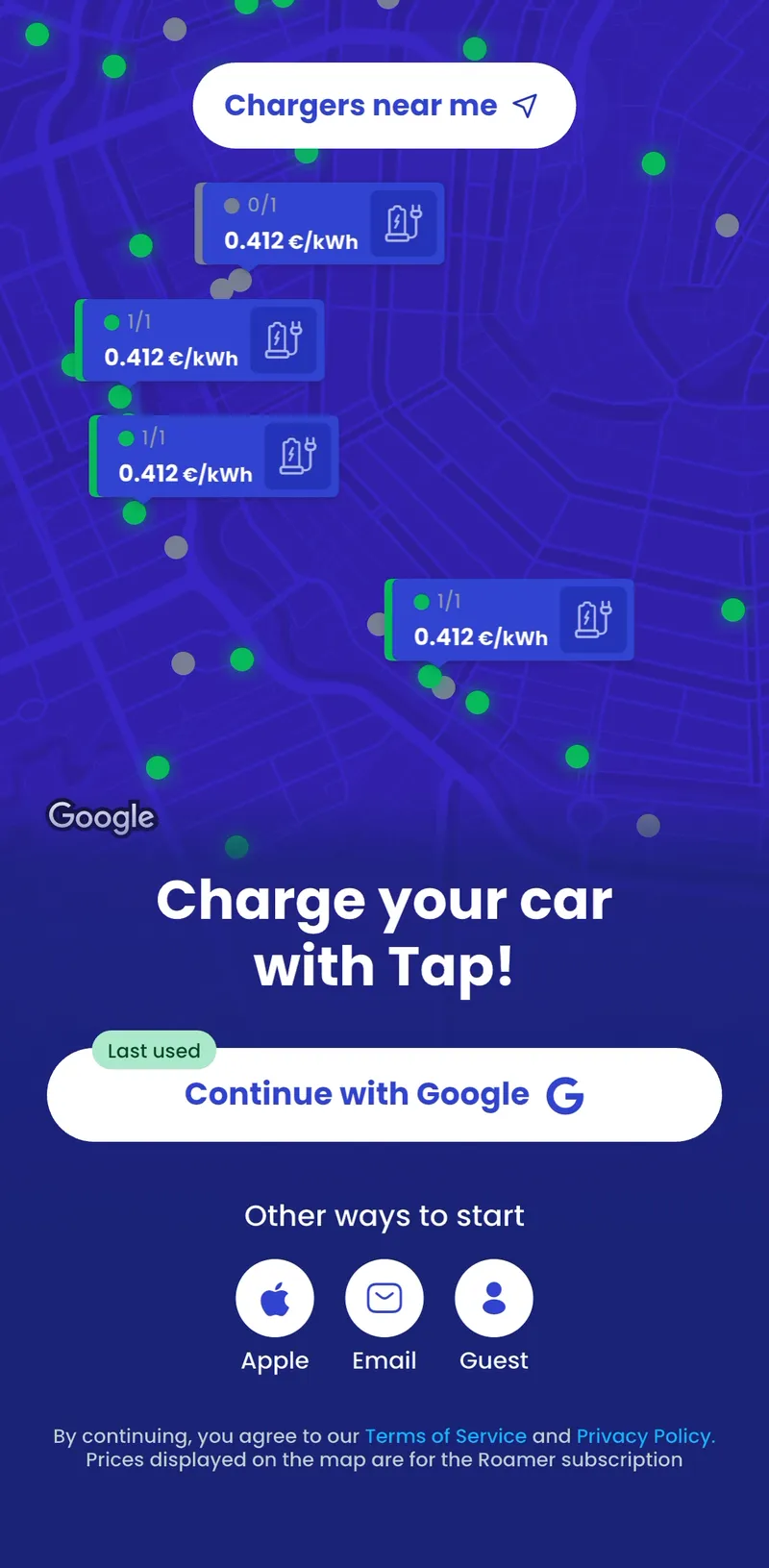
Open the app and sign in with Google, or under Other ways to start choose Apple or Email. You can also continue as a Guest.
-
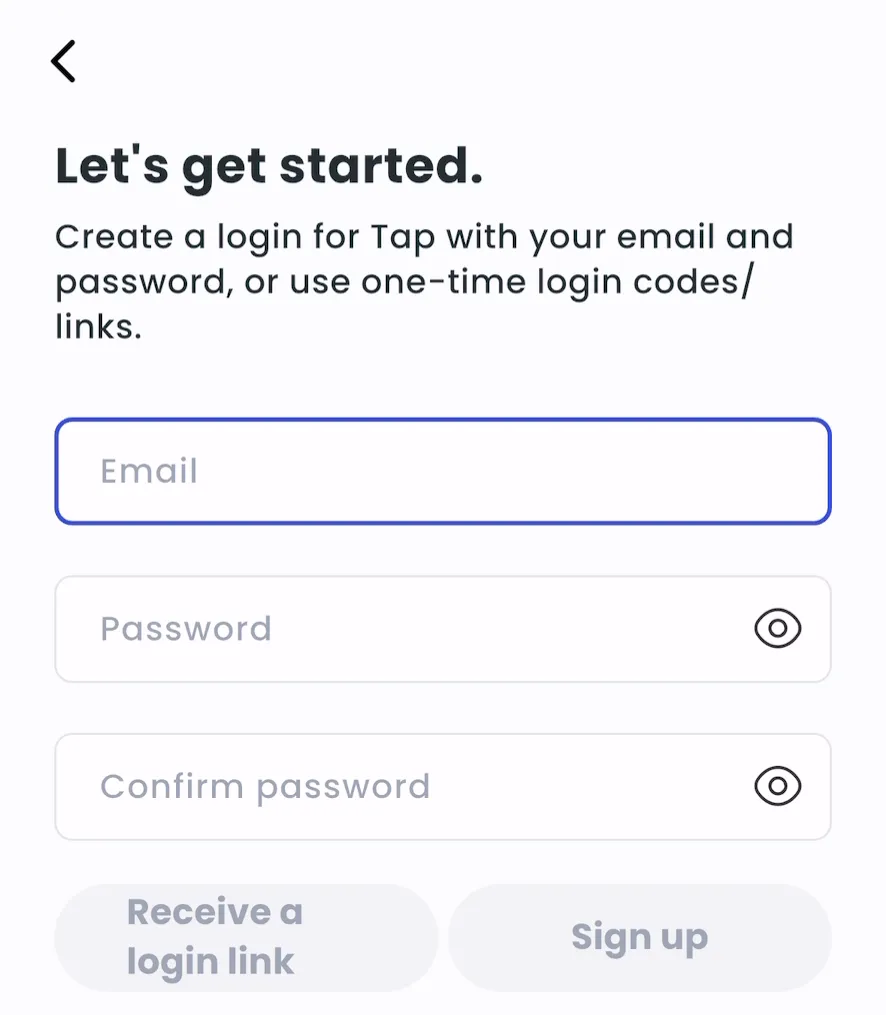
With email, tap Sign up. Enter your email and a password and tap Sign up, or tap Receive a login link to sign in without a password.
-
Enter the 6-digit code from the verification email, or tap the link in it.
Find a charger
Section titled “Find a charger”-
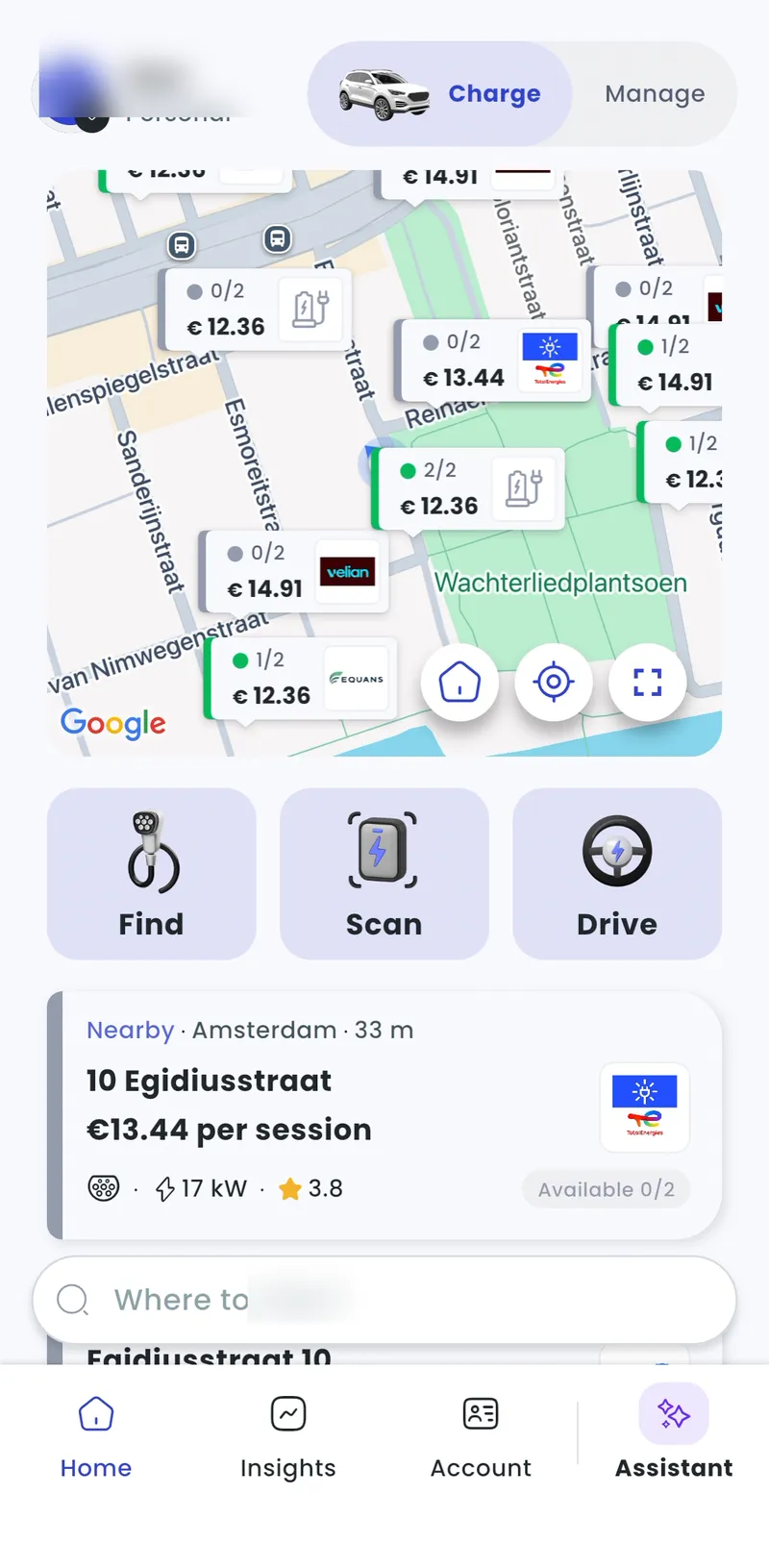
With Charge selected at the top, the Home tab shows chargers near you. If you’re at the charger, tap Charge here.
-
To plan ahead, search for a charger, street, city or place in Where to?, or tap Find to open the full map.
-
At any public charger, tap Scan and point your camera at its QR sticker.
Check the price
Section titled “Check the price”We pass on the network’s charger price, plus a transaction fee. A How do Tap subscriptions work? lowers your transaction fee. Tap View in Price Intel on a charger for a full breakdown of the estimated cost.
Start a charge session
Section titled “Start a charge session”Without a subscription, you pay as you go: with Apple Pay, Google Pay or a debit or credit card (see How do I manage my driver payment methods?). We place a hold (card authorisation) on your card before the session, and you can change the amount. If the session reaches it, we stop charging. When the session ends, we release the rest straight away.
-
Tap Charge here on the charger.
-
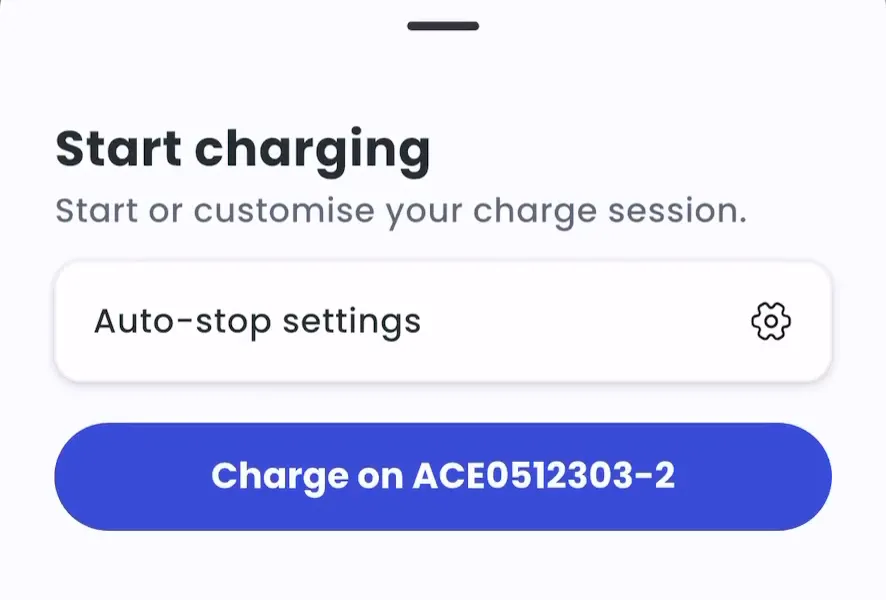
Optionally, tap Auto-stop settings (see below).
-
Tap Charge on [charger].
-
Plug in within about a minute, if you haven’t already.
When the car starts charging, the app shows your session: power, energy (kWh) and cost, updated in real time.
Stop a charge session
Section titled “Stop a charge session”Tap Stop in the app, or unplug your car. Your session history updates straight away. With a subscription, the invoice comes at the end of the invoice period. See How does Tap invoice me as a driver?.
Use auto-stop
Section titled “Use auto-stop”Auto-stop ends your session when it reaches a limit you set: a cost, an amount of energy or a duration.
-
After tapping Charge here, tap Auto-stop settings.
-
Turn on Use auto-stop, then turn on Auto-stop on costs, Auto-stop on energy or Auto-stop on duration and set the limit.
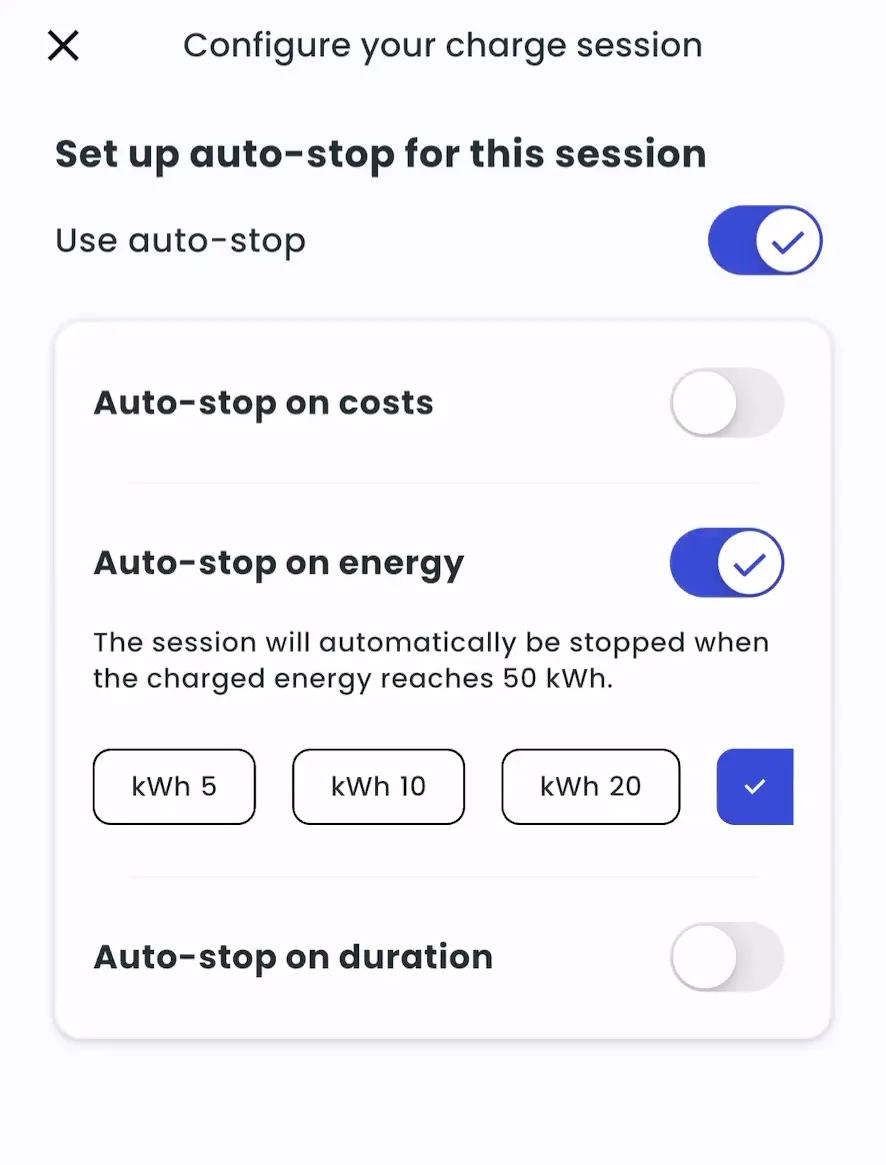
-
Tap Close, then start the session.
More in the app
Section titled “More in the app”- Assistant: Tap Assistant answers questions about chargers, sessions and invoices. Open the Assistant tab.
- Insights: your session history and spending, by month.
- Tap Tag: some subscriptions include an RFID charge card. Hold it against the charger’s reader to start or stop. See How do I activate or deactivate my Tap Tag?.
- Drive mode: find the best chargers on your route while you drive, on your phone or in Apple CarPlay. See Drive Mode and Apple CarPlay.
- Analyse this area: see what charging costs on part of the map, and which networks run the chargers there. See Analyse this area (Map Intel).
- Start on arrival: let Tap start charging for you when you arrive at a charger and plug in. See Start on arrival.
Need help? Email [email protected].