
Set up an Installer Account
Last updated:
Only available on Tap Web
One Installer Account to create and manage your customers in Tap.
Use an Installer Account when you install or manage chargers for customers.
Applies to the Netherlands, Belgium, Ireland and the United Kingdom.
Before you start
Section titled “Before you start”Have this ready:
- Your installer company’s details
- The customer’s name and email address
- Whether the customer should have an Individual or Organisation Account
- The address where the charger is installed
- The charger’s brand and model
- The customer’s intended access, visibility and pricing setup
1. Create your Installer Account
Section titled “1. Create your Installer Account”Sign up at web.tapelectric.app. Already have a Tap account? Open the account switcher (bottom left) and select Create new account. Under What would you like to do?, choose Install & support chargers.
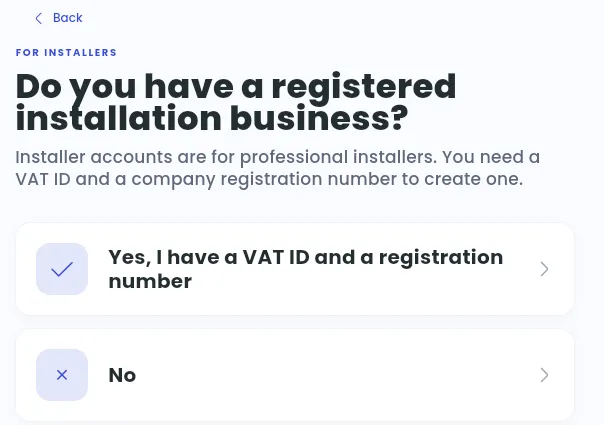
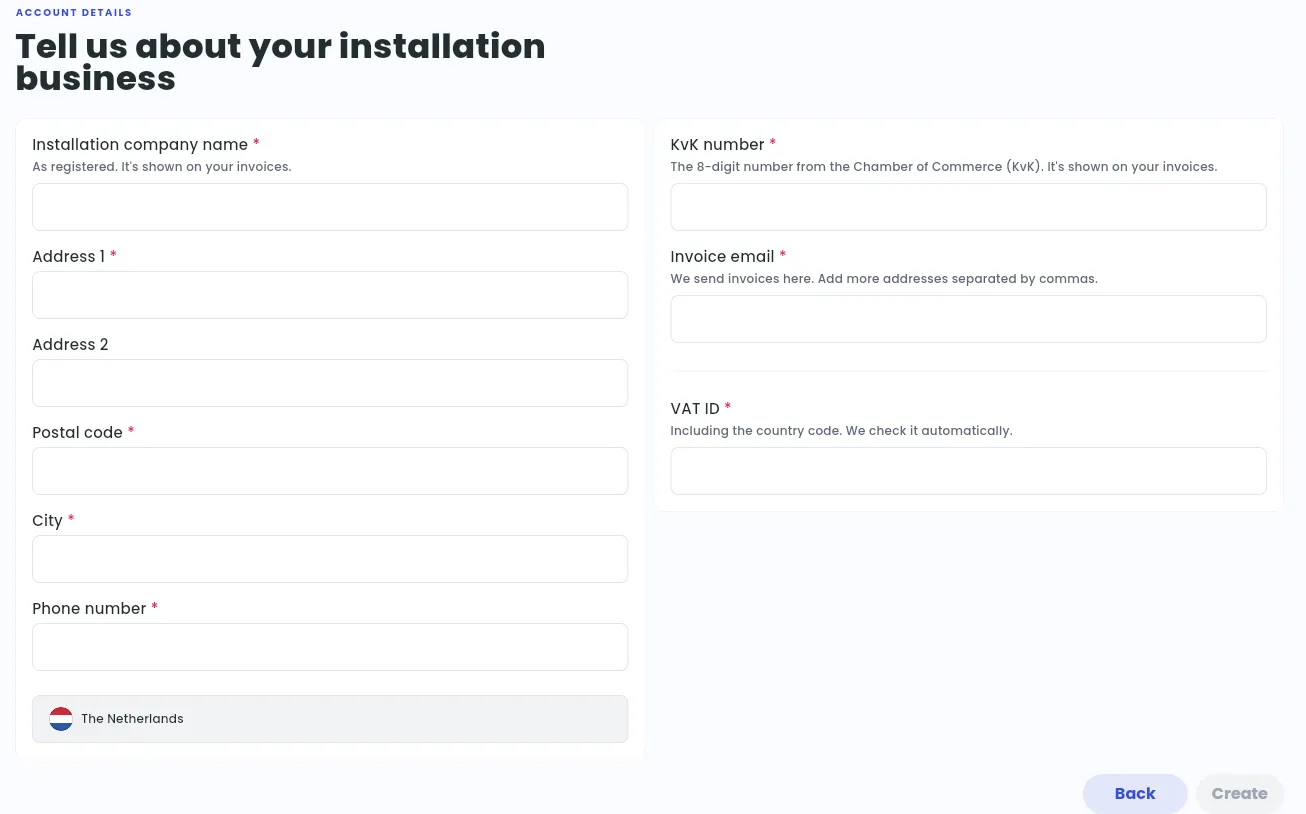
Installer Accounts are for registered installation businesses: you need a VAT ID and a company registration number. Choose Yes, I have a VAT ID and a registration number. On Tell us about your installation business, enter your company name as registered, its address and a phone number, your registration number (in the Netherlands, your KvK number), the invoice email and your VAT ID, then select Create. Your country comes from your Tap profile.
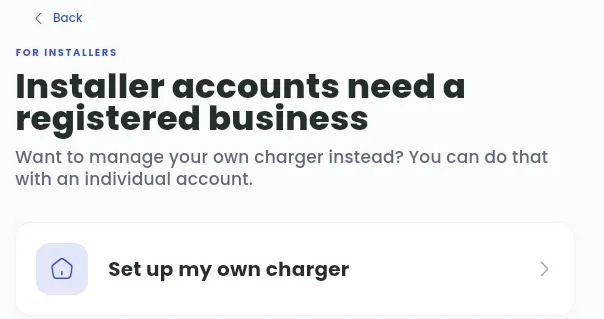
Not a registered installation business? You can’t create an Installer Account. Create an Individual Account to manage your own charger, or an Organisation Account to manage charging for a business or organisation. See Set up an Individual Account or Set up an Organisation Account.
Your Installer Account is your workspace for managing customers. It does not contain chargers itself.
2. Create or invite the customer
Section titled “2. Create or invite the customer”From your Installer Account, select Add customer (on the dashboard, in your customer list or in the account switcher) and choose how:
- Invite your customer: they create their own account from your invitation.
- Create the account for them now: enter their name, email and address. The account exists straight away, so you can add their charger immediately. Your customer gets an email, signs in with that address and takes the account over. You keep access to help.
- Share your link: customers who already use Tap paste your link under Settings > Installer (in the Tap app: with Manage selected at the top, Account > Settings > Installer), then tap Look up.
Create the customer as either:
- Individual — for a private person managing their own charger
- Organisation — for a business, workplace, fleet, owners’ association or other organisation
Send the invitation to the customer.
3. Agree how hands-on you will be
Section titled “3. Agree how hands-on you will be”In most cases, the customer should own their account details and provide their own financial information.
Some installers manage the full setup on the customer’s behalf. If you do this, make sure the details entered — especially payout, tax and contact details — belong to the customer account, not to your Installer Account.
4. Add a charger for the customer
Section titled “4. Add a charger for the customer”In your customer list, select Add charger next to the customer. The flow opens in the customer’s Individual or Organisation Account, so you don’t need to switch accounts, and the location form is prefilled with the customer’s address.
From this point, you are configuring the customer’s account — not your Installer Account.
5. Add the customer’s location
Section titled “5. Add the customer’s location”Add the address where the charger is installed.
Tap places the location on the map automatically from the address. Always verify the map pin and move it if needed so it reflects the charger’s actual location. Then choose what kind of site it is (Public or Private, and the type of site) and select Save and continue. Work through the setup steps with your customer’s settings, or skip them for now. See How do I add a new location?.
6. Choose the charger’s brand
Section titled “6. Choose the charger’s brand”Select the charger make from the list. See Which EV chargers are fully integrated with Tap?.
Tap Electric supports chargers using the OCPP 1.6 protocol.
7. Connect the charger
Section titled “7. Connect the charger”Follow the brand-specific setup instructions shown by Tap, including the WebSocket / OCPP URL where required.
Once configured correctly, the charger will appear automatically in the customer’s account.
If you offer the customer a Service Plan, pick it now, or let the customer select it when they add a charger themselves. A plan you pick is a proposal: the charger shows Pending activation and can’t be used until your customer accepts or declines the plan. See How do Service Plans work for installers?.
8. Configure access and visibility
Section titled “8. Configure access and visibility”Set who can charge (Access) and who can find the location on the map (Display). See How do I set up my location access and visibility?.
The correct setup depends on the customer:
- Private home charging will usually be Closed
- Workplace or residential charging may be Closed with linked Driver Groups
- Public charging may allow Tap users or Roaming
In the setup steps after you add a location, these options are called Only my drivers (Closed), Tap drivers (Tap users) and Everyone, with roaming (Roaming). The setup pre-selects Tap drivers and Everyone, so change them for a private home charger.
9. Configure the customer’s rate
Section titled “9. Configure the customer’s rate”Set the customer’s charging rate and any start or idle fees that apply.
Where the customer uses driver groups, those groups can have their own rates.
10. Set up the customer’s payouts
Section titled “10. Set up the customer’s payouts”If the customer will receive money from paid charging, their payout details must be entered in the customer account.
The customer will normally do this themselves, although a hands-on installer can complete it with the customer’s correct details.
Service Plans
Section titled “Service Plans”Service Plans set what you earn from your customers. Create a Service Plan in your Installer Account. When a charger is added, the customer selects your plan, or you apply it if you onboard the charger for them.
Use a Service Plan where you have agreed an ongoing paid service with the customer.
Customer ownership and access
Section titled “Customer ownership and access”The customer’s chargers and locations remain in their Individual or Organisation Account.
Your Installer Account is used to create and manage those customer relationships. Do not create chargers under the Installer Account itself.
Customer accounts are not Connected Accounts
Section titled “Customer accounts are not Connected Accounts”The customer accounts you create from your Installer Account are not Connected Accounts. Connected Accounts are a separate Organisation feature: a linked account with its own locations and payout details. Organisations use them, for example, to give employees control of their own home chargers under home-charging reimbursement, or to pay different parts of the organisation into different bank accounts.
If your customer is an employer that needs this, set up their Organisation Account first. The Connected Accounts for its employees are then created from inside that Organisation Account — see Set up an Organisation Account.
If you already manage customers through Connected Accounts, they keep working as usual for now.
Quick check before you’re done
Section titled “Quick check before you’re done”Open the Tap Electric dashboard at web.tapelectric.app.