
What is a Driver Group and how can I use it to customise access and tariffs?
Last updated:
Driver groups give chosen drivers special access or tariffs at your locations or chargers. For example, free charging for employees, or access for residents only.
- Groups belong to your account, not to one location, so you manage members in one place.
- Access and tariffs for a group are set per location (or per charger) that you link it to.
- If you manage more than one account, first select the account you want to work in.
- Only Tap Electric drivers can be added to a driver group. They don’t have to be from your company: drivers with a fleet or private account can join too. Invite them with the email address they used to set up their Tap account.
Create a driver group
Section titled “Create a driver group”-
With Manage selected at the top, go to Account > Driver groups.
-
Tap Create driver group.
-
Enter a name and tap Create driver group.
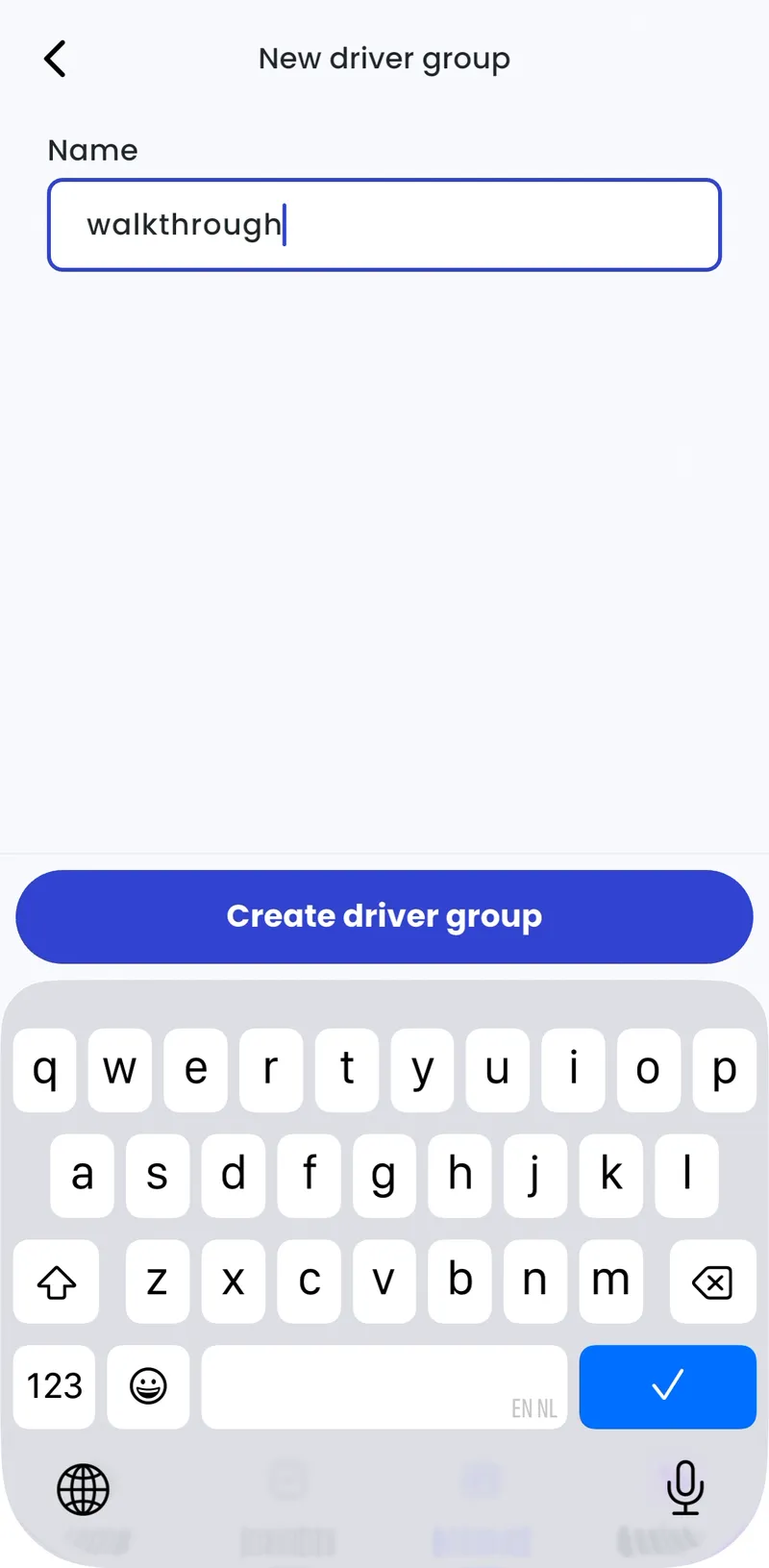
You can also create a group while connecting groups to a location (see below).
- Driver groups > Create driver group
- Enter a name and click Create driver group.
You can also create a group from a location’s access or tariff settings.
Add members
Section titled “Add members”-
Open the group and tap Driver group members.
-
Tap add member, or add myself.
-
Enter the driver’s first name, last name and email, then tap Invite to driver group.
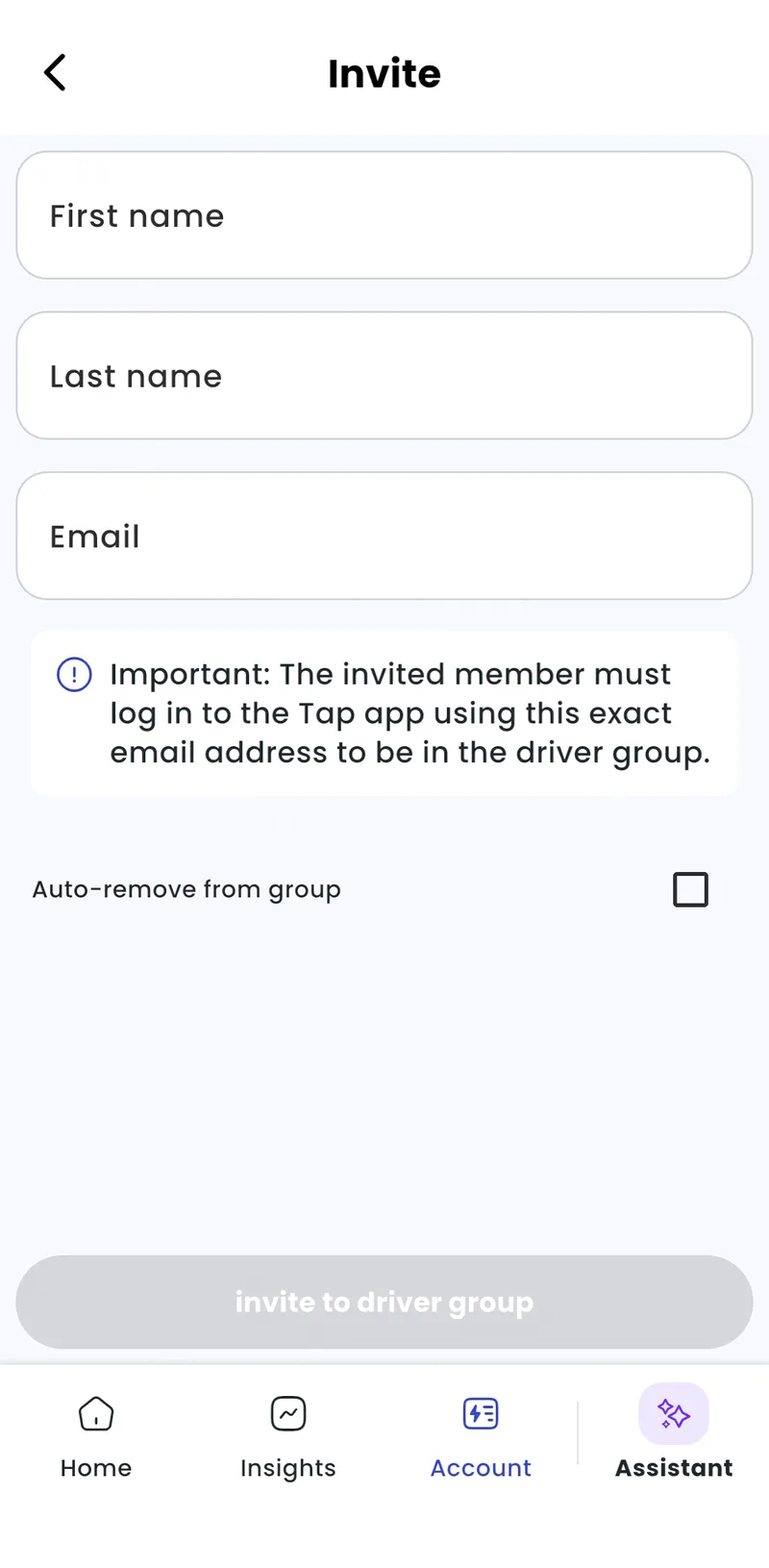
-
Driver groups > [your group] > Edit > Driver group members
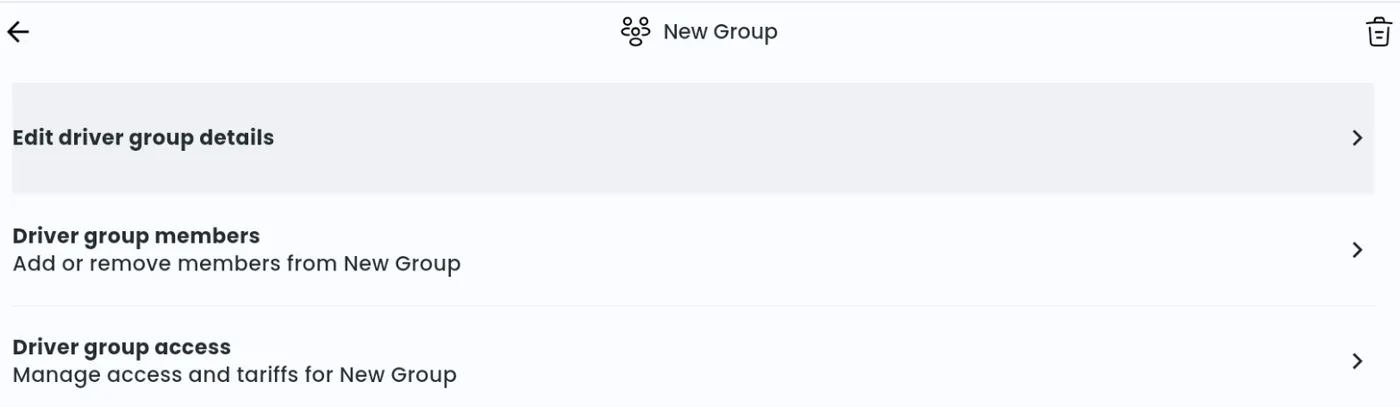
-
Add a member, enter the driver’s details and click Invite to driver group.
-
To add many drivers at once, select Import in Driver group members and upload your list of drivers in the format the import shows. Drivers already in the group aren’t added twice.
Link a group to a location
Section titled “Link a group to a location”-
With Manage selected at the top, go to Home > [your location] > Location access > Connected Driver Groups > Connect driver group to location.
-
Tick the groups and tap Connect Driver Groups.
-
To give a group its own rate, tap Change tariff next to it.
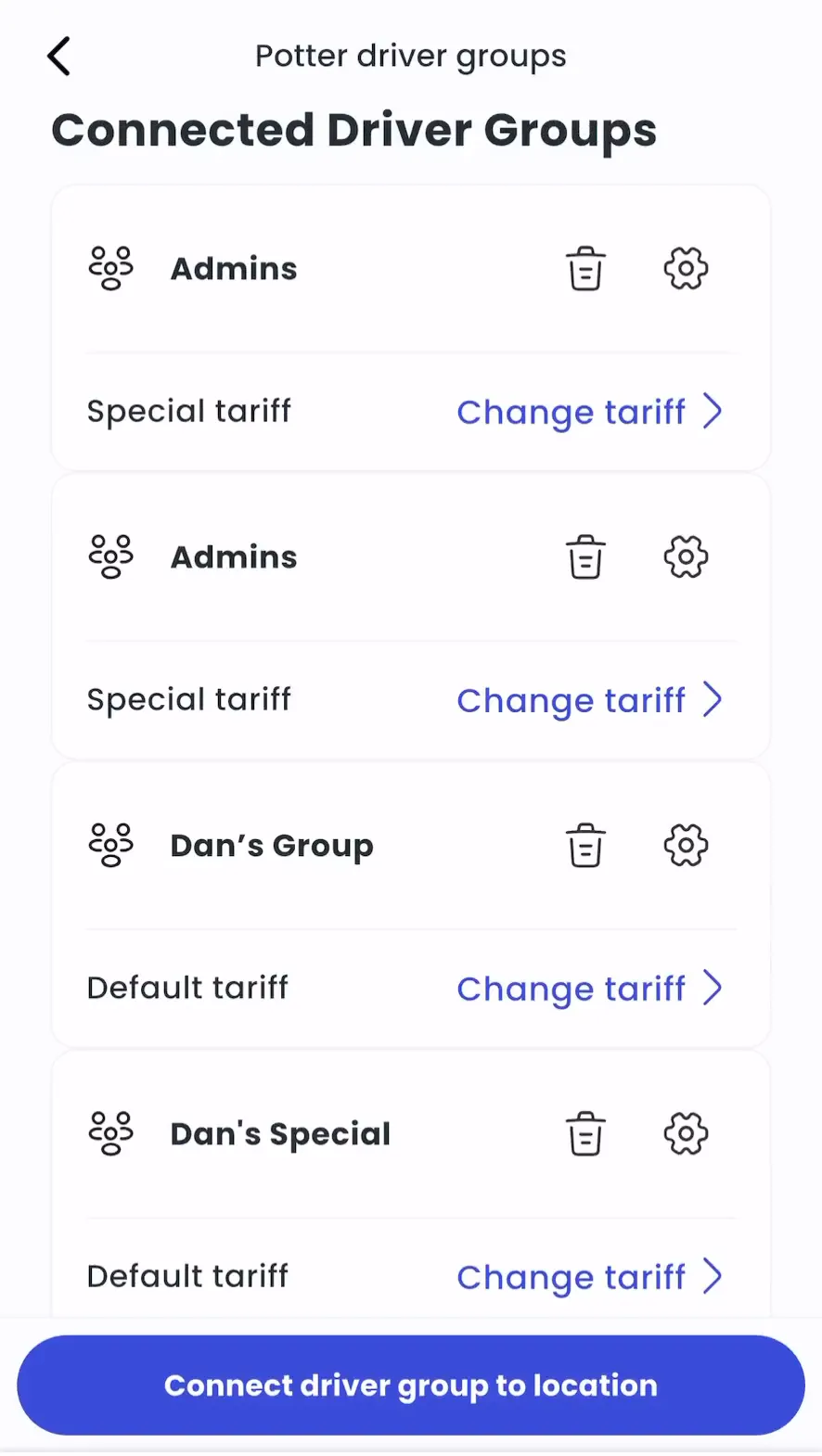
- Locations > [your location] > Set access
- Next to Connected Driver Groups, click Manage and connect the groups.
To see every location a group is linked to, and its tariff there, open the group and select Driver group access.
To make the location available only to your groups, set access to Closed. See How do I set up my location access and visibility? and How do I set tariffs for my charger location or individual chargers?.
Link a group to a single charger
Section titled “Link a group to a single charger”- Chargers > [your charger] > More actions > Charger access
- Select Driver Groups. If the location is already limited to driver groups, the other options are greyed out.
- Select Connect driver group charger.
- Create a group or select one, then select Connect Driver Groups.
Manage a group
Section titled “Manage a group”- Rename: open the group, select Edit driver group details, edit the name and confirm.
- Remove a member: open the group’s Driver group members, select the member, then the bin icon, and confirm Delete.
- Delete a group: open the group, select the bin icon in the top right corner and confirm.