
Blitz Power onboarding guide
Last updated:
Connect the charger to your router with a network cable and leave DHCP on (the default), so the charger gets an IP address from your network. You need a laptop on the same network. Add the charger to your own Individual or Organisation Account. Installers: switch into your customer’s account first.
Set Tap as the OCPP provider in the Blitz web app
Section titled “Set Tap as the OCPP provider in the Blitz web app”-
In a web browser, go to http://ev3000.local:3000/login. If that doesn’t open, use the charger’s IP address from your router with port 3000, for example
http://192.168.1.50:3000. Without:3000you get the Phoenix Contact interface instead. -
Sign in with the username operator and the operator password from Blitz Power’s configuration manual, or ask your installer.
-
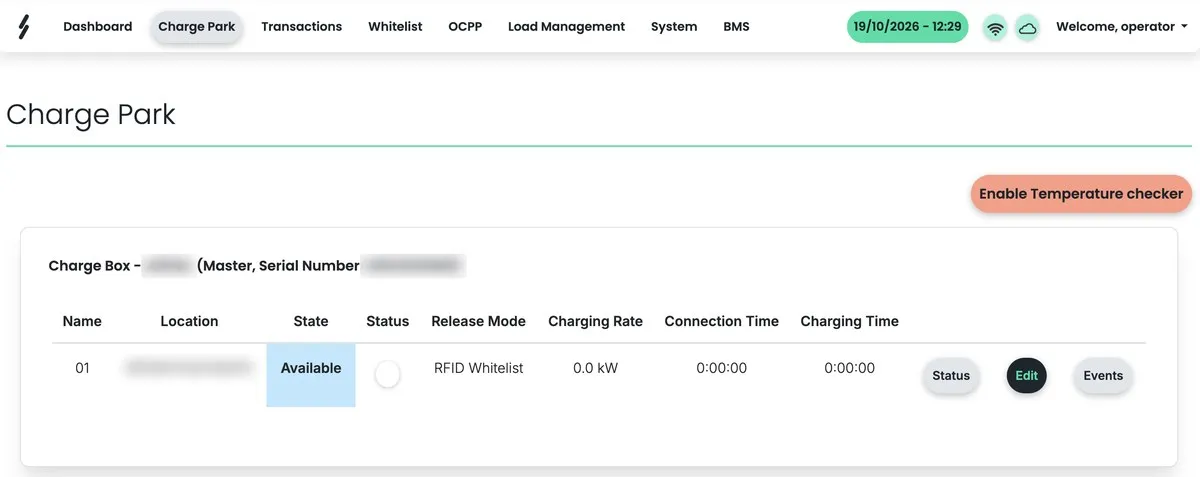
Go to Charge Park and click Edit next to the charge point.
-
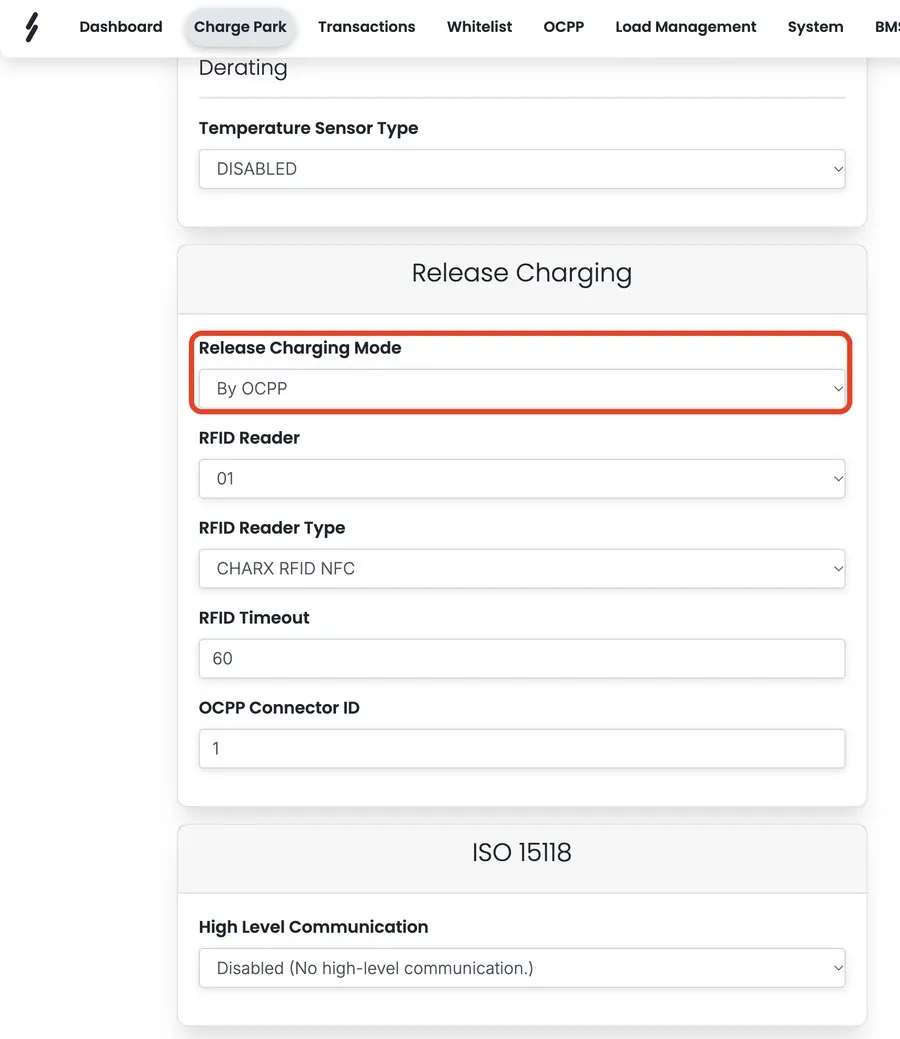
Under Release Charging, set Release Charging Mode to By OCPP and click Save.
-
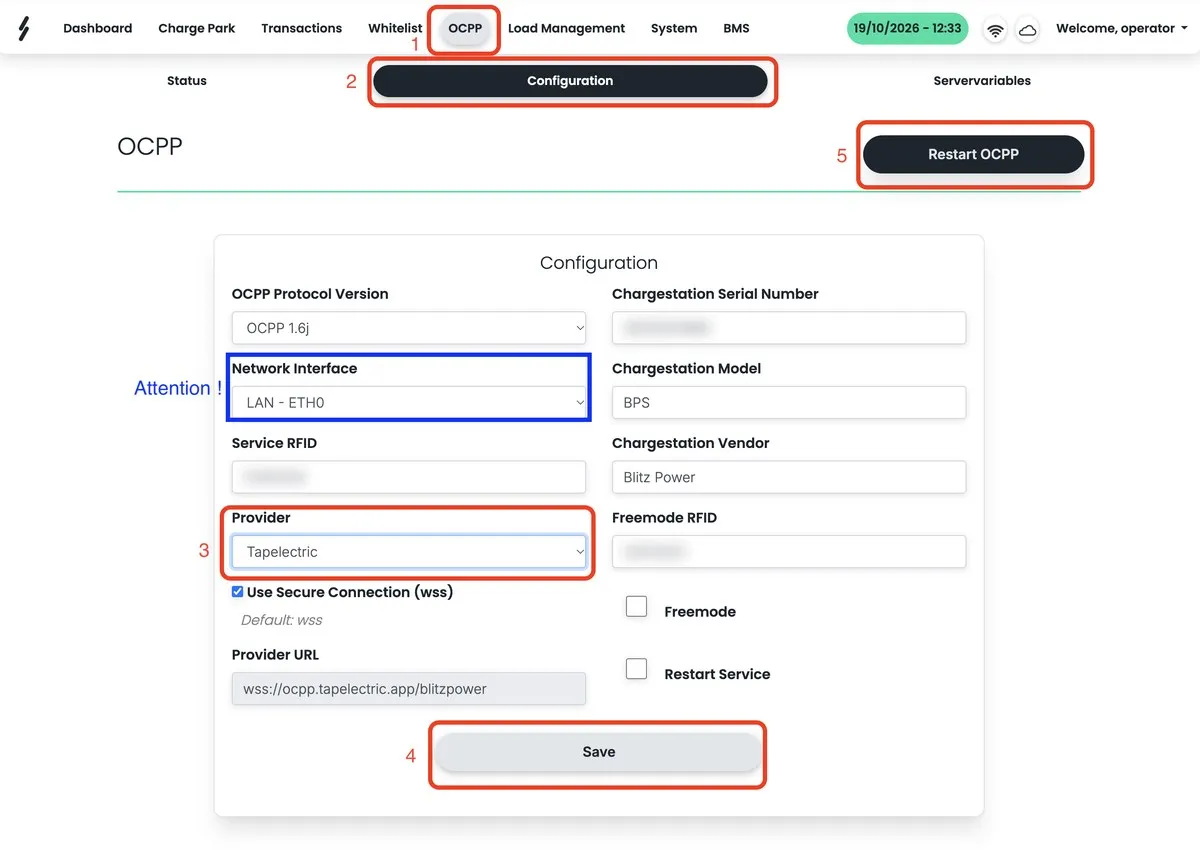
Go to OCPP > Configuration.
-
Check that Network Interface matches how the charger connects to the internet: LAN - ETH0 for a network cable.
-
Set Provider to Tapelectric. Leave Use Secure Connection (wss) ticked.
-
Click Save, then Restart OCPP.
-
Note the Chargestation Serial Number. You’ll enter it in Tap.
Using a Tap SIM card instead of a network cable
- Set Network Interface to the mobile (SIM) option.
- Leave SIM Pin empty and enter Tapelectric as the APN.
- Save the settings.
Add the charger in Tap
Section titled “Add the charger in Tap”-
With Manage selected at the top, open your location on the Home tab, tap Chargers, then Connect new chargers. For a new location, tap + below your locations on the Home tab.
-
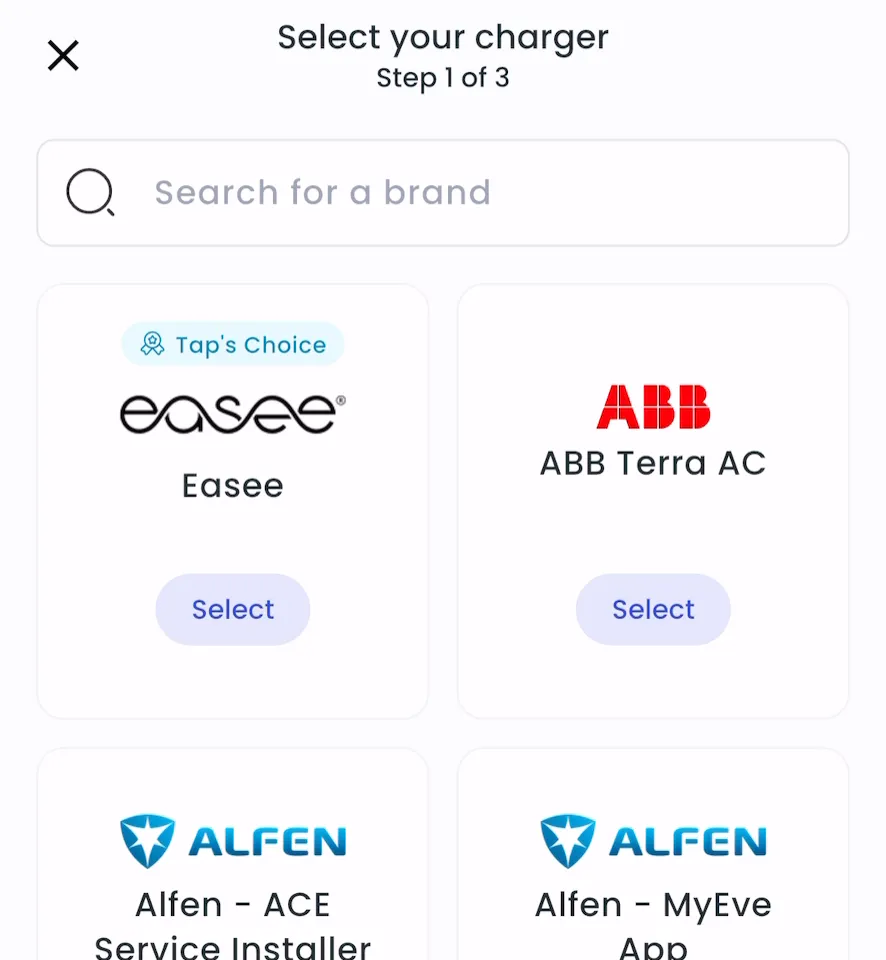
Search for Blitz Power and tap Select.
-
Enter the Chargestation Serial Number as the charger ID and tap Add.
-
Locations > Connect new chargers, or click Connect new chargers on a location page.
-
Under Choose your charger brand, search for Blitz Power and click it.
-
Under Charger ID, enter the Chargestation Serial Number and click + Add.
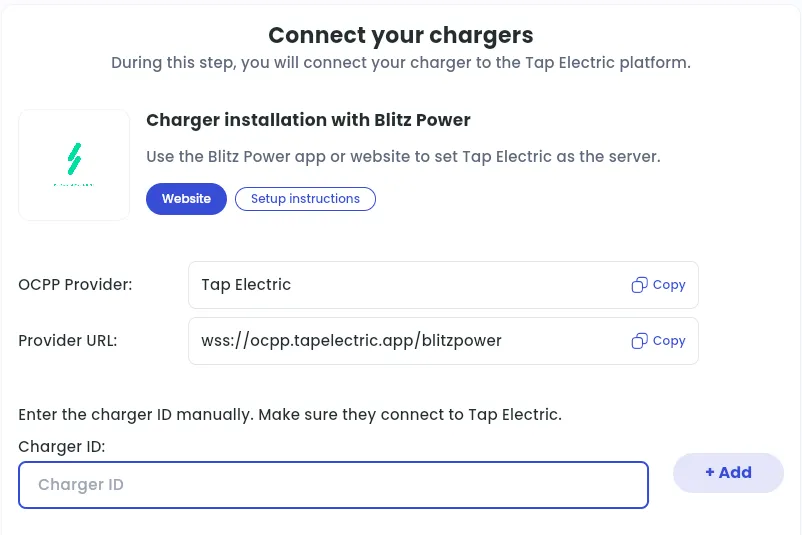
After a minute, the charger shows up and you can set its location.
Set the location
Section titled “Set the location”- Under Where is the charger?, choose New location and enter the address, or pick an Existing location.
- On You’re all set, choose what to do next, or tap Go to my location.
- Click Continue, then complete the Set location and Location settings steps.
Plug & Charge mode
Section titled “Plug & Charge mode”To let drivers charge without authorising on a Blitz Power charger:
- Open Advanced charger configuration in Tap Web (see How can I configure my charger settings?).
- Enter your charge card’s UID in the FreeMode field.