
How does Tap invoice me as a charger owner?
Last updated:
What’s on your invoice
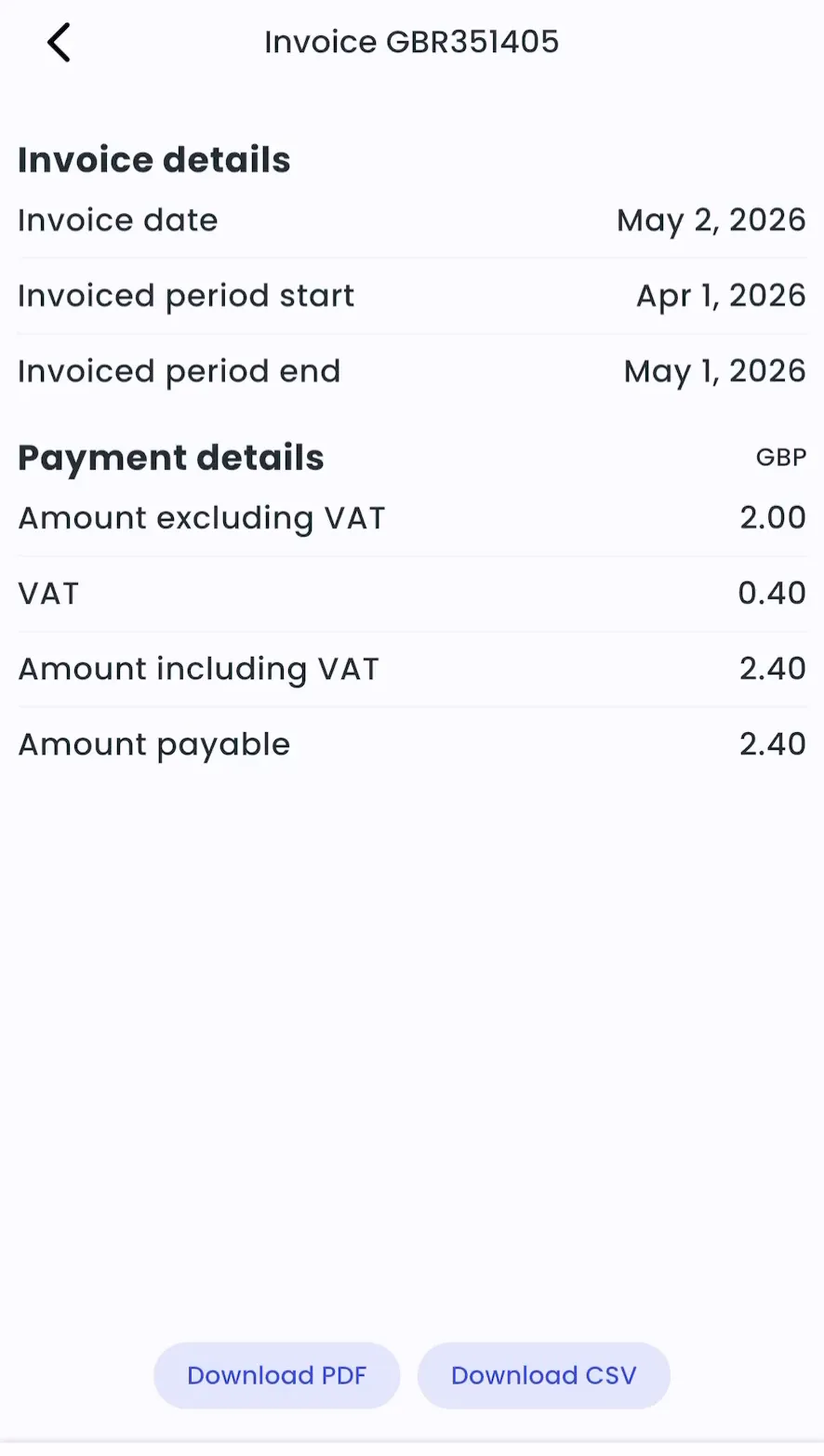
Section titled “What’s on your invoice”Each month we send a self-billing invoice for all charge sessions at your locations in the previous calendar month. It shows:
- The invoice period.
- The amount paid out to you, including VAT.
- The amount paid out to you, excluding VAT.
- A list of sessions, with location, kWh and cost with and without VAT.
Invoices for Tap’s paid features, such as licences, are listed in the same place.
Find your invoices
Section titled “Find your invoices”Invoices are emailed to the addresses in your invoice settings. You can also open them in Tap.
-
With Manage selected at the top, go to Account > Invoices
-
Select an invoice to see its details.
-
Tap Download PDF or Download CSV.
Your driver invoices are in a different place: with Charge selected at the top, Account > Invoices.
- Click Invoices in the sidebar.
- Select an invoice to open it.
Can’t open an invoice? Ask an account administrator. They can open it in Tap or add your email to the invoice recipients.
Change where invoices are sent
Section titled “Change where invoices are sent”-
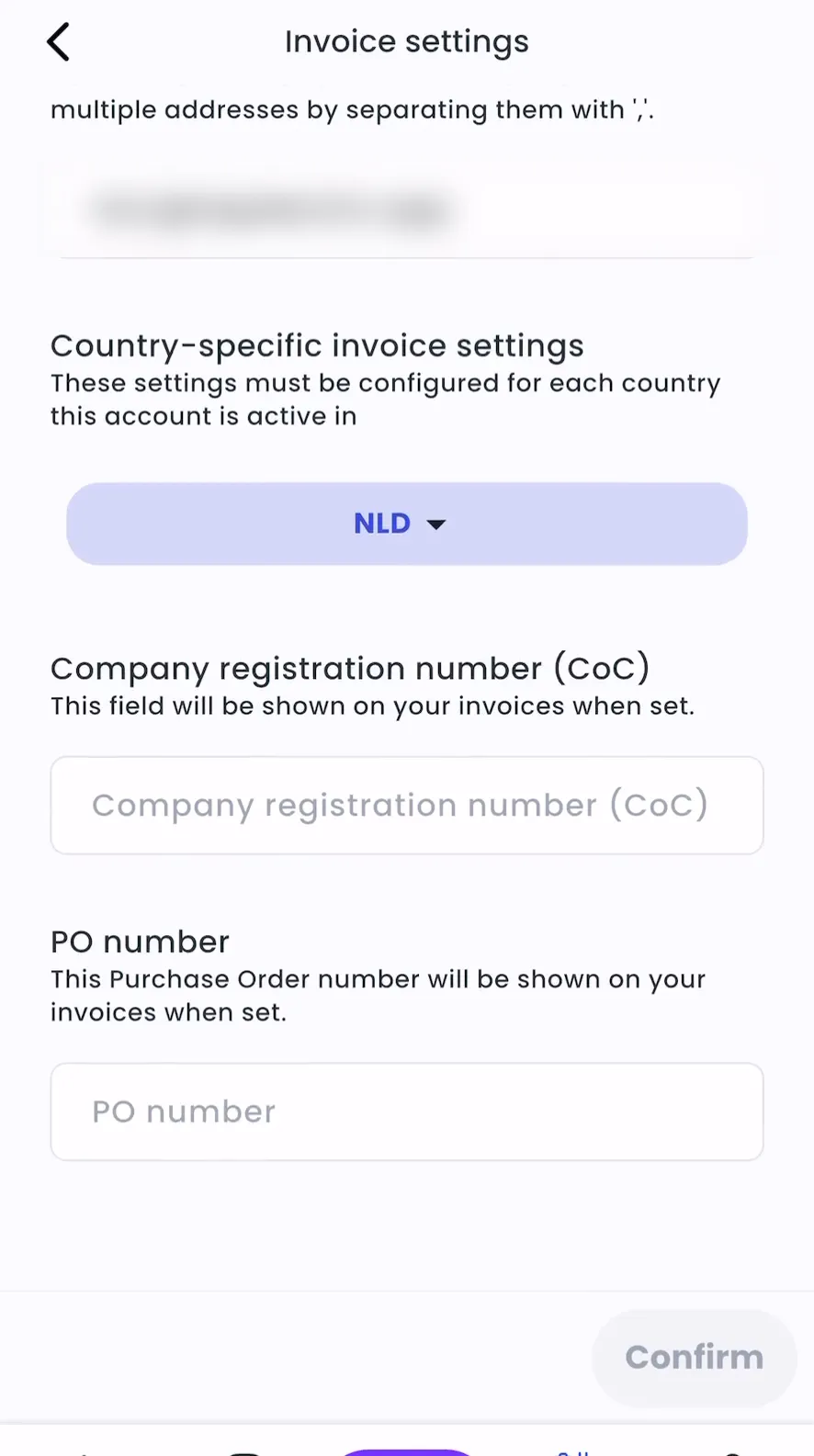
With Manage selected at the top, go to Account > Settings > Invoice settings
-
Enter the email address.
-
Tap Confirm.
-
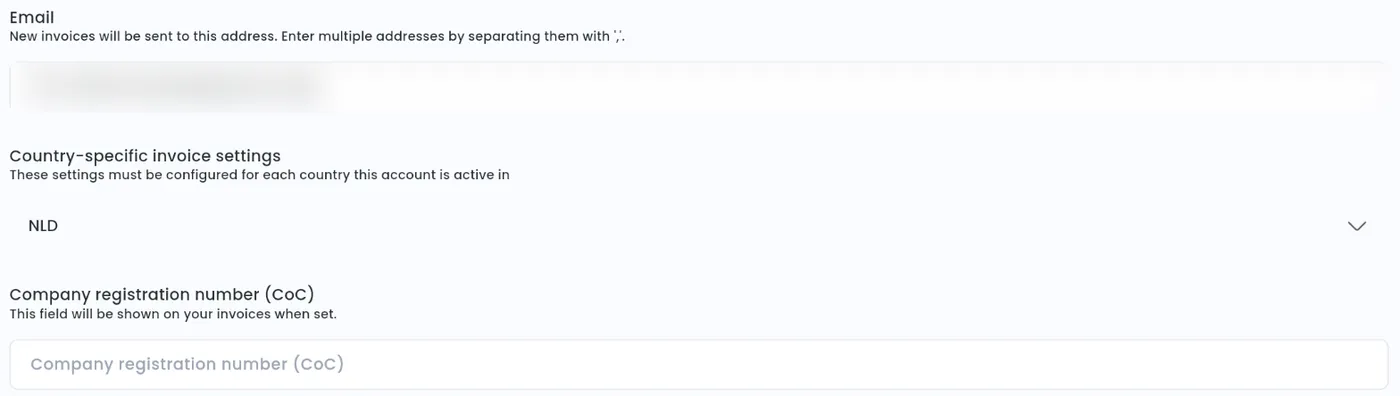
Account > Settings > Invoicing > Manage
-
Enter the email address.
-
Click Confirm.
To send invoices to more than one address, separate them with “;”, e.g. [email protected];[email protected].
In the same settings you can add a Company registration number (CoC) and a PO number. Both are shown on your invoices. If you operate in more than one country, set them for each country under Country-specific invoice settings.