
How do I set tariffs for my charger location or individual chargers?
Last updated:
How tariffs work
Section titled “How tariffs work”- Every location needs a base tariff. It applies to every driver, unless a What is a Driver Group and how can I use it to customise access and tariffs? tariff applies.
- You set the base tariff excluding VAT. VAT follows your What are Tax Settings and how do they affect my invoices?.
- The base tariff determines your payout. Drivers may pay more or less than your tariff: Tap’s fees and VAT are added on top where applicable. The app and Tap Web show the range under What do drivers pay?.
- If an installer manages your account, they may apply a Service Plan to it, which sets what your installer earns. Whether it’s a revenue share or a fixed monthly or per-connector fee, the Service Plan charge is billed to you on your Tap account invoice, not taken from your payout.
- Most locations only need an energy tariff (price per kWh). For more, use the advanced options, time-of-use tariffs, Driver Group tariffs or preset tariffs below.
Tariff types (use one or combine them):
- Energy: a price per kWh.
- Flat fee (start fee): charged per session, whatever the energy or time.
- Time: a fee per hour while the car is plugged in but not charging (idle), or for the session’s duration.
Set your base tariff
Section titled “Set your base tariff”-
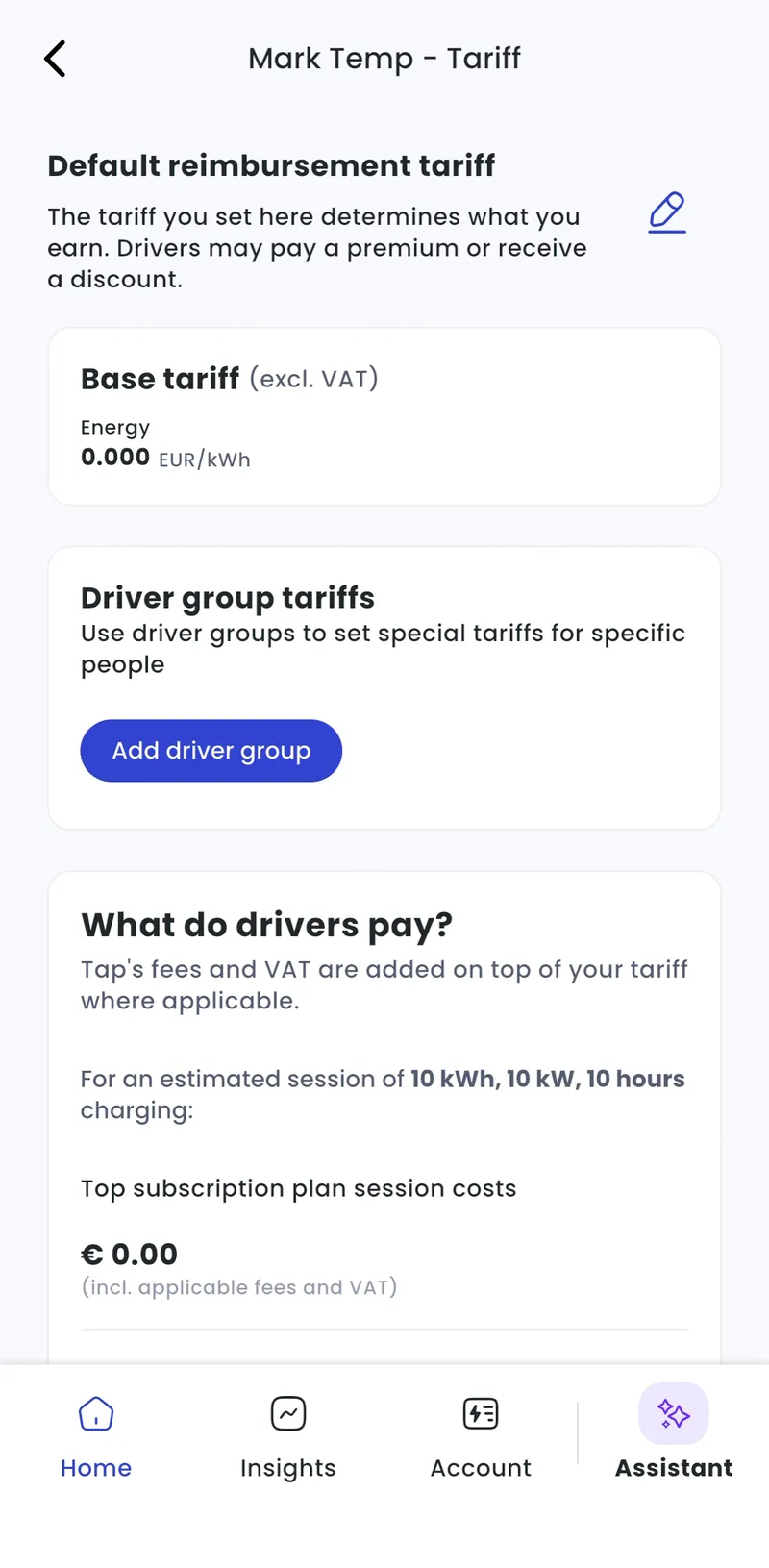
With Manage selected at the top, go to Home > [your location] > Tariff.
-
Tap the edit icon next to Default reimbursement tariff.
-
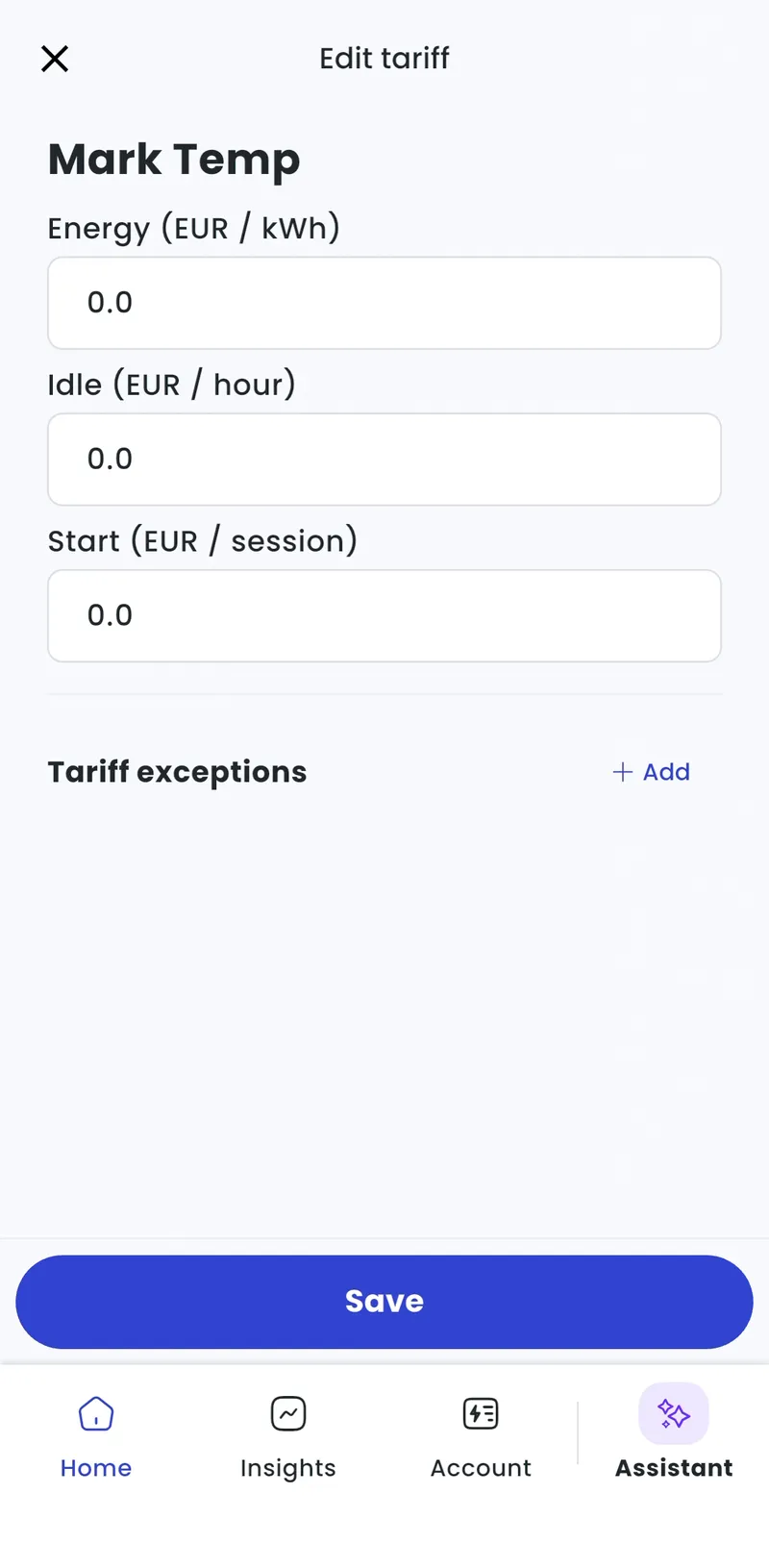
Enter the Energy price. Optionally add an Idle fee per hour and a Start fee per session.
-
Tap Save.
The app covers basic tariffs. Preset tariffs, charging-time fees and dynamic tariffs are on Tap Web.
-
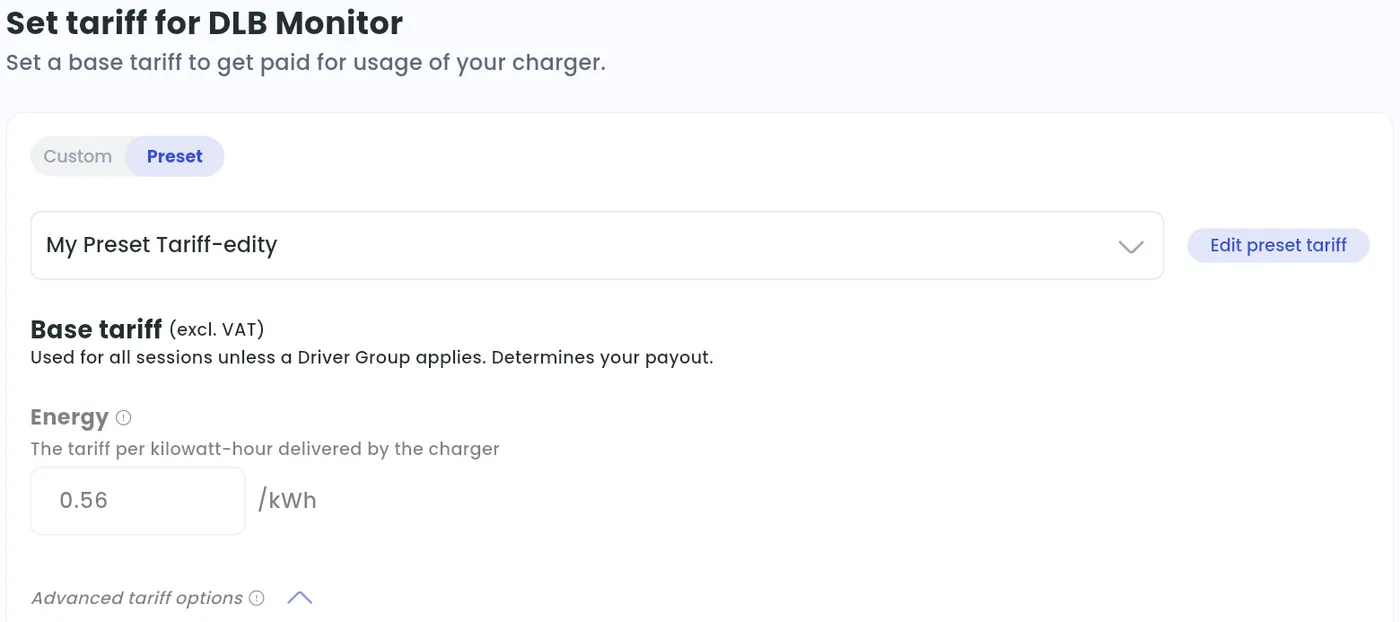
Locations > [your location] > Set tariff
-
Choose Custom.
-
Enter the Energy price per kWh.
-
Click Save.
Advanced tariff options
Section titled “Advanced tariff options”The app has the Idle and Start fees. Use Tap Web for the other options.
Open Advanced tariff options on the tariff page:
-
Flat fee: added to every session of at least 0.2 kWh or 2 minutes.
-
Time - when idle: a fee per hour while the session is active but the car isn’t charging. You set it per hour, but drivers pay for the exact time: €1 per hour for 15 idle minutes is €0.25.
- Min: how long the session has been running before the idle fee can start being billed. With Min at 60 minutes, idle time isn’t billed until 60 minutes after the session started, even if the car stopped charging earlier.
- Max: the latest point in the session, counted from when it started, after which idle time is no longer billed. With Max at 120 minutes, no idle time is billed once 120 minutes have passed since the session started, even if the car stays connected longer.
-
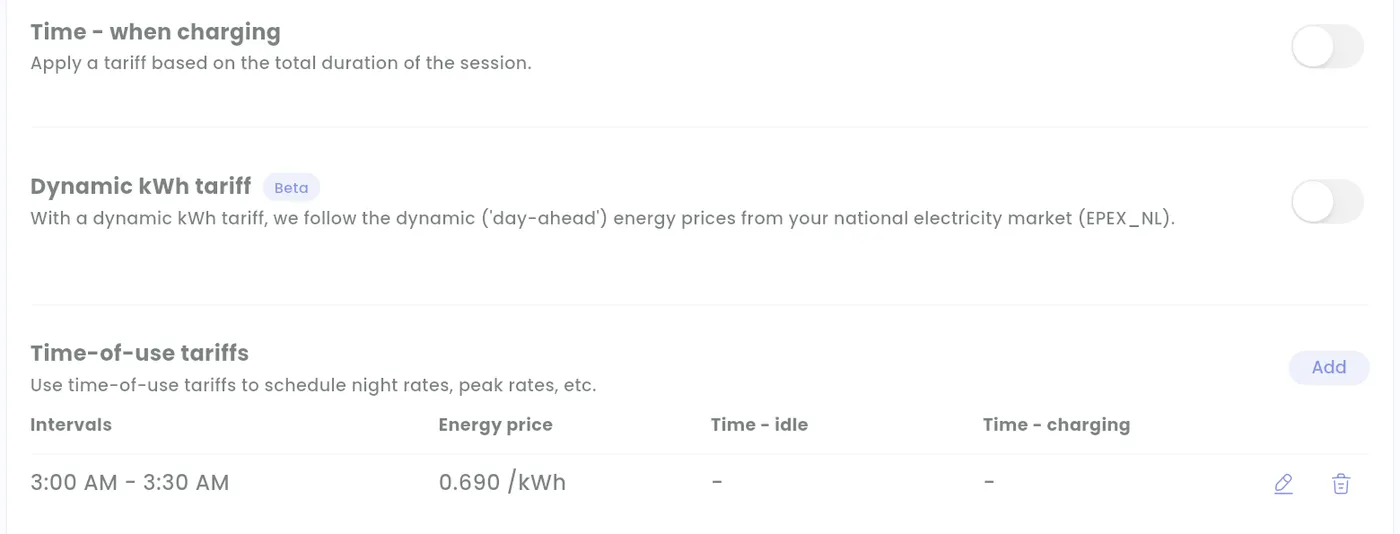
Time - when charging: a fee based on the total duration of the session.
-
Dynamic kWh tariff (Beta): the energy price follows the day-ahead prices on your national electricity market.
Time-of-use tariffs
Section titled “Time-of-use tariffs”Time-of-use tariffs change the price during the day, for example to pass on peak and off-peak rates from your energy contract. Keep them simple: drivers find simple tariffs easier to understand.
- On the Edit tariff screen, tap Add next to Tariff exceptions.
- Set the Interval start and Interval end and enter the prices.
- Tap Add, then Save.
- On the tariff page, click Add next to Time-of-use tariffs.
- Set the start and end time and enter the prices.
- Click Save.
To change an interval, click the pencil icon. To remove it, click the bin icon.
To check how a tariff looks to drivers, open the location in the Tap app and tap View as driver.
Set a Driver Group tariff
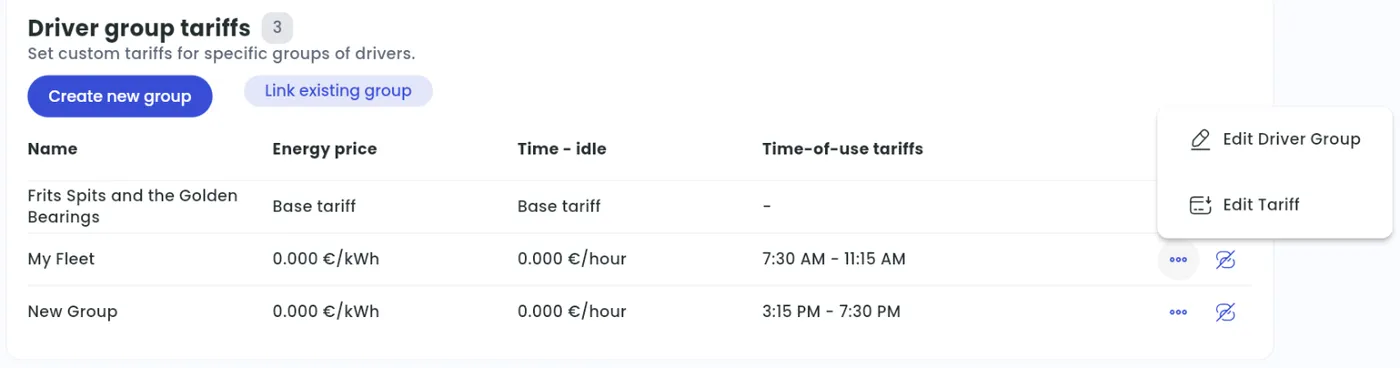
Section titled “Set a Driver Group tariff”A Driver Group can have its own tariff at a location.
- With Manage selected at the top, go to Home > [your location] > Tariff.
- Under Driver group tariffs, tap Add driver group and choose the group.
- To change the group’s tariff later, tap … next to the group.
-
Locations > [your location] > Set tariff
-
Under Driver group tariffs, click Add driver group and choose an Existing group or a New group.
-
Under What do they pay?, choose Free, Base tariff or Custom price. To change it later, click … next to the group, then Edit price.
-
Click Save.
Use preset tariffs
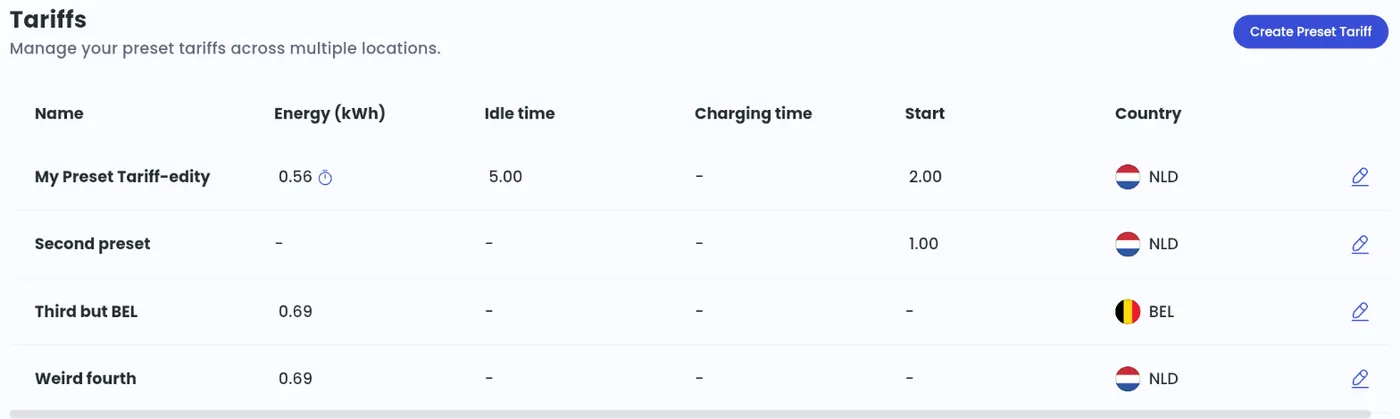
Section titled “Use preset tariffs”A preset tariff is one tariff you manage centrally and use at many locations. Changing it updates every location that uses it, instantly. You need the CPO Pro module on your account.
Preset tariffs aren’t available in the app. Use Tap Web.
-
Click Tariffs in the sidebar, then Create Preset Tariff.
-
Name it, e.g. “City X” or “A1”. Don’t put the price in the name: you may forget to rename it when the price changes.
-
Enter the tariff and click Save.
-
To use it, open Locations > [your location] > Set tariff, choose Preset, select the preset and click Save.
To change a preset, open Tariffs, click the pencil icon next to it, change the tariff and click Save.