
Alfen onboarding guide - Eve Install App
Last updated:
You need Alfen’s Eve Install app (download it from Alfen’s Eve Install page). It works with Alfen’s NG9 and AHP-based chargers and can set up several chargers at once. For older models or advanced settings, use Alfen onboarding guide - ACE Service Installer. Add the chargers to your own Individual or Organisation Account. Installers: switch into your customer’s account first.
Set Tap as the backoffice in Eve Install
Section titled “Set Tap as the backoffice in Eve Install”-
Sign in to the Eve Install app.
-
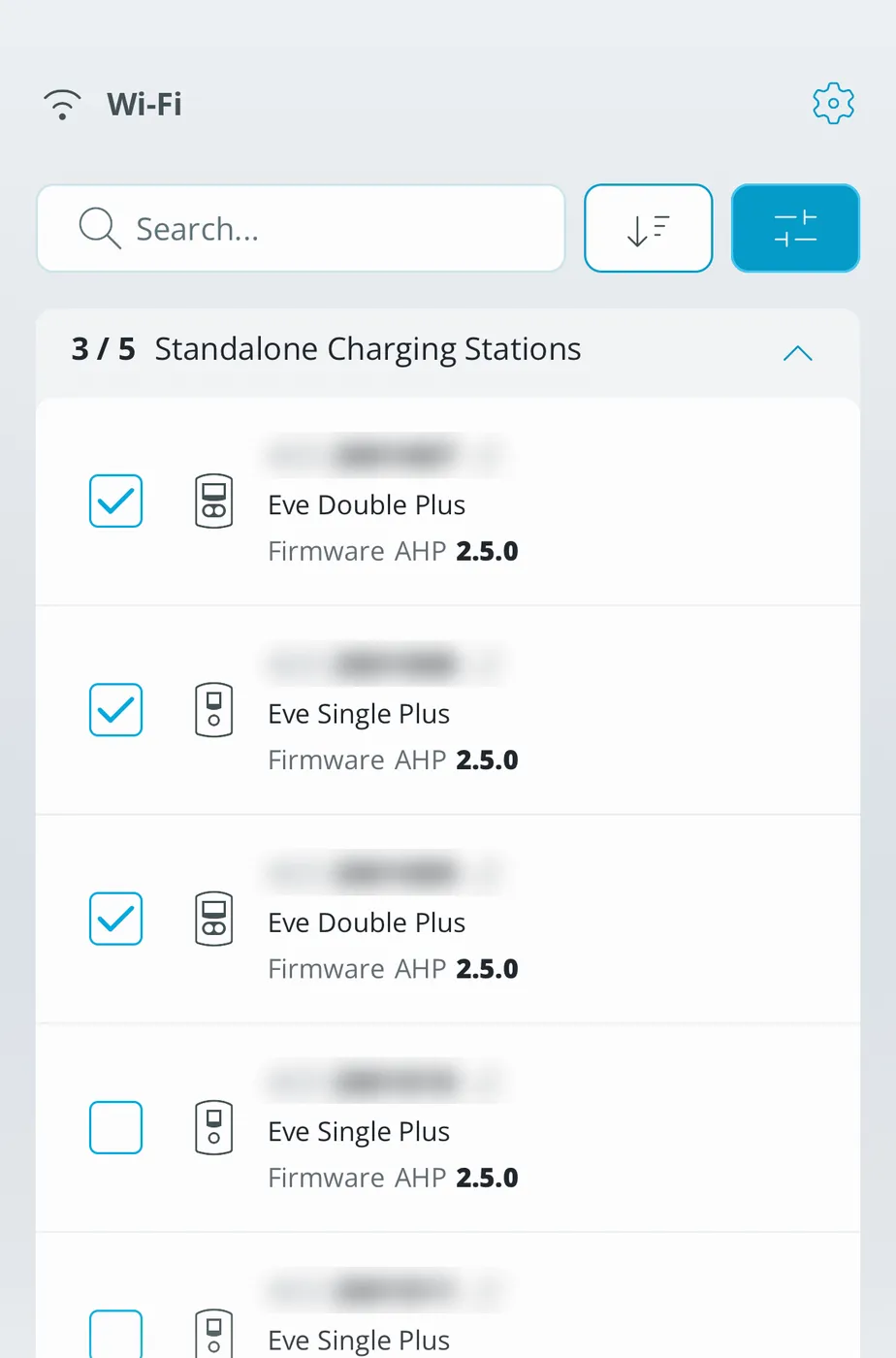
In the home overview, select the chargers you want to connect.
-
Select the type of location.
-
Set the maximum charging current.
-
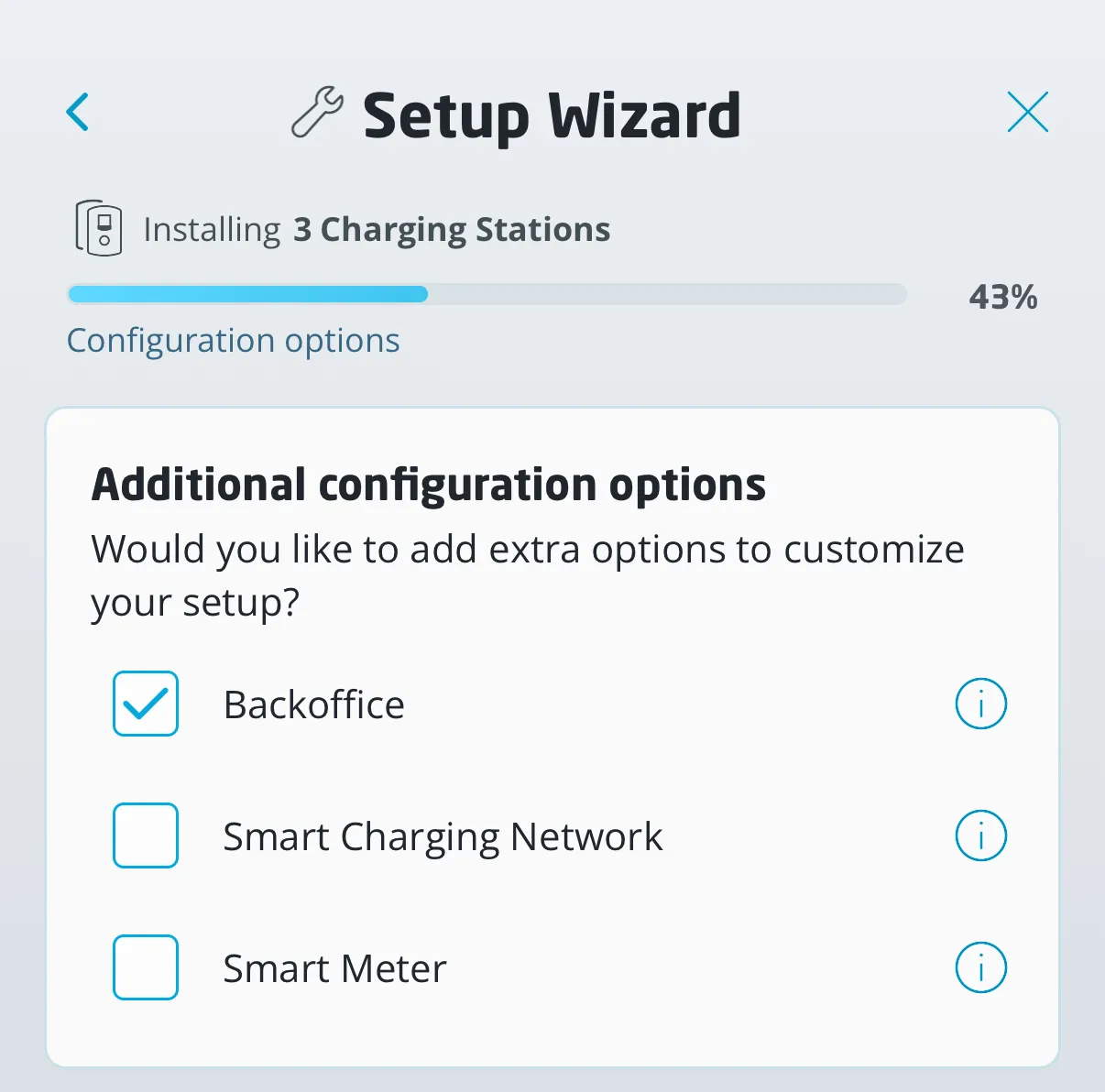
Under Additional configuration options, select Backoffice.
-
Under Operation mode, select Backoffice.
-
Under Backoffice presets, search for Tap Electric and select it.
-
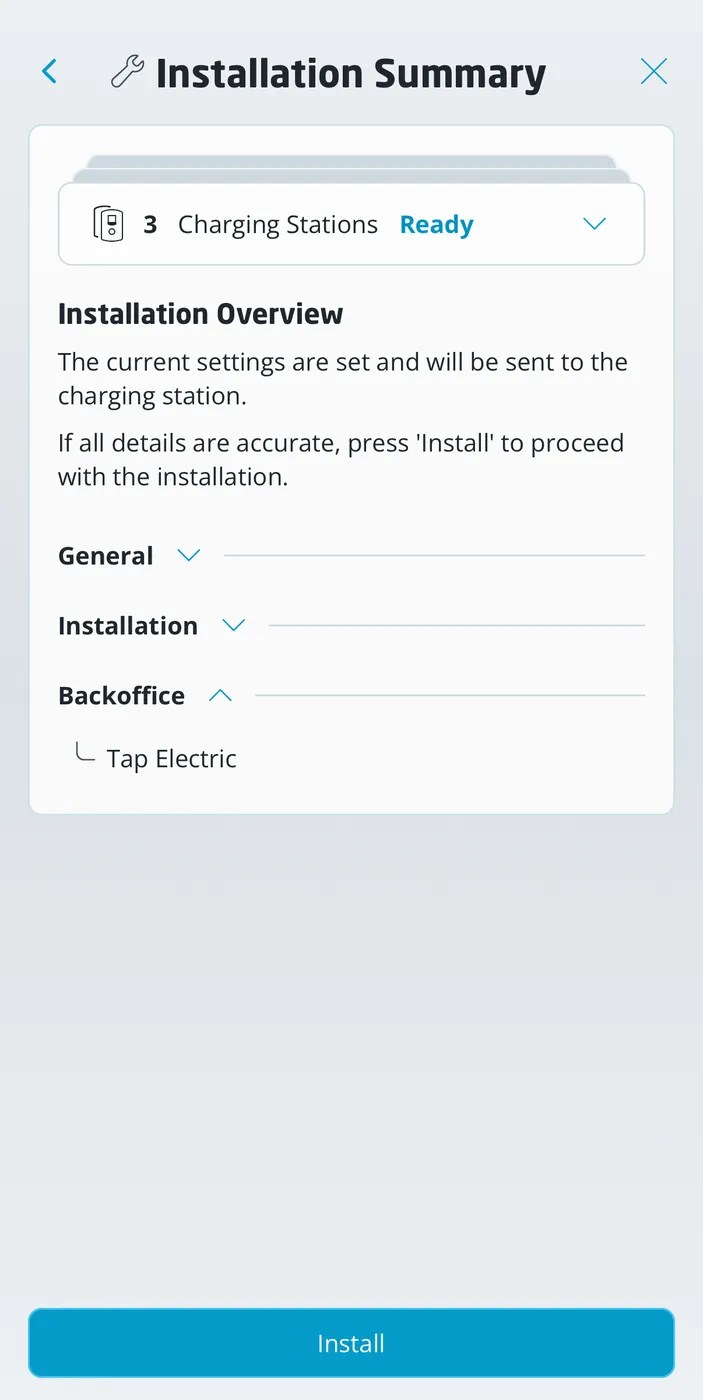
Check the Installation Summary and tap Install.
Add the chargers in Tap
Section titled “Add the chargers in Tap”-
With Manage selected at the top, open your location on the Home tab, tap Chargers, then Connect new chargers. For a new location, tap + below your locations on the Home tab.
-
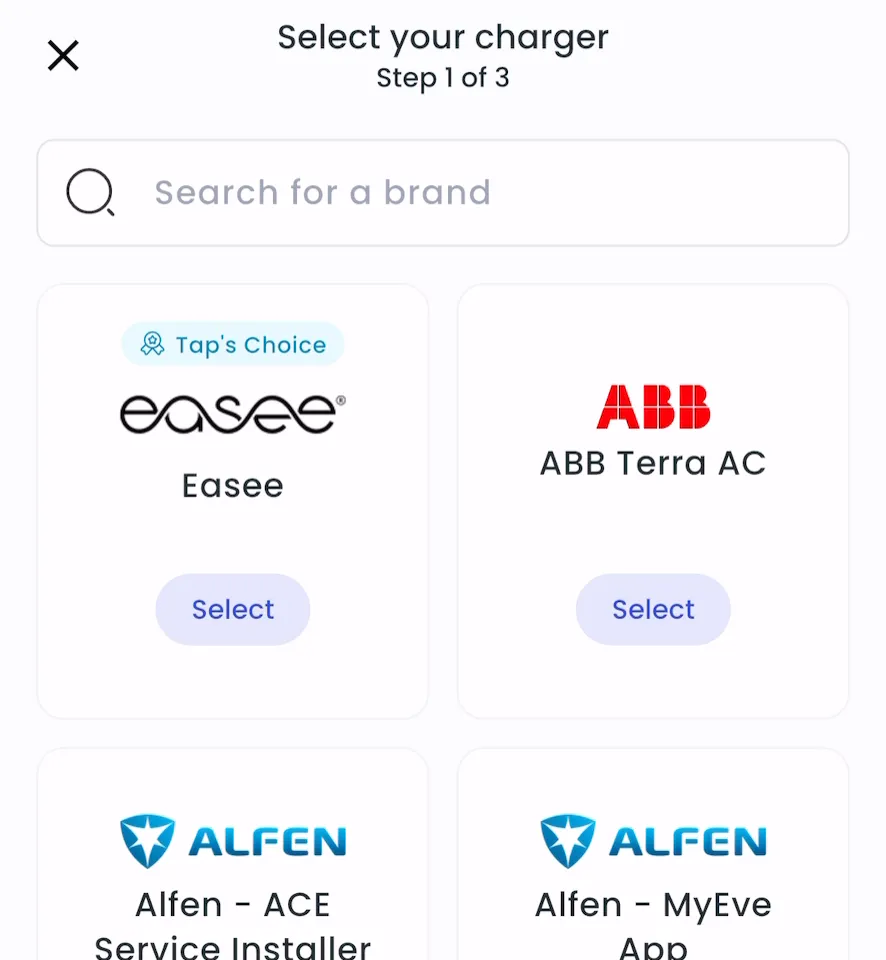
Search for Alfen Eve Install and tap Select.
-
Check that the backoffice preset is Tap Electric and tap Done.
-
Restart the charger if you haven’t yet.
-
Locations > Connect new chargers, or click Connect new chargers on a location page.
-
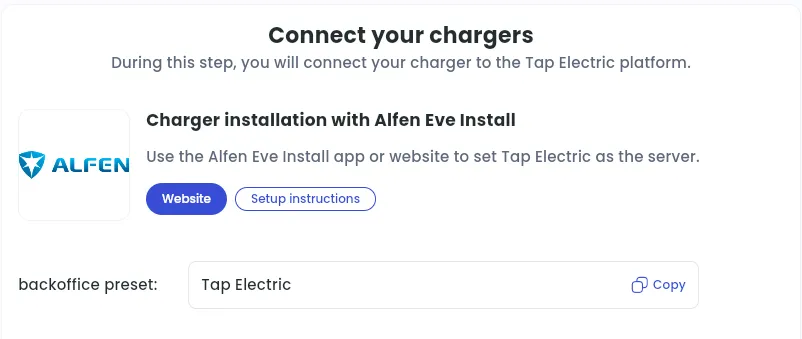
Under Choose your charger brand, search for Alfen Eve Install and click it.
-
Check that the backoffice preset is Tap Electric.
After a minute, the chargers appear in Tap. You don’t need to enter a charger ID.
Set the location
Section titled “Set the location”- Under Where is the charger?, choose New location and enter the address, or pick an Existing location.
- On You’re all set, choose what to do next, or tap Go to my location.
- Under Your chargers, check that the chargers are listed, then click Continue.
- Complete the Set location and Location settings steps.