
How do I set up my location access and visibility?
Last updated:
Access sets who can charge at your location. Display sets who can find it on the map. They are separate settings.
Open your location access settings
Section titled “Open your location access settings”-
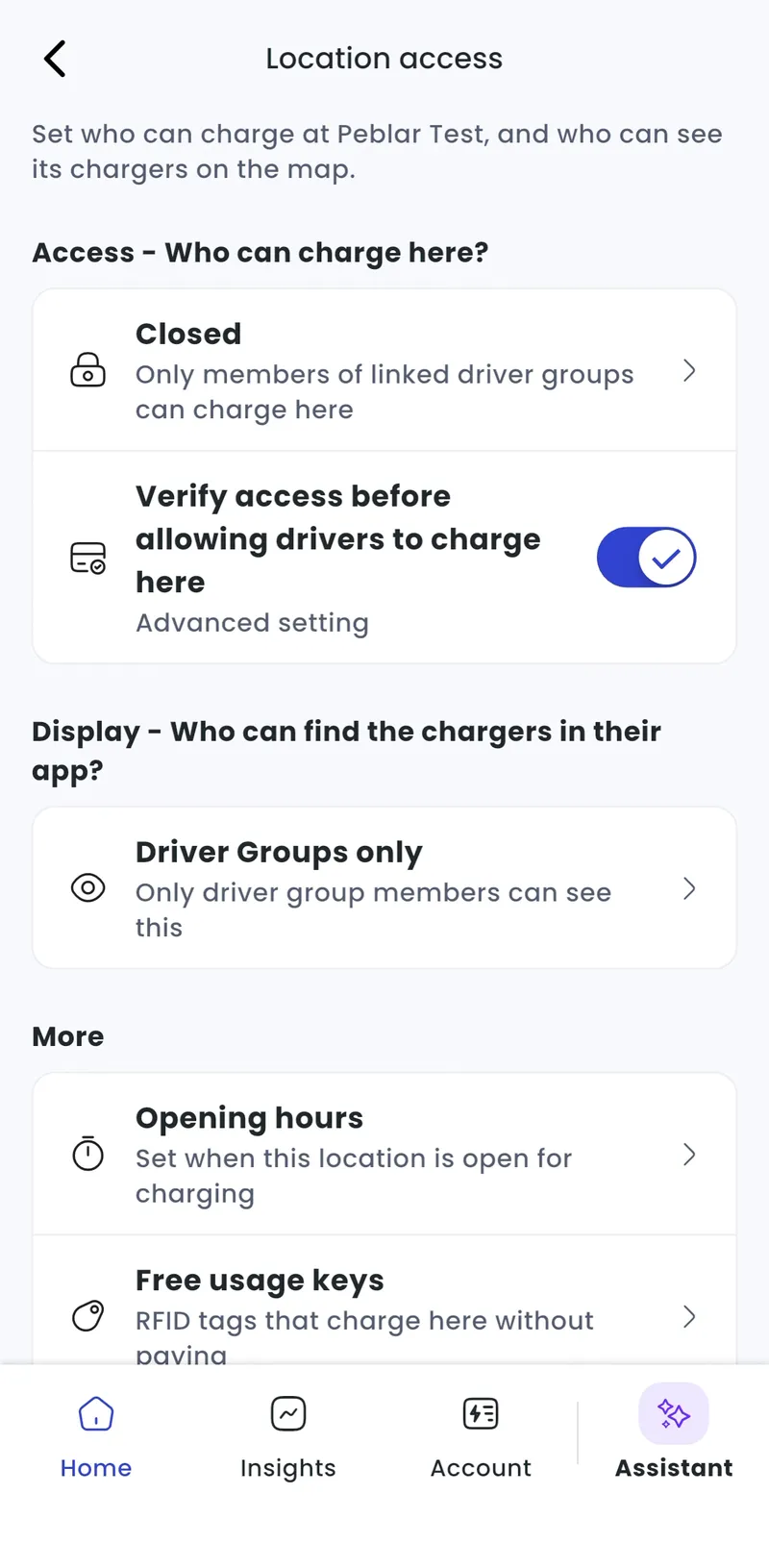
With Manage selected at the top, go to Home > [your location] > Location access.
-
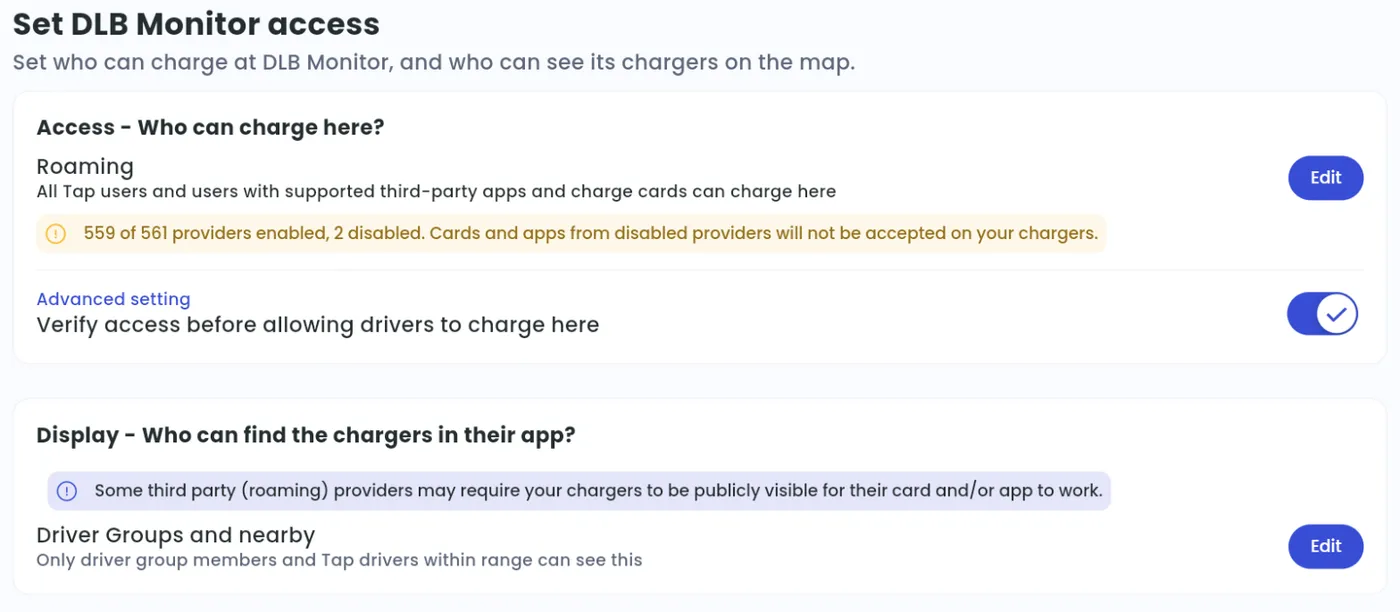
Locations > [your location] > Set access
Choose who can charge here
Section titled “Choose who can charge here”-
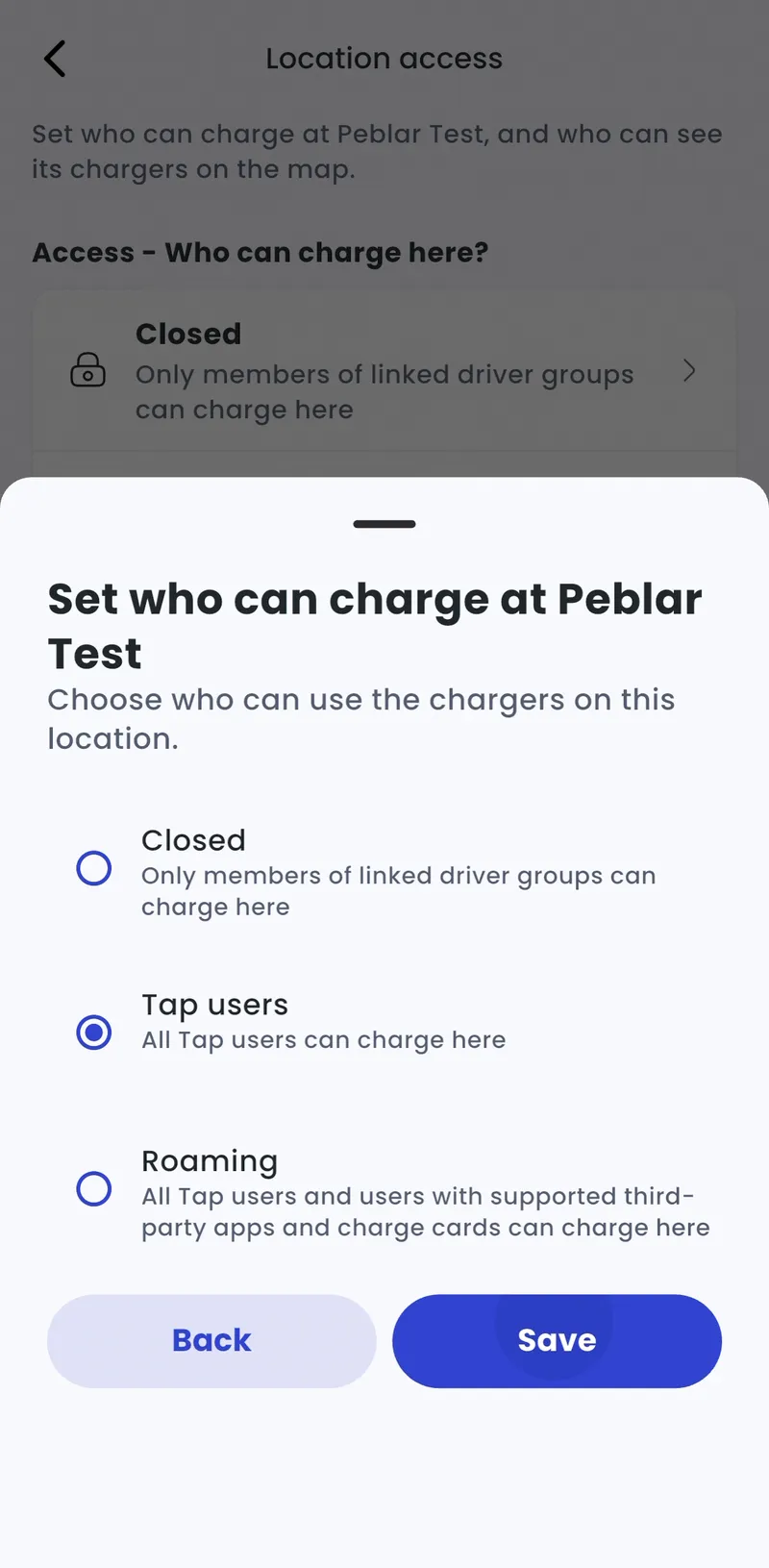
Under Access – Who can charge here?, tap the current setting.
-
Choose an option and tap Save.
-
Under Access – Who can charge here?, click Edit.
-
Choose an option and click Save.
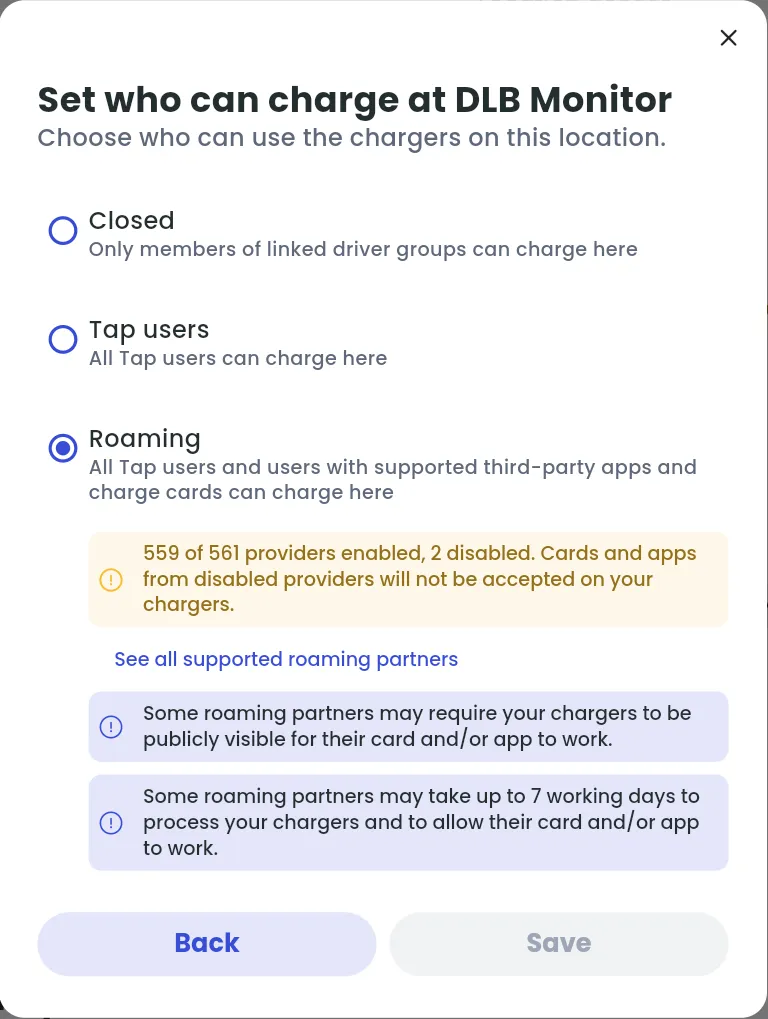
- Closed: only members of linked What is a Driver Group and how can I use it to customise access and tariffs? can charge here. Link groups under Connected Driver Groups.
- Tap users: anyone with the Tap app or a Tap Tag can charge here.
- Roaming: Tap users, plus drivers with supported third-party apps and charge cards (see Which roaming charge cards and apps are integrated with Tap?).
A charger’s own access settings override the location’s.
Verify access before allowing drivers to charge here (under Advanced setting) checks every session against these access settings. Keep it on.
Choose who can find your chargers
Section titled “Choose who can find your chargers”-
Under Display – Who can find the chargers in their app?, tap the current setting.
-
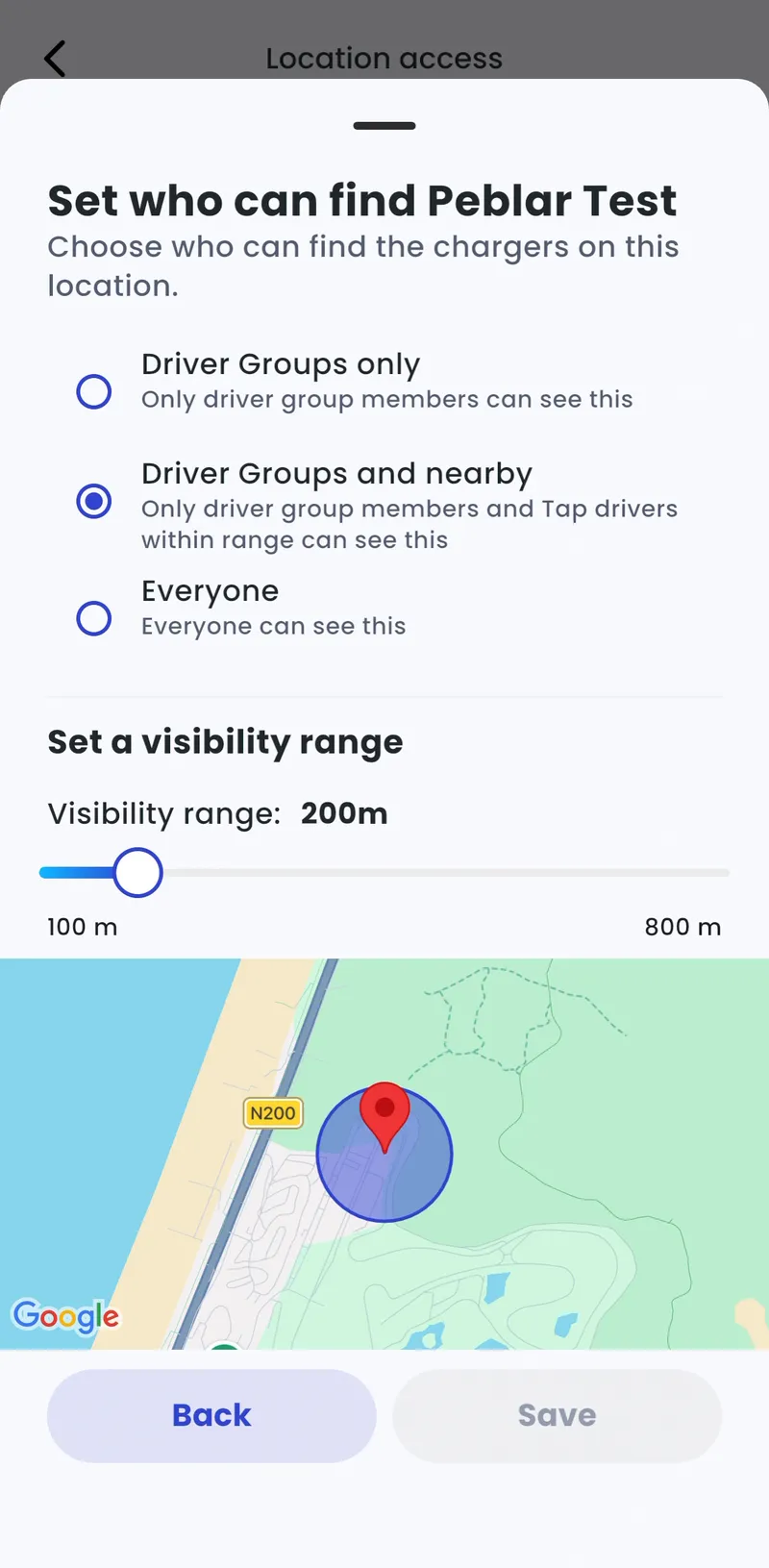
Choose an option. For Driver Groups and nearby, set the Visibility range. Tap Save.
-
Under Display – Who can find the chargers in their app?, click Edit.
-
Choose an option and click Save.
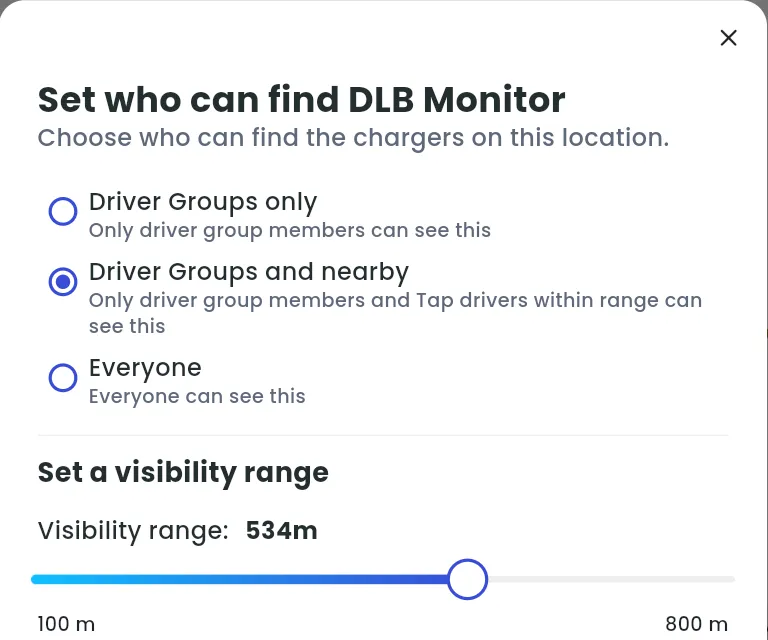
- Driver Groups only: only linked Driver Group members see the location.
- Driver Groups and nearby: Driver Group members, plus Tap drivers within range (200 m by default; set it between 100 and 800 m). Useful for holiday lets, homes, offices and customer-only parking.
- Everyone: everyone can see it. If access is set to Roaming, we also share the location with third-party maps and apps, such as Google and TomTom.
Set opening hours
Section titled “Set opening hours”Opening hours limit when some or all drivers can charge. For example, staff during the day and the public at night.
- Open Opening hours. Public access is 24/7 by default.
- Select Edit, switch off Open 24/7 and set your times. Use Add hours for more than one window per day.
- Choose whether drivers can start charging outside opening hours. This is off by default.
- Select Save.
To give a Driver Group different hours, select Edit next to the group.
Add free usage keys
Section titled “Add free usage keys”Free usage keys are RFID cards or keys that start a session for free, e.g. for maintenance staff or the charger manufacturer’s key.
- Under More, tap Free usage keys.
- Next to Free usage keys for this location, click Manage.
- Add the key’s UID (its unique ID). Enter it, or scan the key on the charger and pick it from Recently scanned.
- Enter a name. It’s shown on every session started with this key.
To add many keys at once, import them from a CSV file with one key per row, giving its UID and a name. In the app, with Manage selected at the top, go to Account > Free usage keys and tap Import CSV. On Tap Web, go to Admin > Account > Free usage keys and click Import CSV.
Start charging when a car is plugged in
Section titled “Start charging when a car is plugged in”Want chargers here to start a session as soon as a car is plugged in, without a card or the app? Turn on Start on plug-in on this location’s access settings page. See How do I start charging automatically when a car is plugged in?.