
How do I start charging automatically when a car is plugged in?
Last updated:
With Start on plug-in (also called plug and charge), a charger starts a session as soon as a car is plugged in, on a tag you choose. No card or app needed. It’s made for chargers only you, or people you trust, can reach, such as a home charger.
You can turn it on for a whole location, or for one charger.
Turn on Start on plug-in for a location
Section titled “Turn on Start on plug-in for a location”-
With Manage selected at the top, go to Home > [your location] > Location access.
-
Under More, tap Start on plug-in.
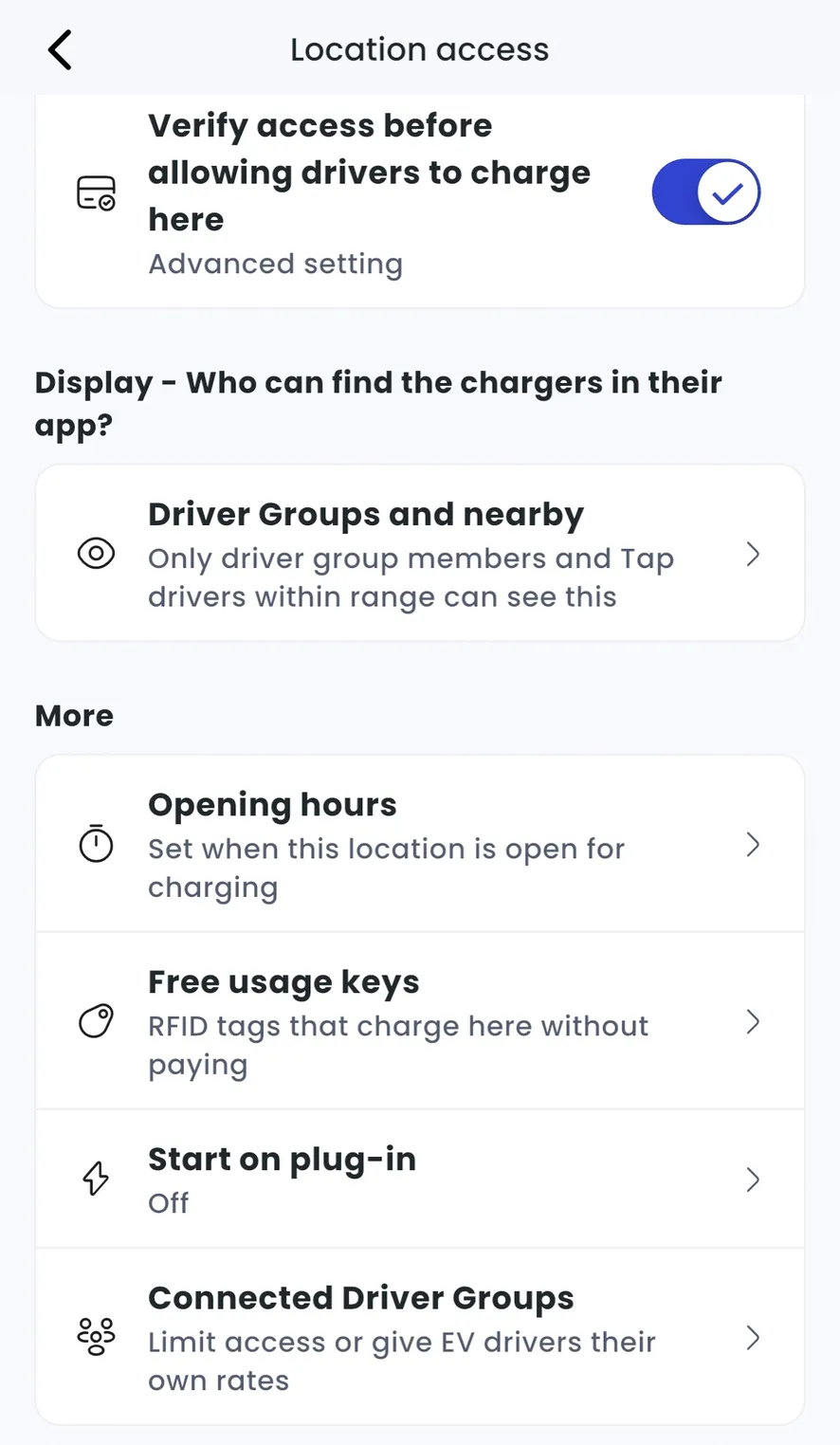
-
Locations > [your location] > Set access
-
Next to Start on plug-in, click Edit.
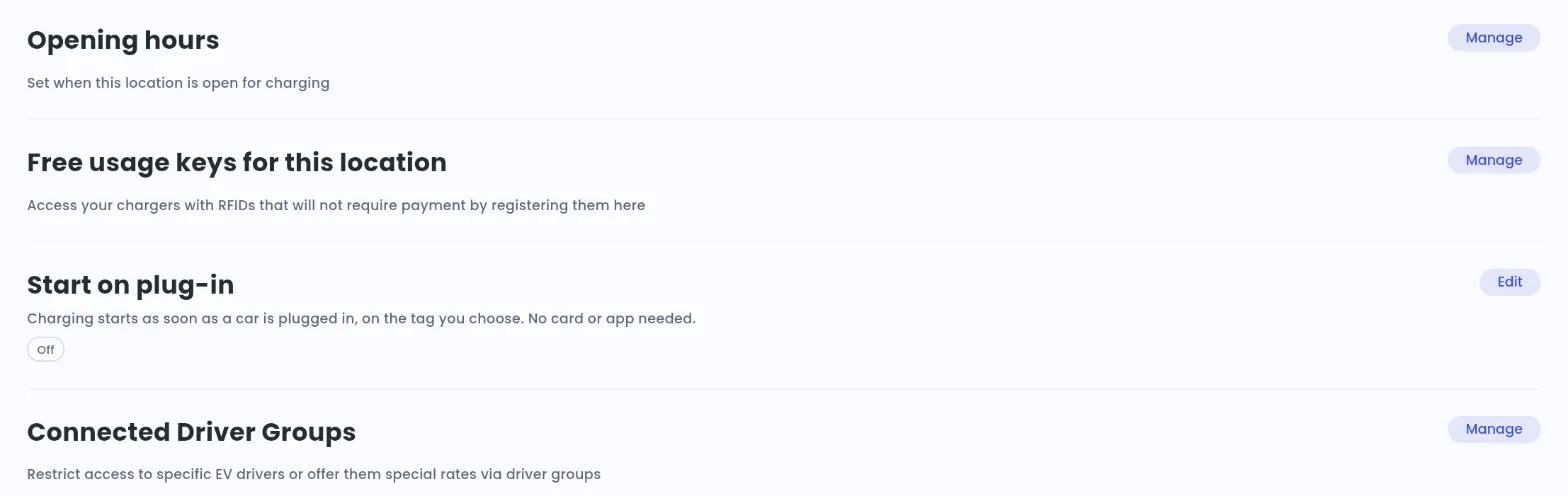
- Turn on Start charging on plug-in.
- Choose the tag to charge on (see below).
- Select Save.
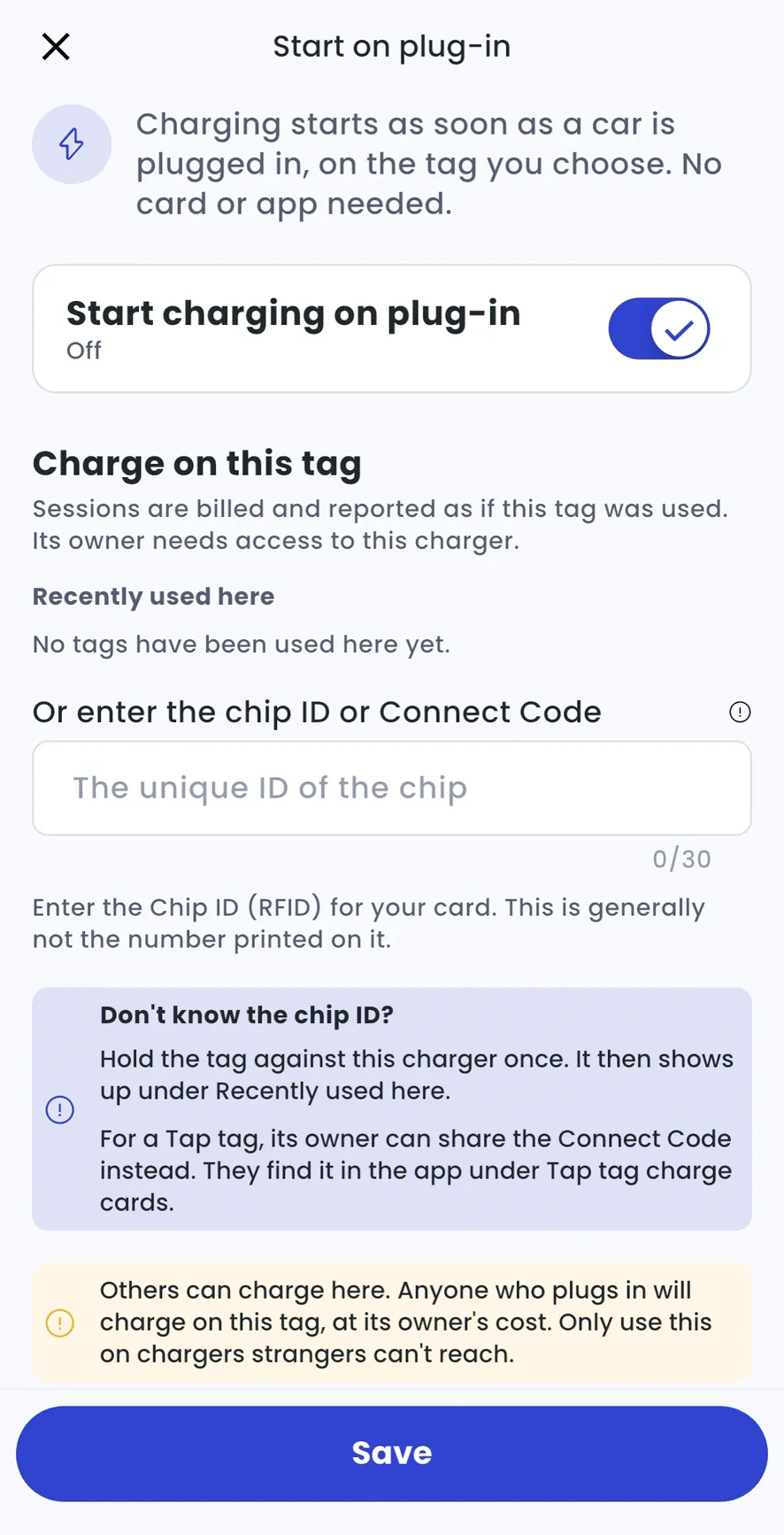
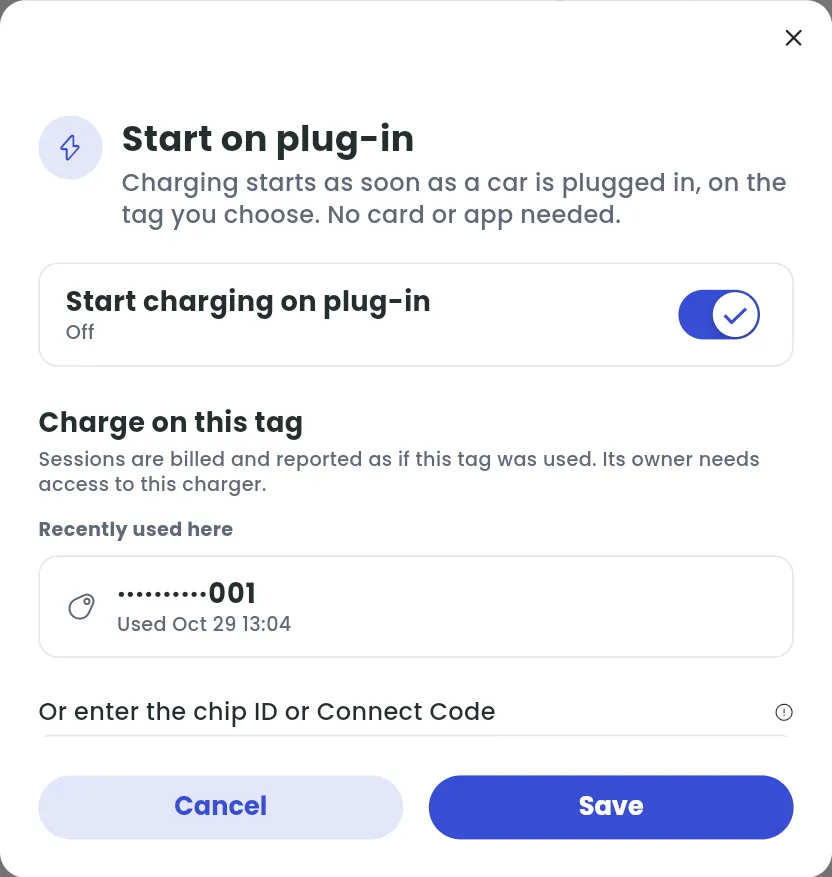
Every charger at the location now starts on plug-in, unless a charger has its own setting.
Set it for one charger
Section titled “Set it for one charger”- Home > [your location] > Chargers > [your charger] > Charger access
- Under More, tap Start on plug-in.
- Chargers > [your charger] > More actions > Charger access
- Next to Start on plug-in, click Edit.
Then choose:
- Same as location: the charger follows the location’s setting. To change it, go to the location’s access settings.
- This charger only: the charger has its own setting. Turn Start charging on plug-in on or off, choose a tag and select Save.
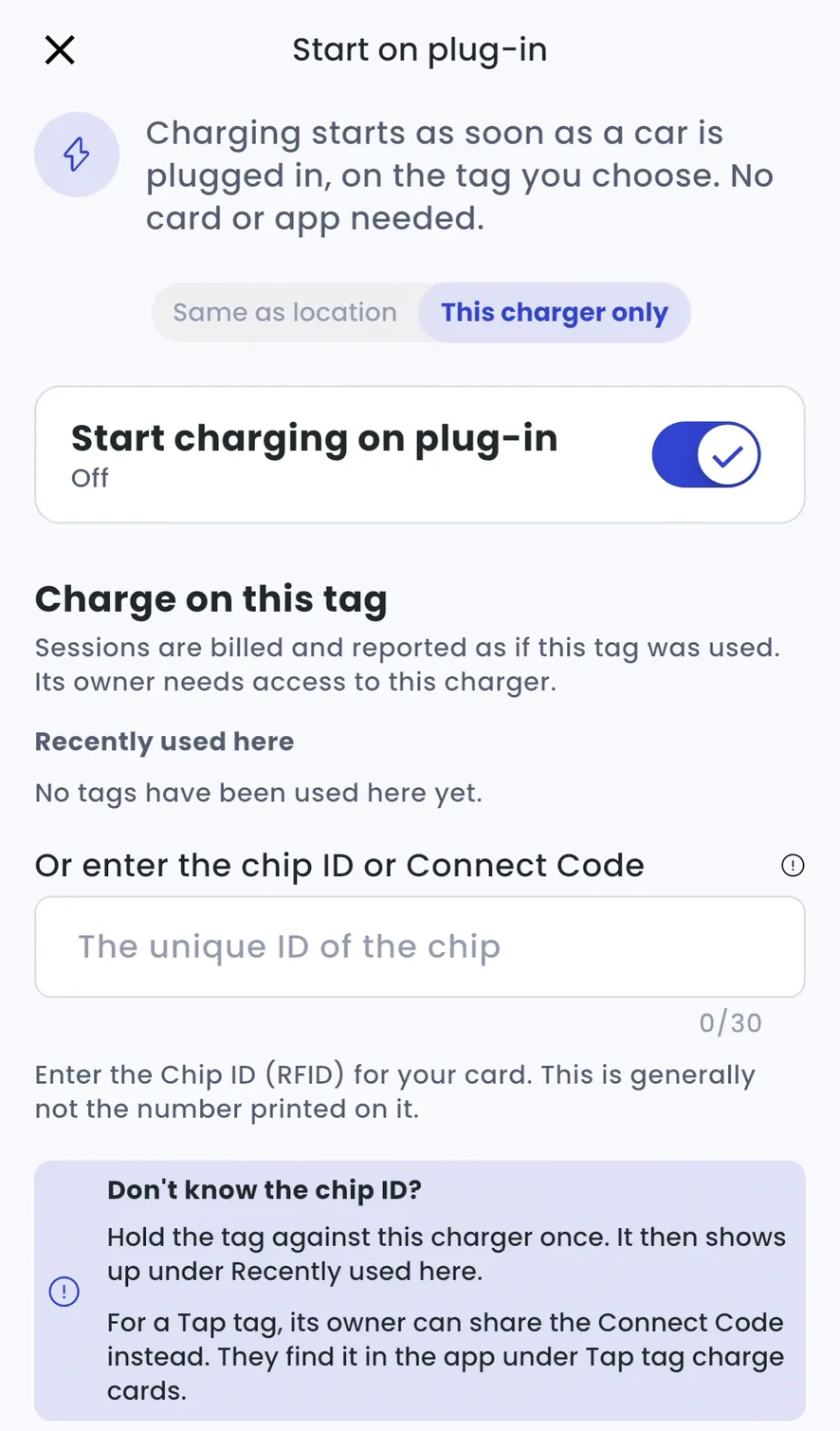
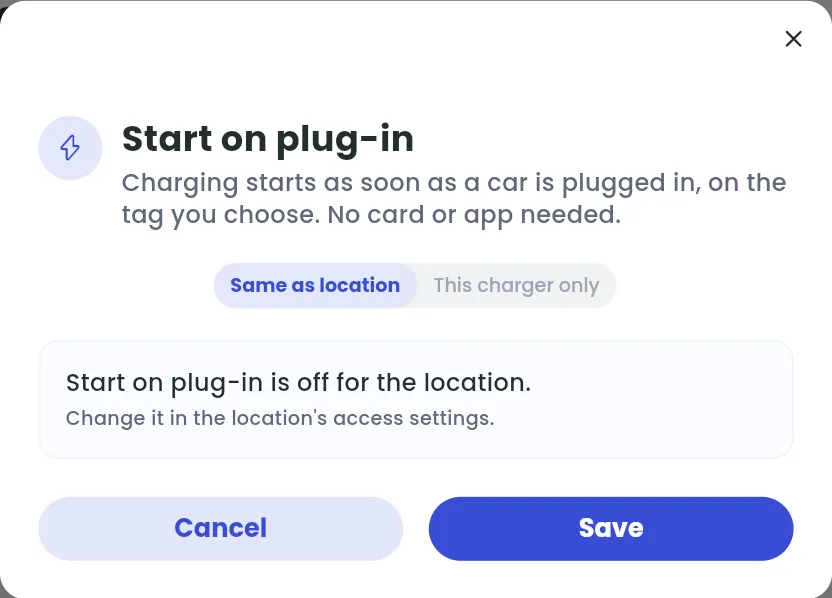
The Start on plug-in line shows the current setting, e.g. Same as location · Off or On · tag followed by the tag.
Choose the tag
Section titled “Choose the tag”Sessions are billed and reported as if this tag was used, so the tag’s owner needs access to the charger.
- Pick a tag under Recently used here, or
- Enter its chip ID or Connect Code under Or enter the chip ID or Connect Code.
The chip ID is the unique ID of the RFID chip. It’s usually not the number printed on the card.
Free or paid charging
Section titled “Free or paid charging”Start on plug-in doesn’t change your tariff. Each session is charged as if the chosen tag had been used at the charger:
- Free charging: choose a tag that charges here for free. That can be one of your free usage keys, a tag of a Driver Group member whose group has a free tariff at this location, or any tag if the location’s tariff is zero (see How do I set up my location access and visibility?).
- Paid charging: choose the driver’s own tag, such as their Tap Tag. They pay your tariff for every session, as if they had started it themselves (see How do I set tariffs for my charger location or individual chargers?).