
NexBlue onboarding guide
Last updated:
Before you start, check that:
- The charger is commissioned and registered in the NexBlue Partner app (installers) or the myNexBlue app (owners). NexBlue has an installation video and a Partner app video.
- The charger firmware is version 1.1.2 or later. Updates install automatically when the charger is online.
- The NexBlue Partner app is version 3.4.3 or later, or the myNexBlue app is version 3.3.8 or later.
- The charger has a strong Wi-Fi connection.
Add the charger to your own Individual or Organisation Account. Installers: switch into your customer’s account first.
Set Tap Electric as the operator in the NexBlue app
Section titled “Set Tap Electric as the operator in the NexBlue app”The steps are the same in the NexBlue Partner app and the myNexBlue app.
-
Open Locations and select the location with the charger. Installers setting up a new location: tap Start configuration or Add new location instead.
-
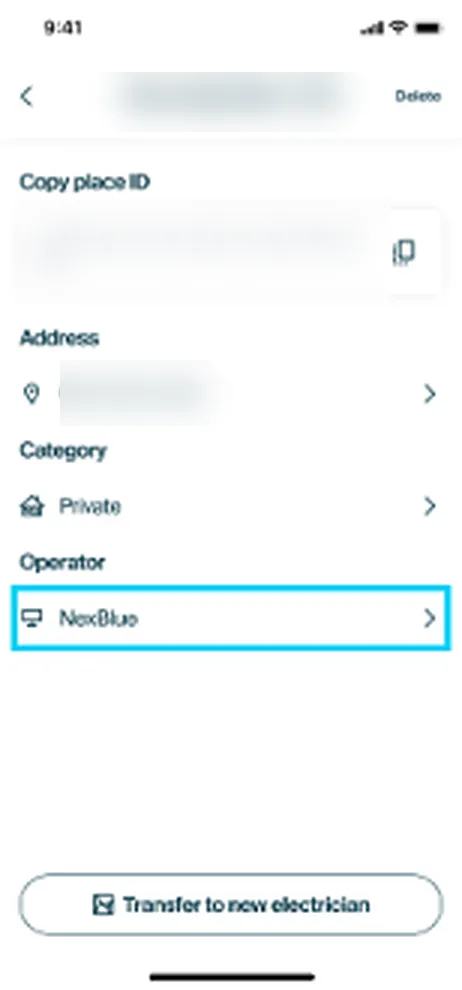
Tap Settings, then Operator.
-
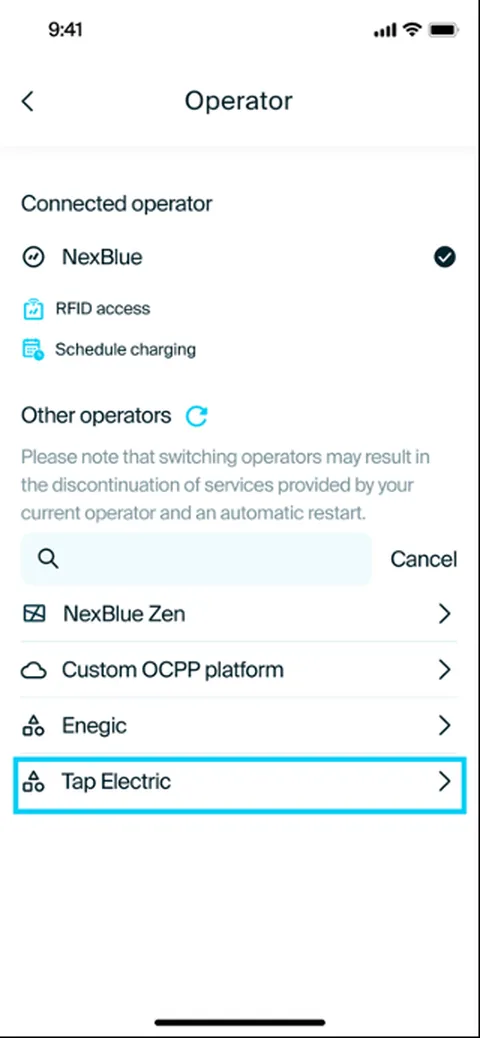
Select Tap Electric.
-
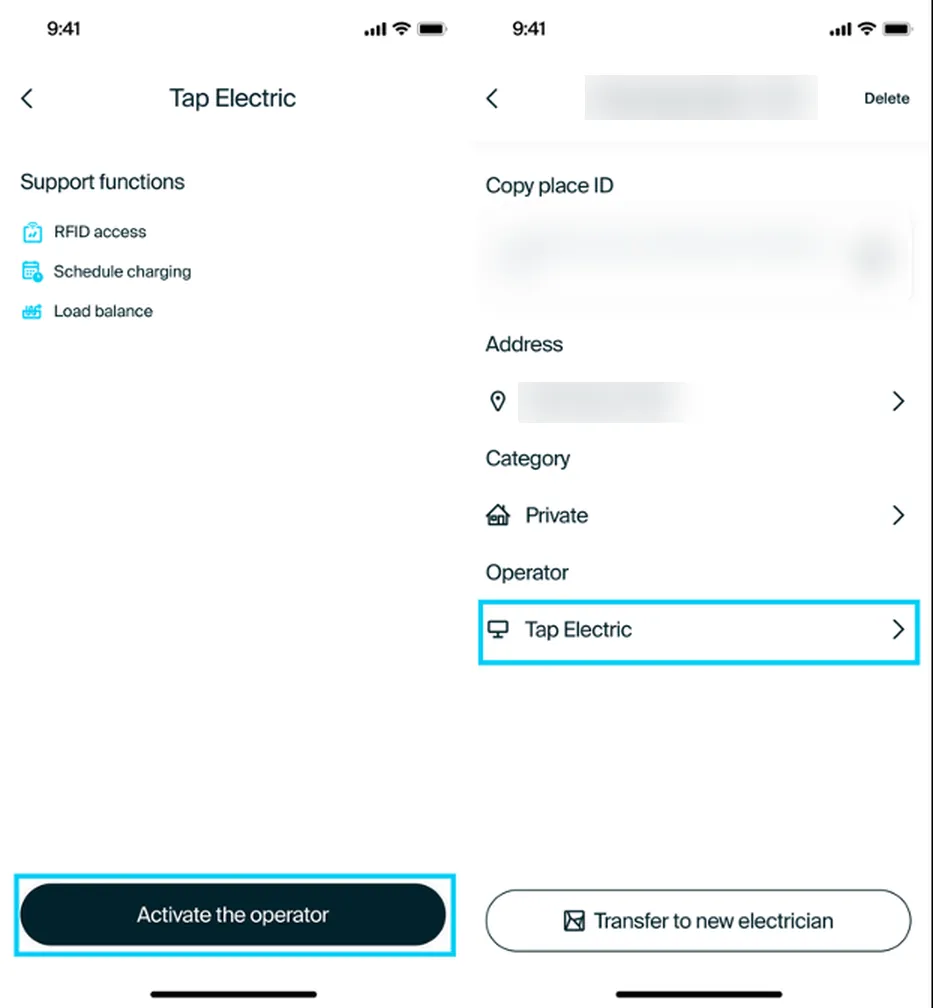
Tap Activate the operator. The location settings now show Tap Electric as the operator.
-
If a charger failed to configure, resolve the issue shown and retry.
-
Copy the charger’s serial number.
Add the charger in Tap
Section titled “Add the charger in Tap”-
With Manage selected at the top, open your location on the Home tab, tap Chargers, then Connect new chargers. For a new location, tap + below your locations on the Home tab.
-
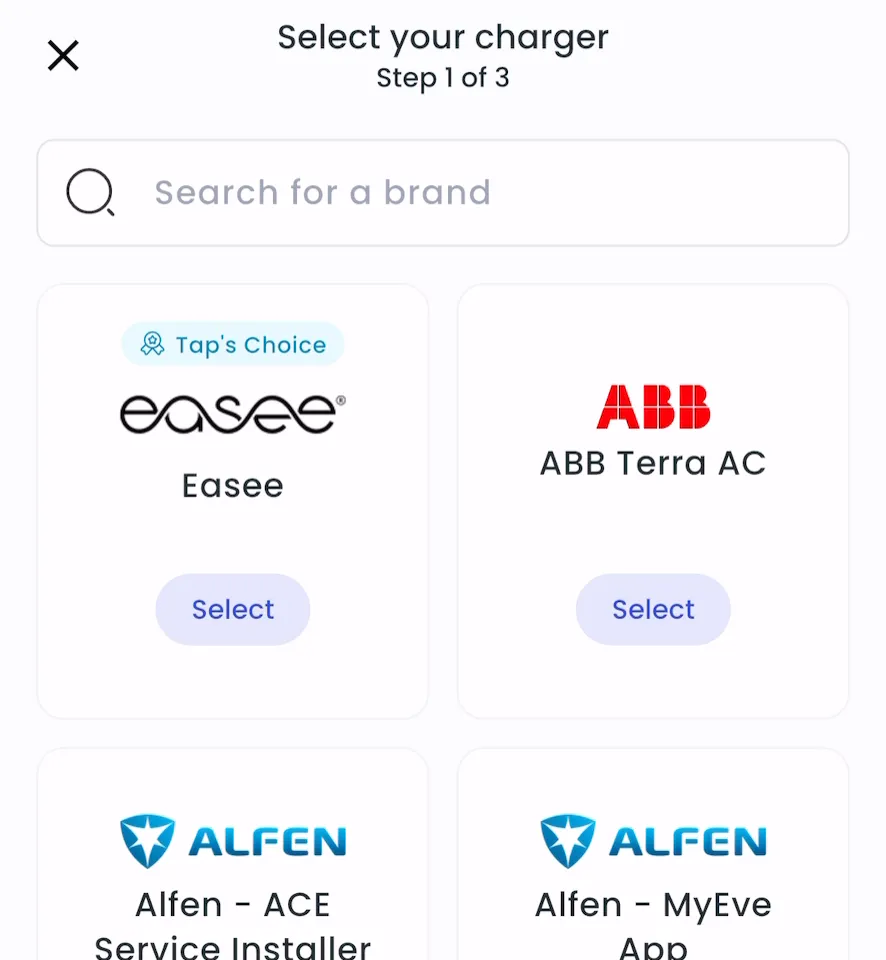
Search for NexBlue and tap Select.
-
Enter the serial number as the charger ID and tap Add.
-
Locations > Connect new chargers, or click Connect new chargers on a location page.
-
Under Choose your charger brand, search for Nexblue and click it.
-
Under Charger ID, enter the serial number and click + Add.
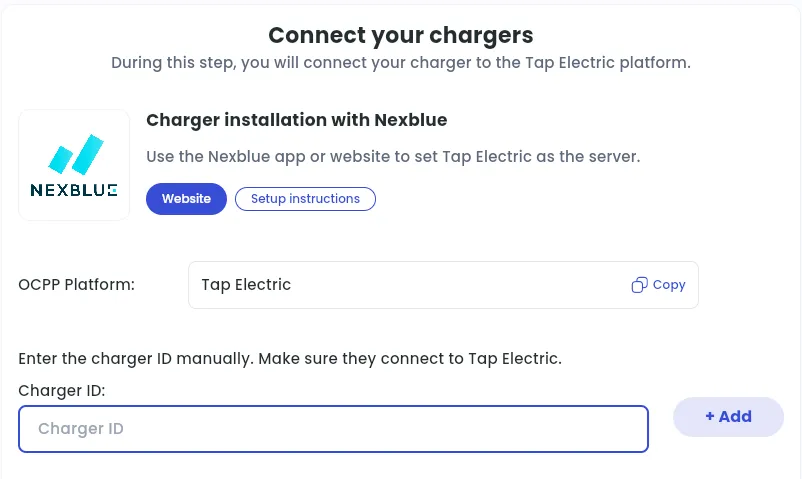
After a minute, the charger shows up and you can set its location.
Set the location
Section titled “Set the location”- Under Where is the charger?, choose New location and enter the address, or pick an Existing location.
- On You’re all set, choose what to do next, or tap Go to my location.
- Click Continue, then complete the Set location and Location settings steps.